
Change Orders in ConstructionOnline give you a documented, client-approved record of every change to a project's scope, cost, and timeline. Each change order captures the added cost details, conveniently routes to the client sign-off, and rolls up into a clear adjusted contract price.
The Guide to Getting Started with Change Orders walks through how to view and organize your change orders, collect client approvals, generate proposals and contracts, and set the defaults that keep the whole process consistent.

Viewing & Organizing Your Change Orders
Change Orders open to a complete picture of where your project's changes stand. An Adjusted Price & Duration summary across the top shows your Initial Contract Price plus Accepted Change Orders (your Adjusted Contract Price), your Project Duration plus Added Time (your Adjusted Duration), and the totals of Change Orders that are still pending or non-approved.
From here, you can add a new Change Order, search, filter—and choose the view that best fits how you want to work.
4 dynamic views give you flexible access to your Change Orders:
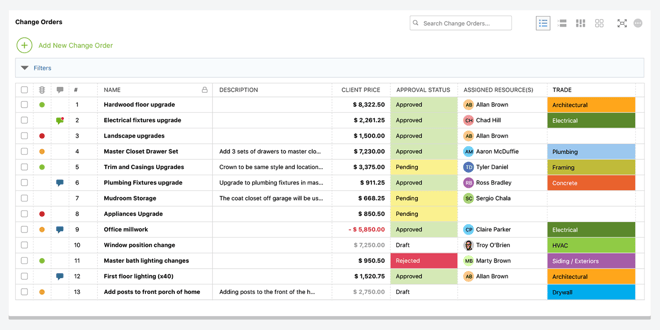
1. List View: A sortable, spreadsheet-style list, ordered by number by default. Click any column header to sort by that value, and right-click a header to show, hide, or reorder columns.
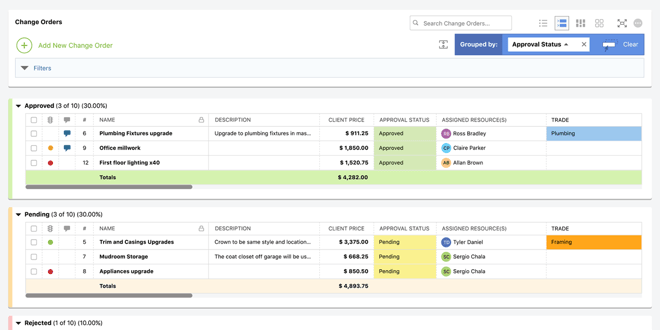
2. Group-By View: Group Change Orders by any columns—simply drag a column header into the grouping zone—and add multiple values to create sub-groups. Each group displays its own totals.
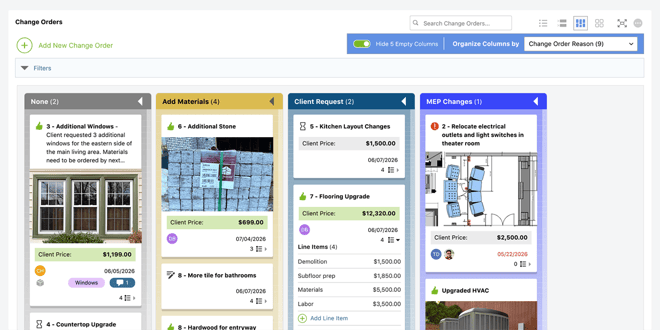
3. Board View: A drag-and-drop board organized by a value you choose, such as Change Order Reason. Drag a card from one column to another to update it, and choose what information each card shows.
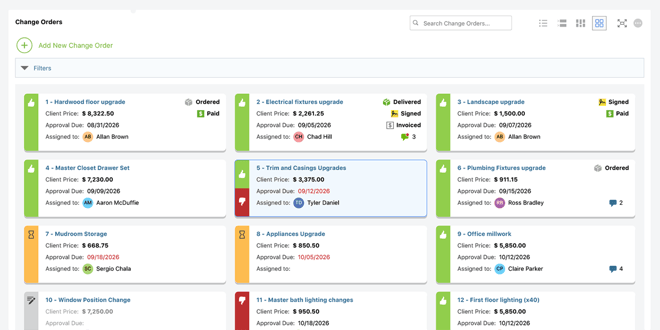
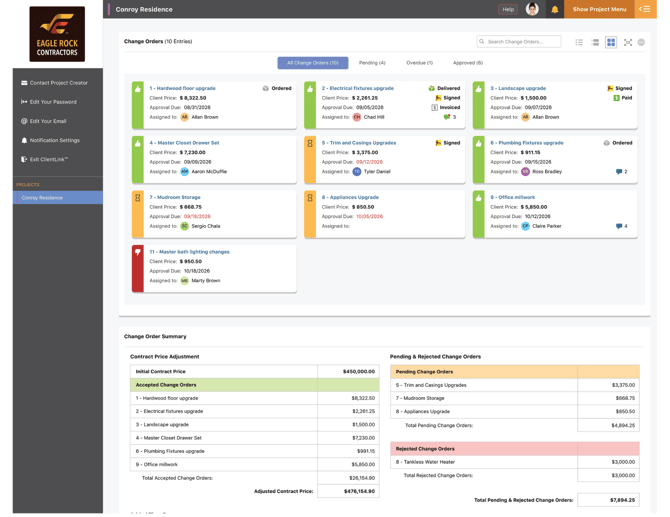
4. Card View: Scannable cards showing approval status, assigned resources, due dates, and client prices at-a-glance—along with high-visibility indicators for key progress marks like signed, invoiced, paid, and delivered.
Client Approval through ClientLink™
Getting Change Orders approved quickly keeps work moving, and ConstructionOnline's Change Orders connect directly to the convenient, custom ClientLink Portal so clients can review and approve Change Orders with ease.
- When a new Pending Change Order is added to their project, clients receive an email notification, helping to keep everyone up to date and projects progressing. (Draft Change Orders stay internal and don't notify clients, so you control exactly when a client sees a change.)
- Logging into the ClientLink Portal, clients can see each Change Order's details, including Client Price and Due Date, as well as approval status (Pending, Overdue, or Approved) so they know what they need to prioritize and when.
- The Change Order Summary view in the client portal gives clients a clear, high-level view of how changes have affected the project: the Initial Contract Price, Accepted Change Orders and the Adjusted Contract Price, and any Pending or Rejected Change Orders, along with the added costs and workdays involved.
- When a client approves a Change Order, they're prompted to sign off with built-in eSignature capabilities, capturing a secure, documented record of their approval right in the workflow.
Change Order Proposals & Contracts
When a change needs a formal document, you can generate Change Order Proposals and Contracts directly from a Change Order in ConstructionOnline. These documents pull from the Change Order Details, Added Costs & Time, Adjusted Contract Total, and more—professional construction documents, instantly ready for client presentation and signature.
Additional Change Order Settings
A few one-time settings make the whole process faster and more consistent:
- Default Markup & Fees: Set default markup values—either a single universal percentage or classification-based percentages—and optionally add a per-Change Order processing fee.
- Automated Reminders: Configure automated email reminders (i.e. ahead of a Change Order's Approval Due Date) to keep projects on track.
- Order & Delivery Tracking: Need materials for an approved Change Order? Record Order and Delivery Dates, along with Ordered/Delivery Status, on your Change Orders to keep track of where things stand.
Suggested Next Steps
- Create a Change Order
- Explore Change Order Views
- Set Change Order Markup
- Create a Change Order Proposal

HAVE MORE QUESTIONS?
- Frequently asked questions (FAQ) regarding Change Orders can be found in the FAQ: Change Orders article.
- If you need additional assistance, chat with a ConstructionOnline Specialist by clicking the orange Chat icon in the bottom left corner or visit the UDA Support Page for more options.