
Derived from the Kanban visual framework, Board View for ConstructionOnline™ Change Orders gives you the same power as managing Change Orders in List View on a clean, visual overview. Board View allows you to organize your Change Orders into columns by any value you choose, moving cards between columns to update their data in real time. 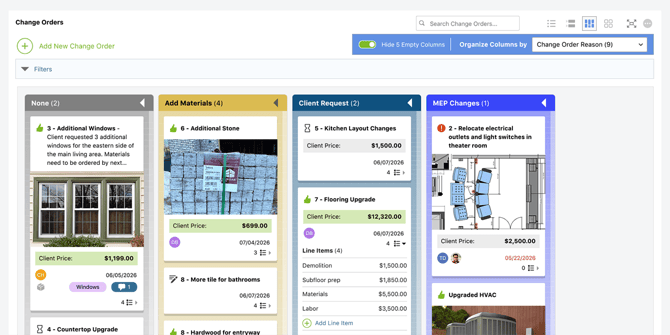
To ensure that each member of your project team can customize their Change Order management experience to meet their specific needs, any styling and formatting changes made in ConstructionOnline's Change Orders feature are user-specific. This means any changes to the way Change Order data is displayed or organized—such as column arrangement, column color, or collapsed or expanded column states—will only be reflected for the user making the customizations. However, the actual data changes made to Change Orders—such as dragging a card from one column to another—apply across the entire company account and are reflected in real time for all users, ensuring your team is always working from the most up-to-date information.
ConstructionOnline's Board View provides a visual and interactive way to manage your project's Change Orders with the following capabilities -
Total Control
ConstructionOnline's Board View gives you total control in displaying and organized your Change Order data, allowing you to customize your board layout, columns, and Change Order cards to suit your team's needs.
Optimal Organization
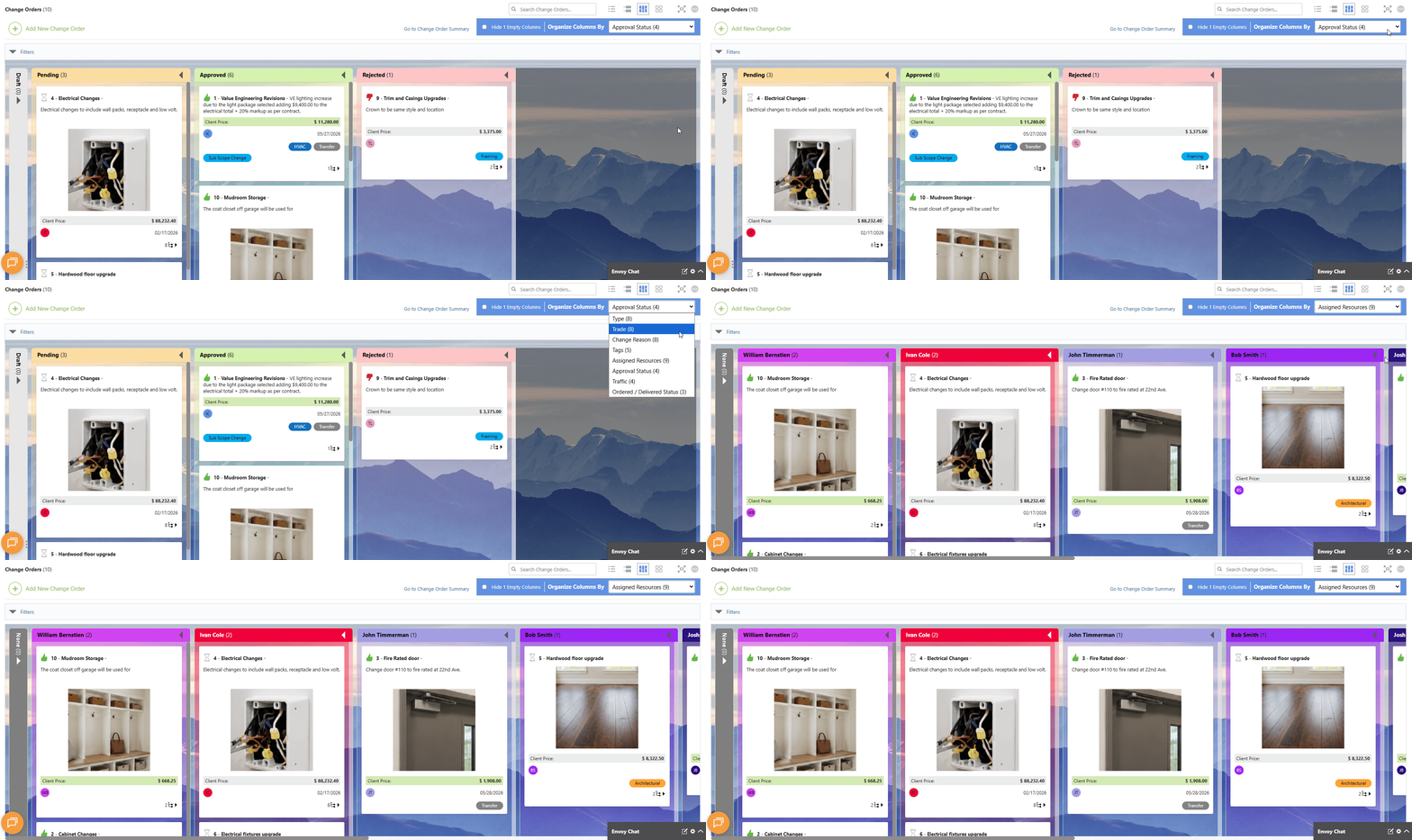
In Board View, Change Orders are organized into columns based on a value you choose. Use the "Organize Columns By" dropdown to select from the following options:
- Type
- Trade
- Change Reason
- Tags
- Assigned Resources
- Approval Status
- Traffic
- Ordered/Delivered Status
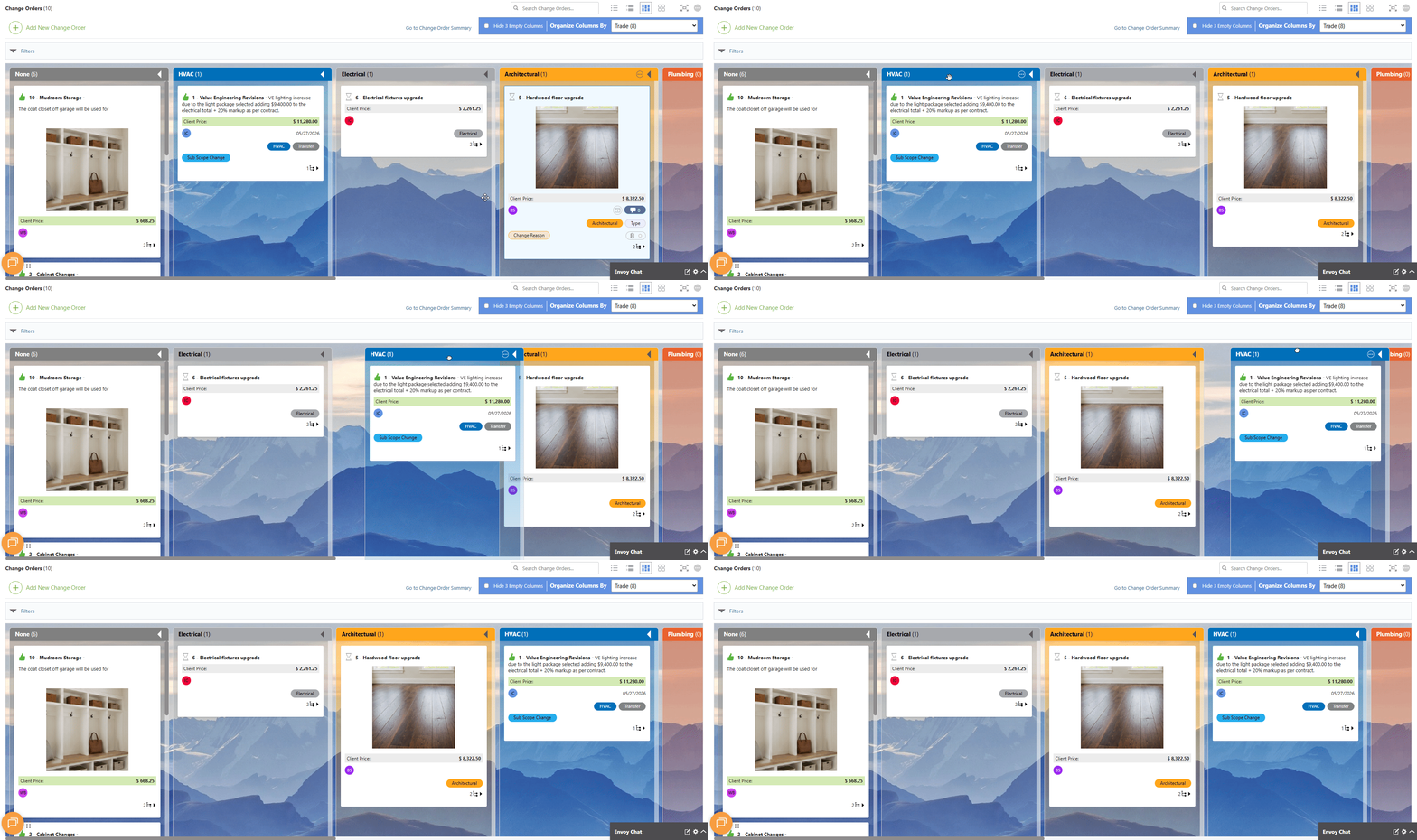
Columns can be rearranged by clicking and dragging any column header to your preferred position.
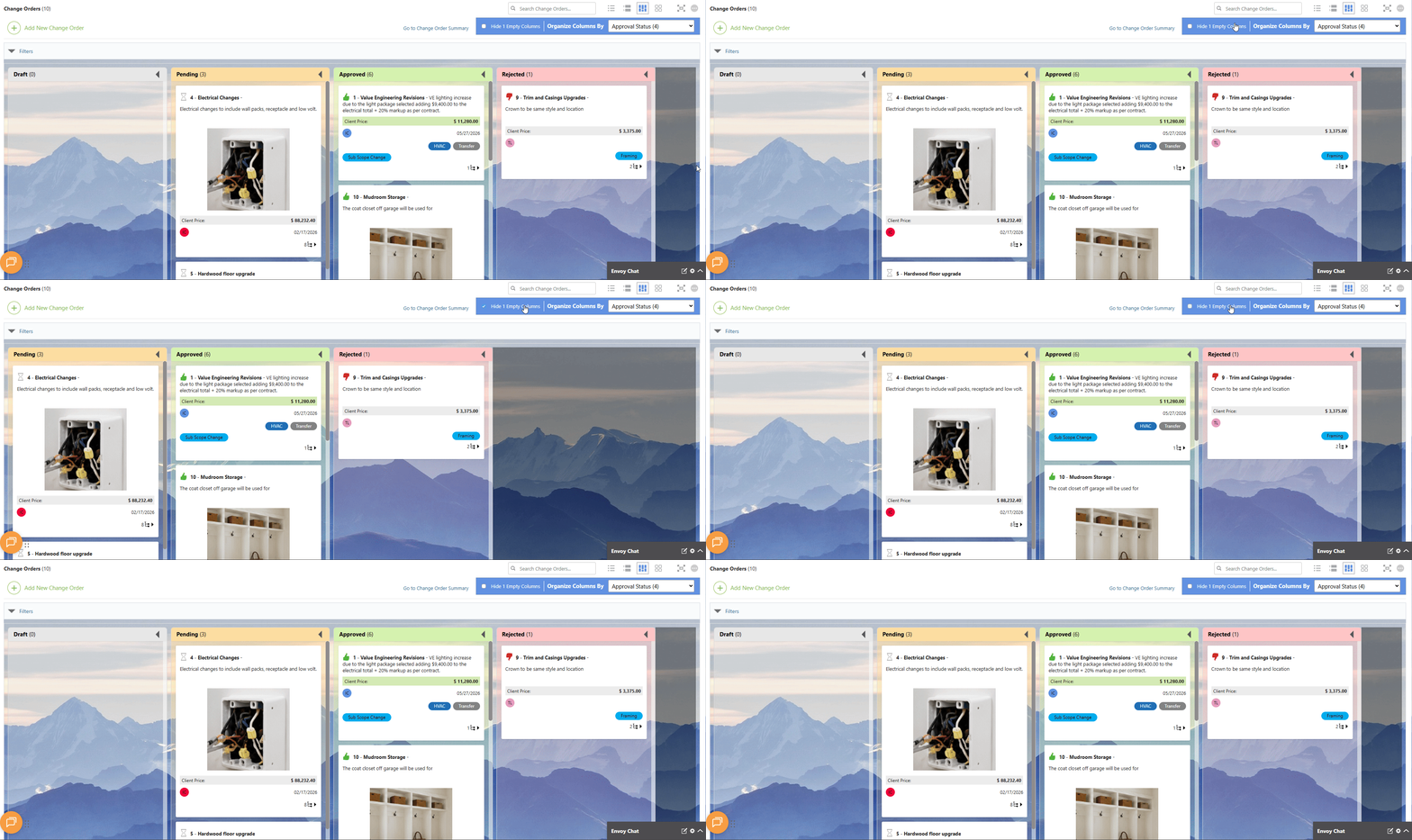
You can also choose to hide any empty columns by marking the checkbox next to "Hide Empty Columns", so you're only displaying the information relevant to your current workflow.
🗒️ Note: The number and names of columns displayed in Board View will vary based on the Custom Values configured for you company account.
Any field within a feature that displays the gear icon  is a Custom Value. For example, selecting Trade as the organizing value will generate a column for each Trade value that has been created for your company. Custom Values can be managed within the Change Order Details extension blade when creating or editing a Change Order.
Add & Manage Custom Value Columns
For column types based on Custom Values—such as Type, Trade, Change Reason, and Tags—new values can be added directly from Board View. A (+) Add [Value] column will appear at the end of the board, allowing you to create new Custom Values on the fly. 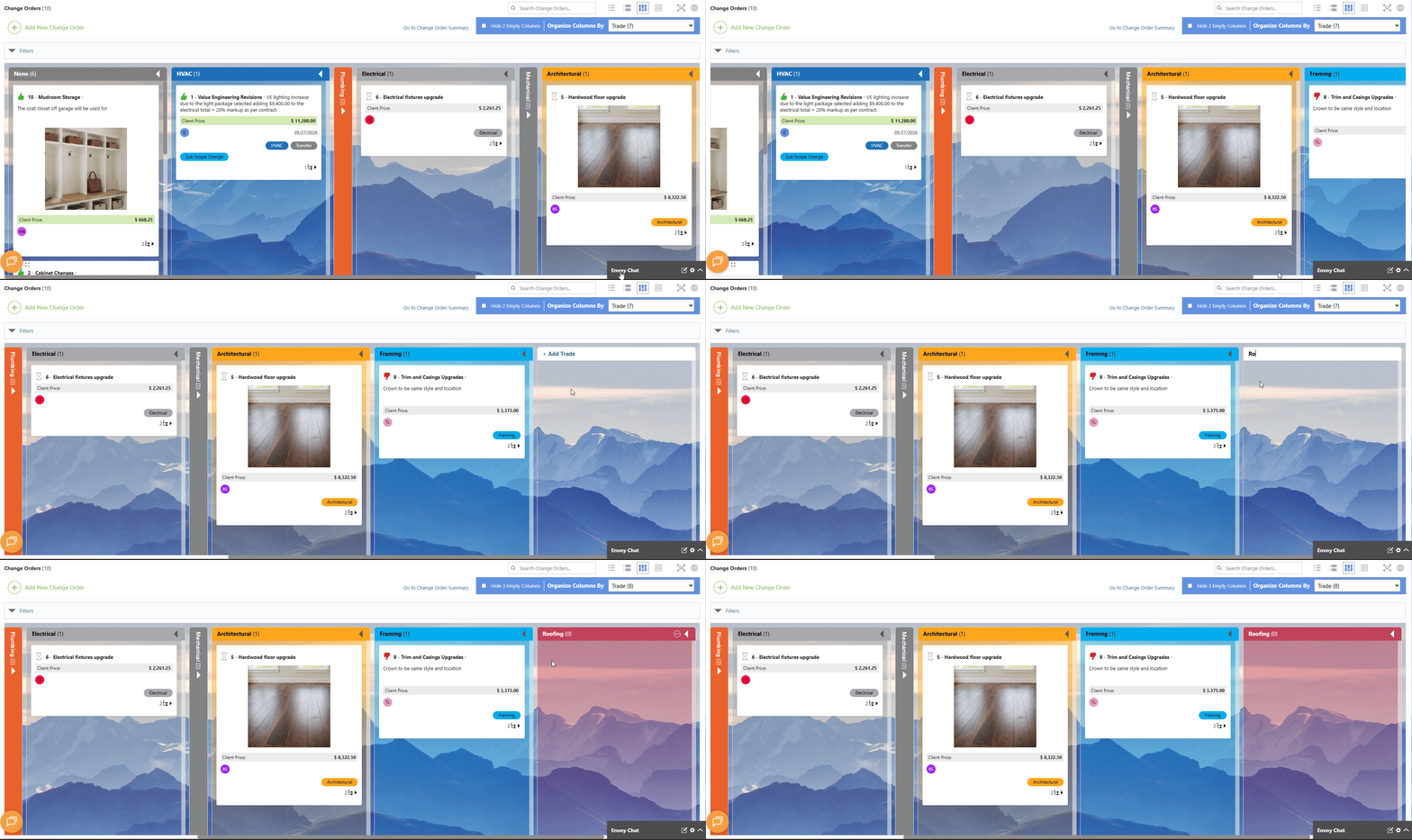
Seamless Drag-and-Drop
In Board View, Change Order cards can be dragged and dropped between columns—which not only visually updates their location, but updates their data too. For example, if your columns are organized by Trade and you move a Change Order from the HVAC column to the Plumbing column, ConstructionOnline will automatically update the Trade field of that Change Order to reflect the move. 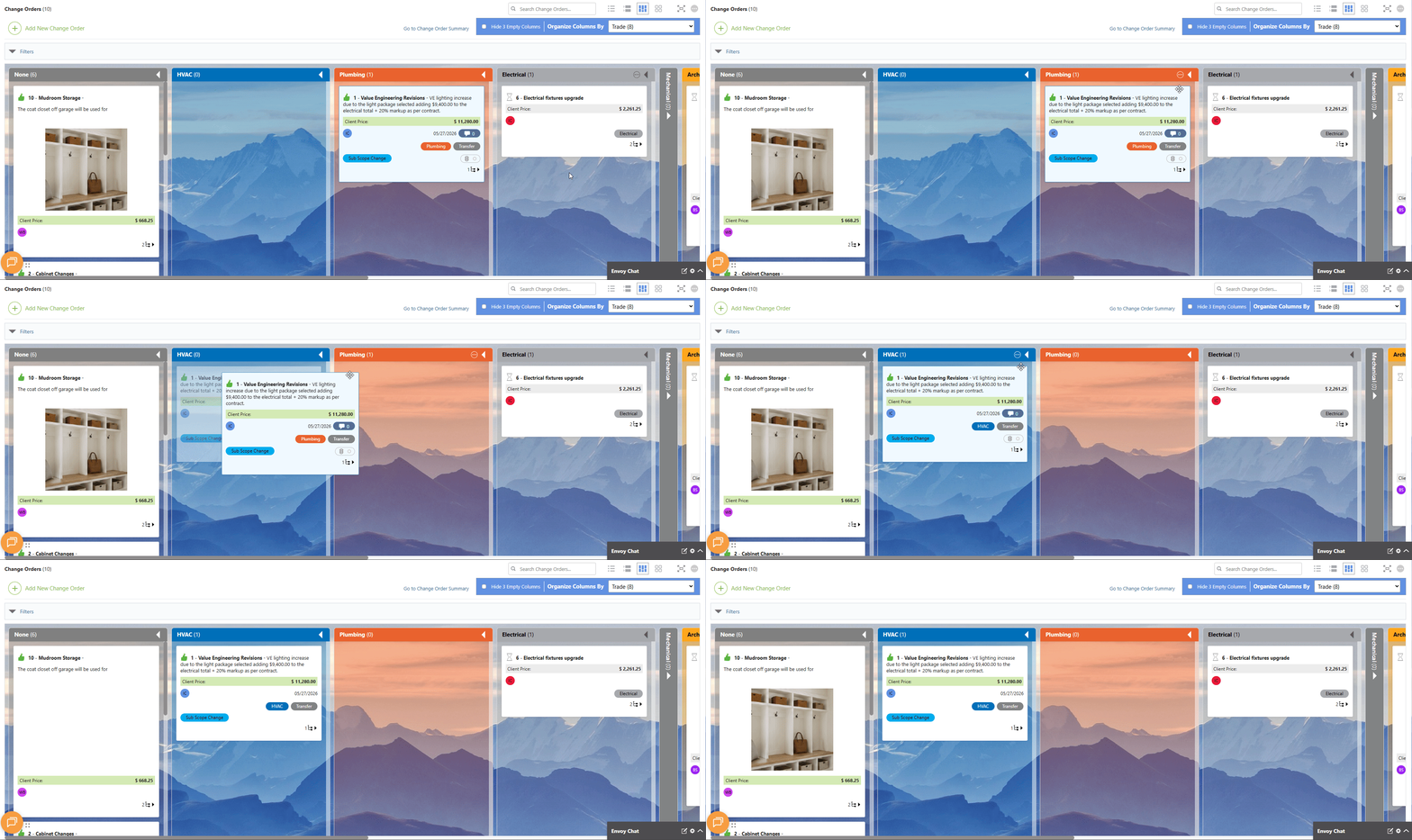
🗒️ Note: Drag-and-drop is not supported for all column types. Change Orders organized by Approval Status or Ordered/Delivered Status cannot be moved between columns.
Convenient Bulk Actions
Streamline Change Order management and save valuable time by simultaneously moving multiple Change Orders with efficient bulk actions. Bulk actions can be performed by holding down the Ctrl or Command key on your device and selecting the desired Change Order cards. Once selected, the cards can be moved between columns effortlessly. 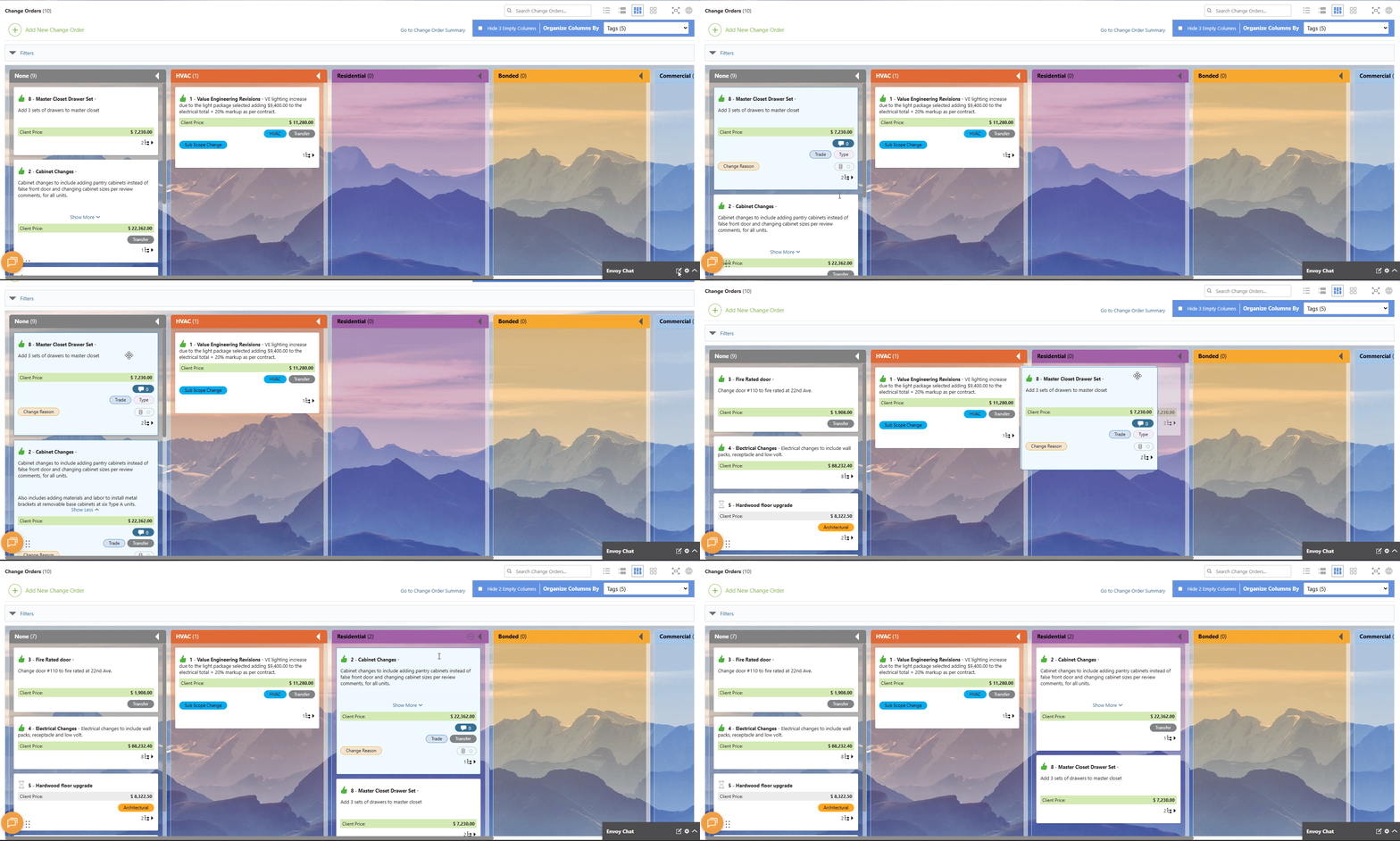
Effortless Editing
Change Orders can be updated without navigating away from your board. Click directly on any editable element displayed on a card—such as the Change Order Name, Assigned Resource(s), or other included card layout information—to make quick updates without opening the full details view.
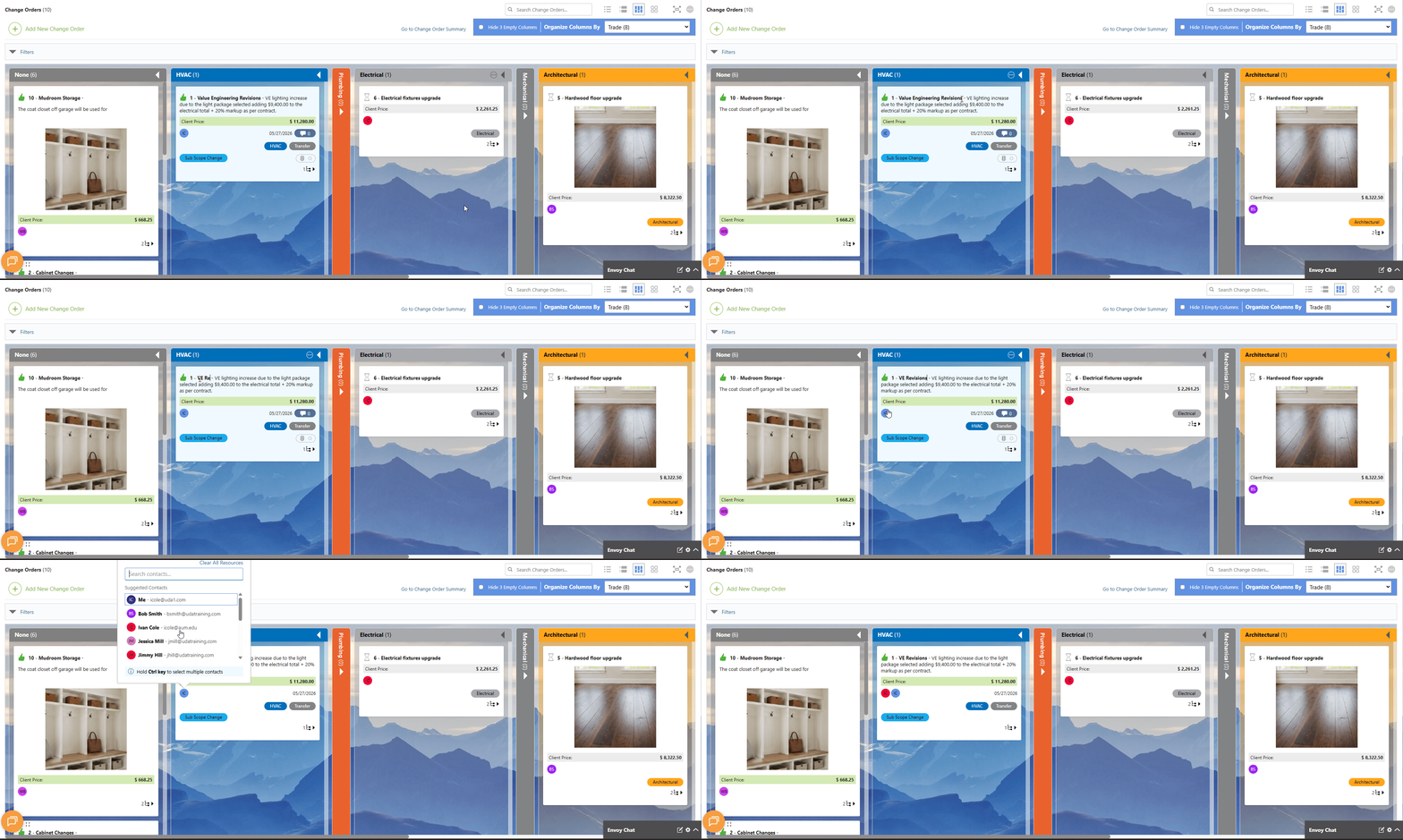
You can also Double-click on any Change Order card to open the Change Order Details extension blade—providing access to key Change Order information and editing capabilities. 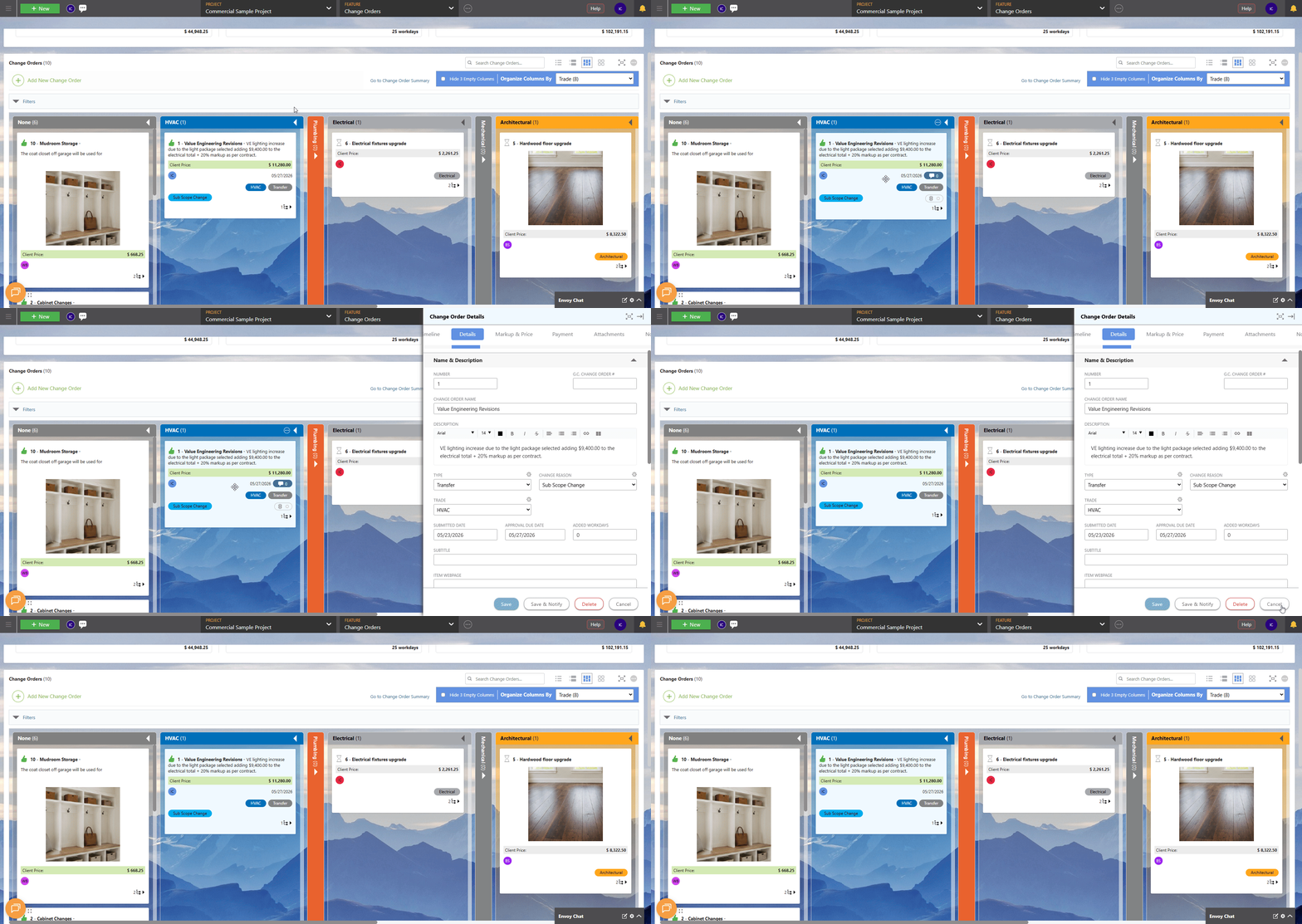
Collapsible Columns
Columns in Board View can be collapsed to reduce visual clutter and improve focus. Click the arrow in the top right corner of any column header to collapse it, and click again to expand. 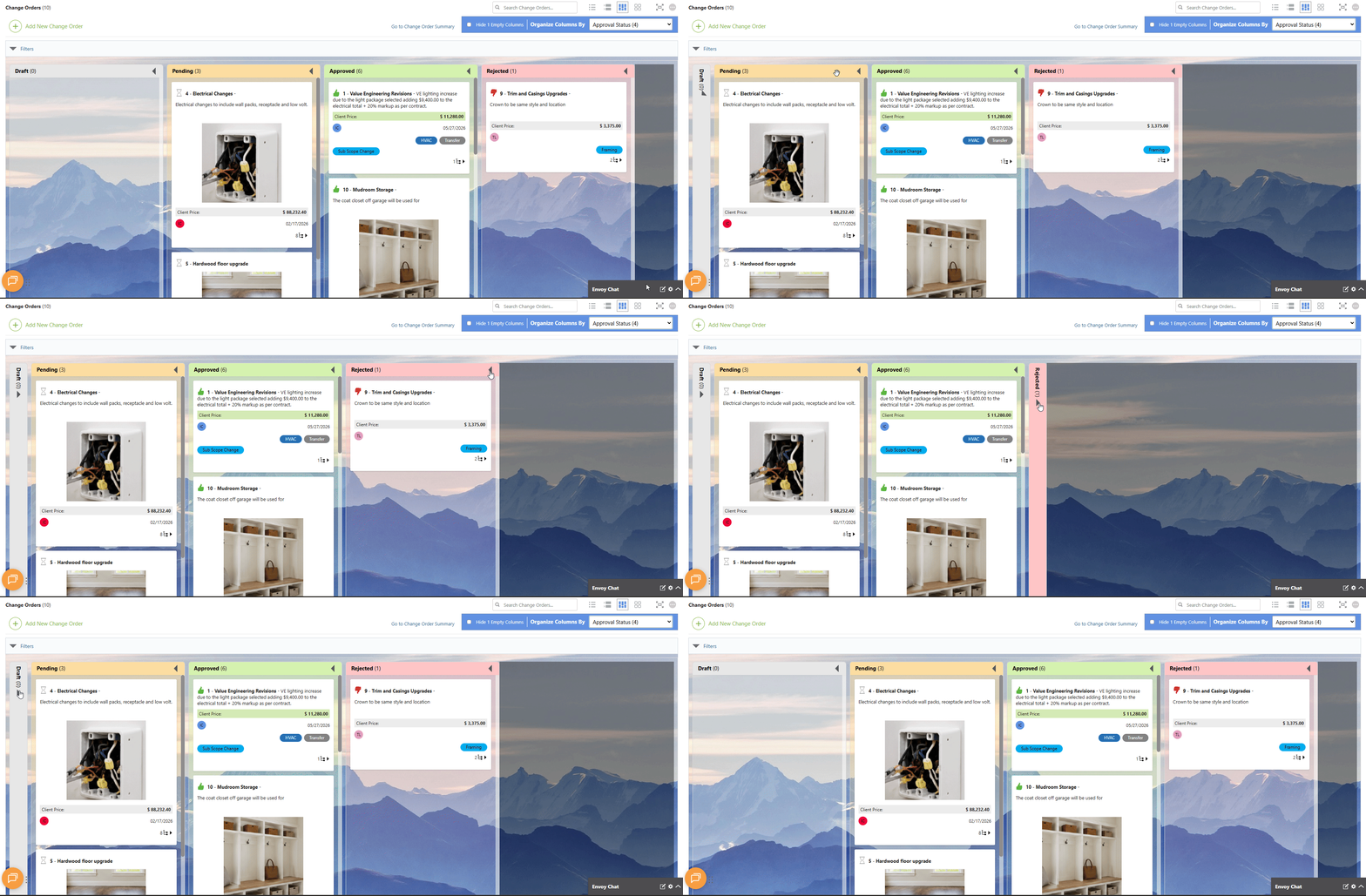
Customizable Card Layout & Appearance
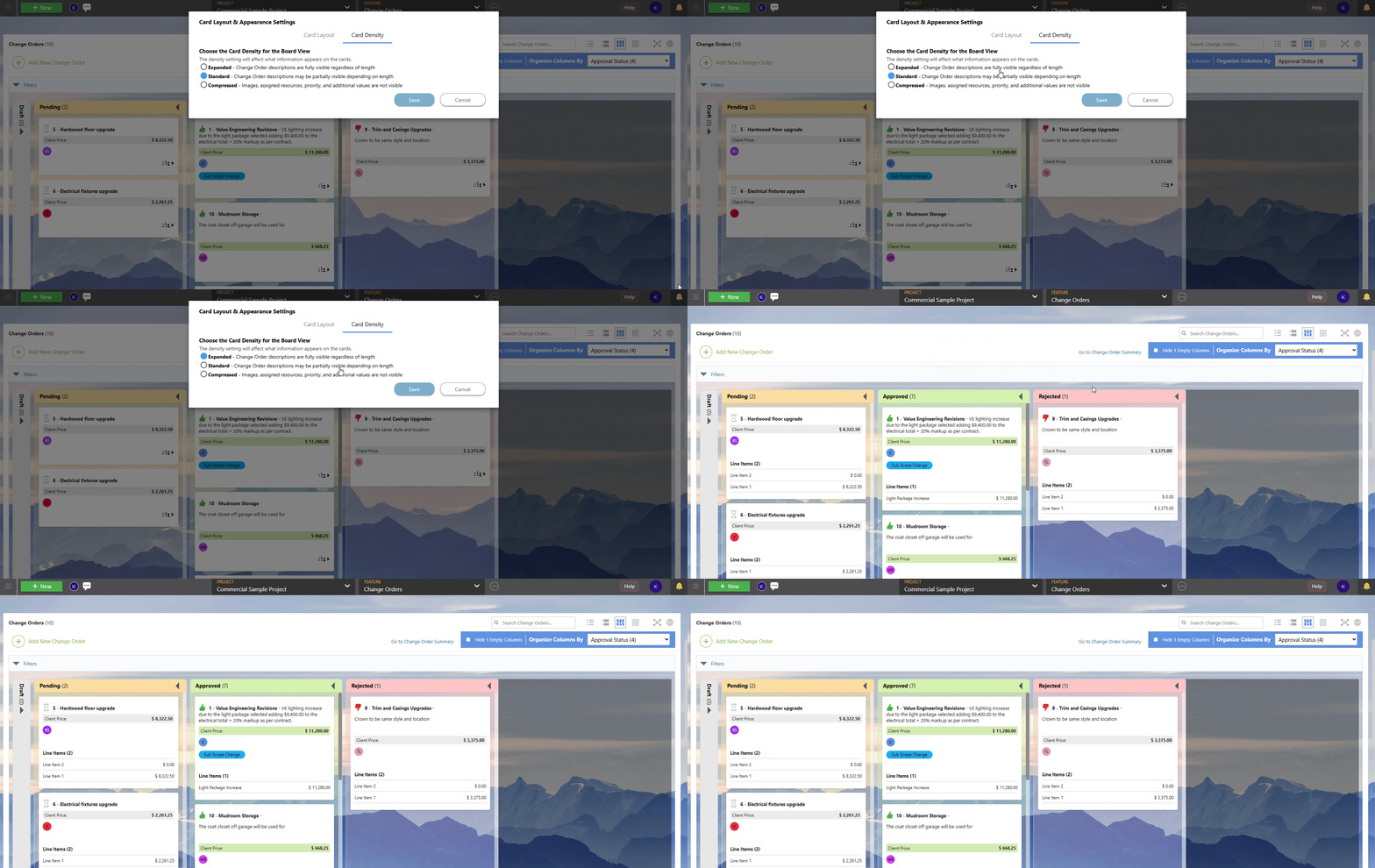
With ConstructionOnline's Board View, you can choose exactly what information appears on your Change Order cards through the Change Order Settings, accessible via the gray 3-dot Action Menu in the top right corner.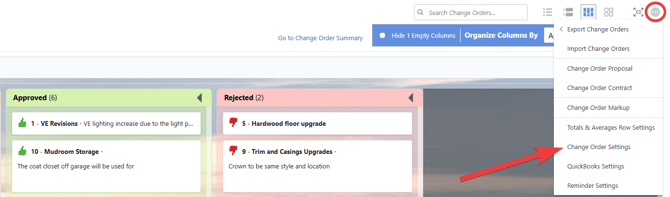
These settings are organized into two tabs:
- Card Layout — Choose which details appear on each card from a list of available options. A live card preview updates in real time as selections are made.
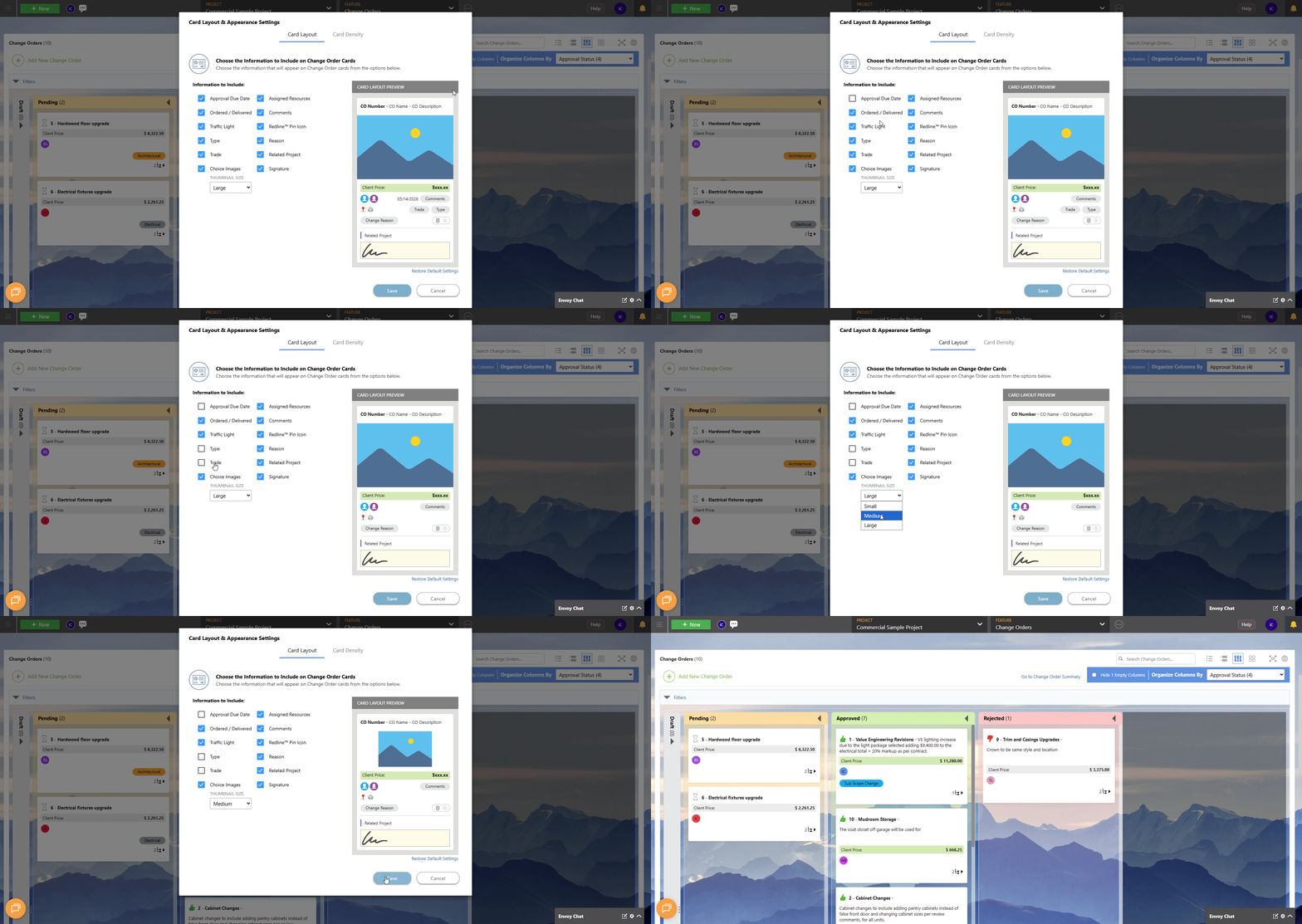
- Card Density — Choose between Expanded, Standard, or Compressed density options to control how much information is visible on each card at a glance.
Set Column Color
Visually distinguish between different data sets with column colors.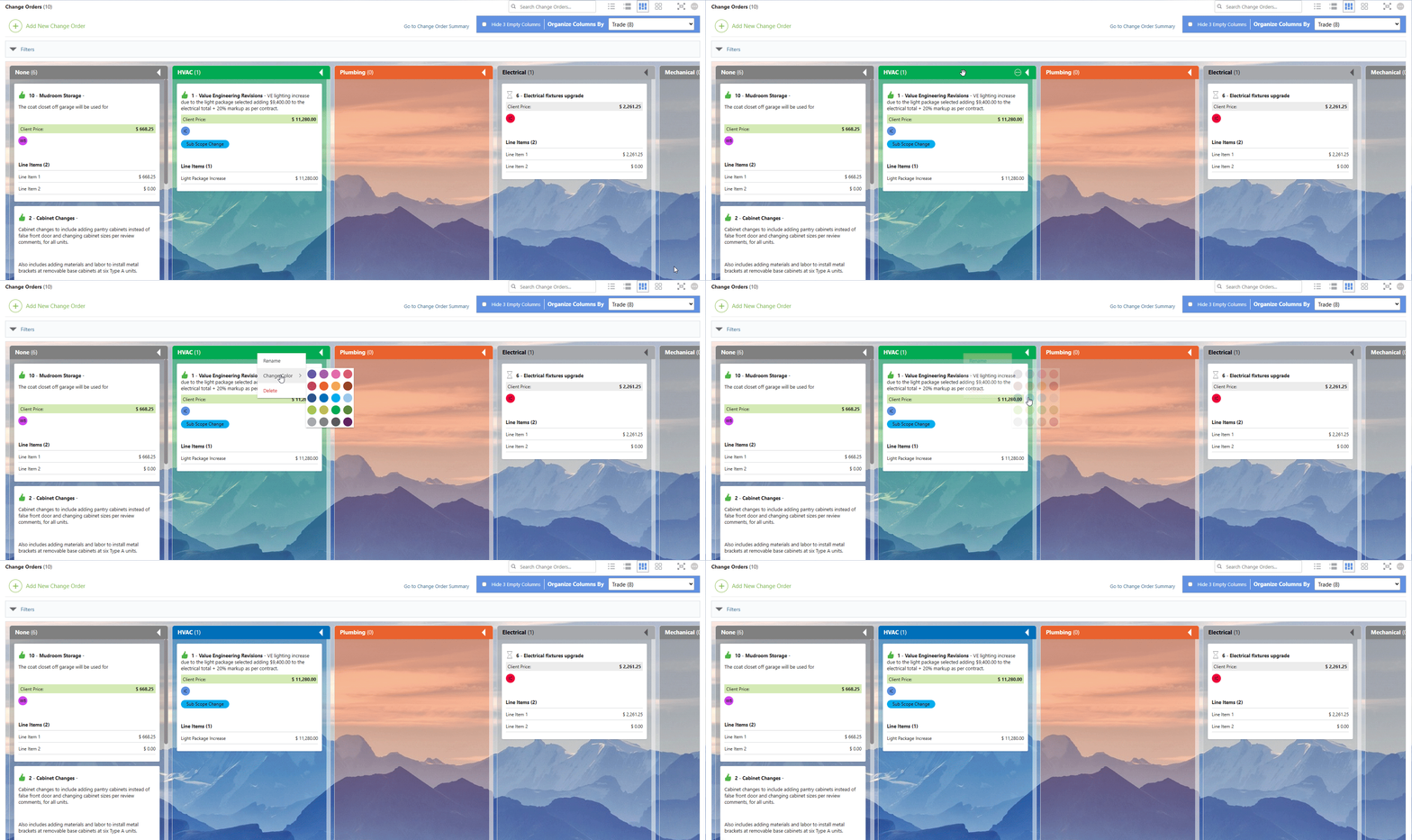
🗒️ Note: Column colors are not customizable when Assigned Resources, Approval Status, Traffic, or Ordered/Delivery Status is selected as the organizing value. For these column types, colors are automatically assigned based on the value they represent and cannot be manually changed.
💡Discover the perfect fit for your Change Order management needs by exploring our other Knowledge Base resources on Change Order Views:
ADDITIONAL INFORMATION
- Subscription Level: Change Orders are available in all active ConstructionOnline subscriptions.
- For legacy plans that do not include ConstructionOnline's Change Orders feature, it is available as a Per-User Add-On.
- Permissions: Admin Users and Company Users with Change Orders permissions set to "Can View" or "Can Create, Edit, & Delete" can view Change Orders from all four interfaces. Available actions within each view will vary based on the user's permission level.
- ClientLink Access: Clients with Change Order permissions enabled can view and approve Change Orders from the Portal. Refer to this article for more information on ClientLink Change Order access.
- TeamLink™ Access: Subcontractors and vendors with TeamLink Portal access and Change Order permissions enabled, can view Change Orders assigned to them from within the Portal. Refer to this article for more information on TeamLink Change Order access.
- CO™ Mobile App: Change Orders can be accessed and managed via the mobile app; however, the full suite of Change Order Views requires browser access to ConstructionOnline.
HAVE MORE QUESTIONS?
- Frequently asked questions (FAQ) about Change Orders can be found in the article FAQ: Change Orders.
- If you need additional assistance, chat with a ConstructionOnline Specialist by clicking the orange Chat icon in the bottom left corner or visit the UDA Support Page for more options.