
BACKGROUND
Within ConstructionOnline's Kanban-inspired Board View, construction professionals can display and manage their ConstructionOnline™ Change Orders on "cards" that can be organized, sorted, and reviewed at a glance. To personalize the experience, each user can customize what information appears on their Change Order cards—as well as the density of that information—via the Card Layout & Appearance Settings, ensuring they see only what's most relevant to their workflow.
HOW TO EDIT CARD LAYOUT FOR CHANGE ORDERS
-
Navigate to Board View within the Change Orders feature.
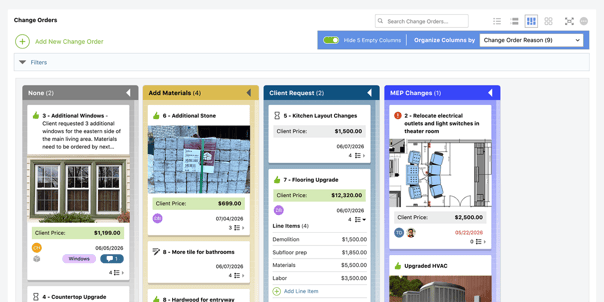
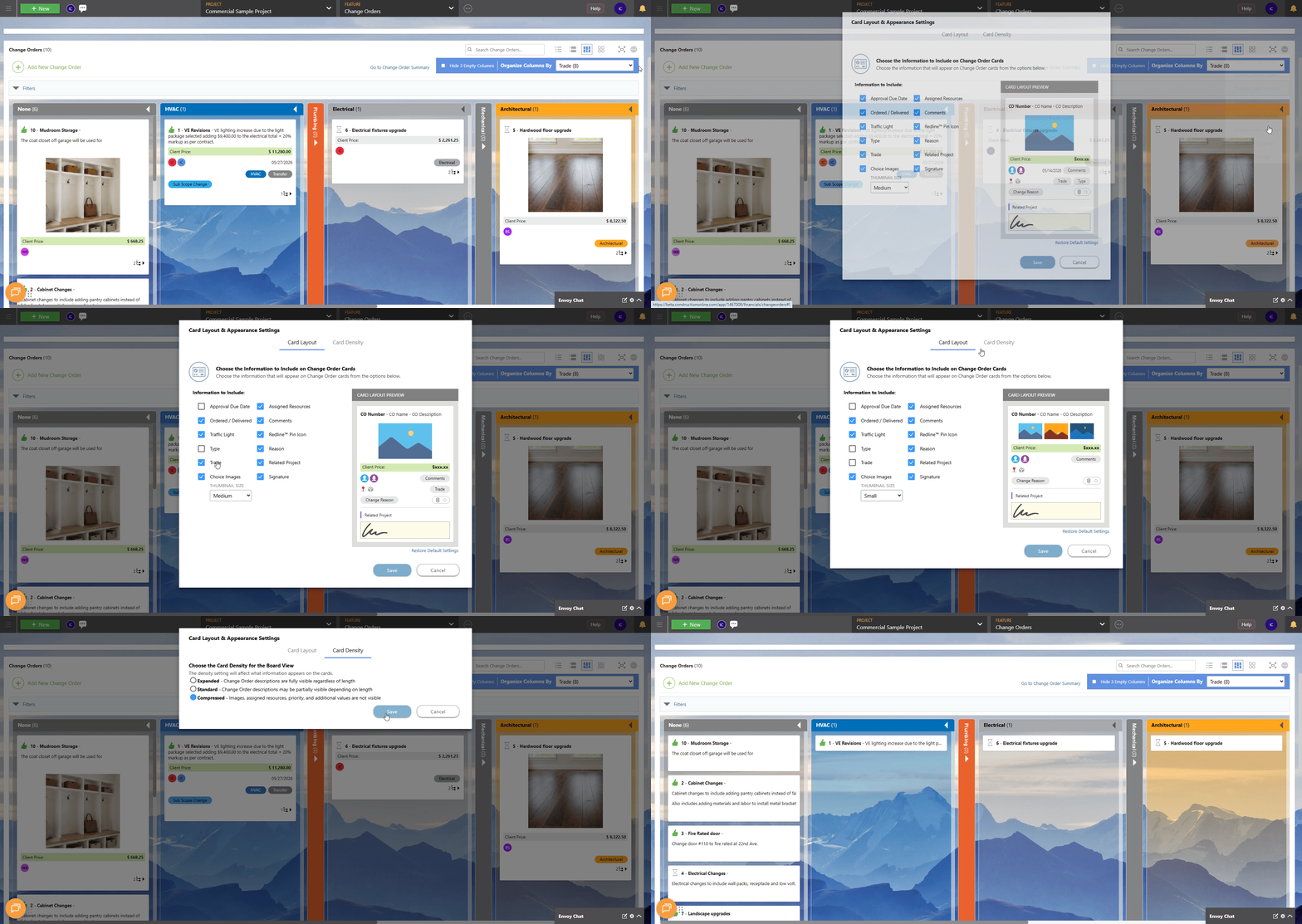
- Click on the gray 3-dot Action Menu located in the top right corner of the Change Orders pane and select "Change Order Settings" from the dropdown menu.
- Within the "Card Layout & Appearance Settings" window, use the two available tabs to customize how your Change Order cards appear in Board View:
- Card Layout: Choose what information will appear on your Change Order cards.
- Approval Due Date
- Assigned Resources
- Ordered/Delivered
- Comments
- Traffic Light
- Redline™ Pin Icon
- Type
- Reason
- Trade
- Related Project
- Choice Images
- Signature
- Thumbnail Size
🗒️ Note: Use the Card Layout preview on the right side of the window to review how your Change Order cards will appear in Board View based on your current selections. The default card settings can be restored at any time by clicking the blue "Restore Default Settings" text located beneath the Card Layout Preview.
- Card Density: Choose how much information is visible on each Change Order card.
- Expanded — Change Order descriptions are fully visible regardless of length
- Standard — Change Order descriptions may be partially visible depending on length
- Compressed — Images, Assigned Resource, Priority, and additional values are not visible
- Card Layout: Choose what information will appear on your Change Order cards.
- Once you've finalized your settings across both tabs, click the blue "Save" button.
- Your Change Order cards will automatically update in Board View based on the selected settings.
ADDITIONAL INFORMATION
- Any changes made to Change Order Card Layout & Appearance Settings are user-specific and do not affect other team members' views.
- Card Layout & Appearance Settings are available exclusively in Board View and apply only to Change Orders displayed in that view.
- Subscription Level: Change Orders are available in all active ConstructionOnline subscriptions.
- For legacy plans that do not include ConstructionOnline's Change Orders feature, it is available as a Per-User Add-On.
- Permissions: Admin Users and Company Users with Change Orders permissions set to "Can View" or "Can Create, Edit, & Delete" can access and adjust Card Layout & Appearance Settings.
- ClientLink Access: Clients with Change Order permissions enabled can view and approve Change Orders from the Portal. Refer to this article for more information on ClientLink Change Order access.
- TeamLink™ Access: Subcontractors and vendors with TeamLink Portal access and Change Order permissions enabled, can view Change Orders assigned to them from within the Portal. Refer to this article for more information on TeamLink Change Order access.
- CO™ Mobile App: Change Orders can be accessed and managed via the mobile app; however, the full suite of Change Order Views—including Card Layout & Appearance Settings—requires browser access to ConstructionOnline.
HAVE MORE QUESTIONS?
- Frequently asked questions (FAQ) about Change Orders can be found in the article FAQ: Change Orders.
- If you need additional assistance, chat with a ConstructionOnline Specialist by clicking the orange Chat icon in the bottom left corner or visit the UDA Support Page for more options.