
BACKGROUND
As a revolutionary new way for construction clients to stay up-to-date with their construction projects, ConstructionOnline's ClientLink Portal provides you with convenient online and mobile access to your project's progress from any time, any place. Within the Portal, you can communicate directly with your builder and instantly access important financial information, including Change Orders. With the appropriate Change Order permissions, you can easily view, monitor, and act on Change Orders for your construction project.
THINGS TO CONSIDER
Access to Change Orders via the ClientLink Portal requires an existing ClientLink User account. If you do not currently have ClientLink access, contact your builder to be added as a ClientLink User.
From the Portal Change Orders section, you can:
- View your Change Orders in List, Group-by, or Card View
- Filter Change Orders by status or other criteria
- Customize column order and visibility
- View Change Order Details
- Approve/Reject Change Orders
- View the Change Order Summary
- Print Change Order Overview
- Export Change Orders
Change Order Views
You can view your Change Orders within the ClientLink Portal from three interfaces—List View, Group-by View, and Card View—using the view toggle icons in the top right corner of the Change Orders pane. Each view presents Change Order information in a different format to accommodate your preferences. 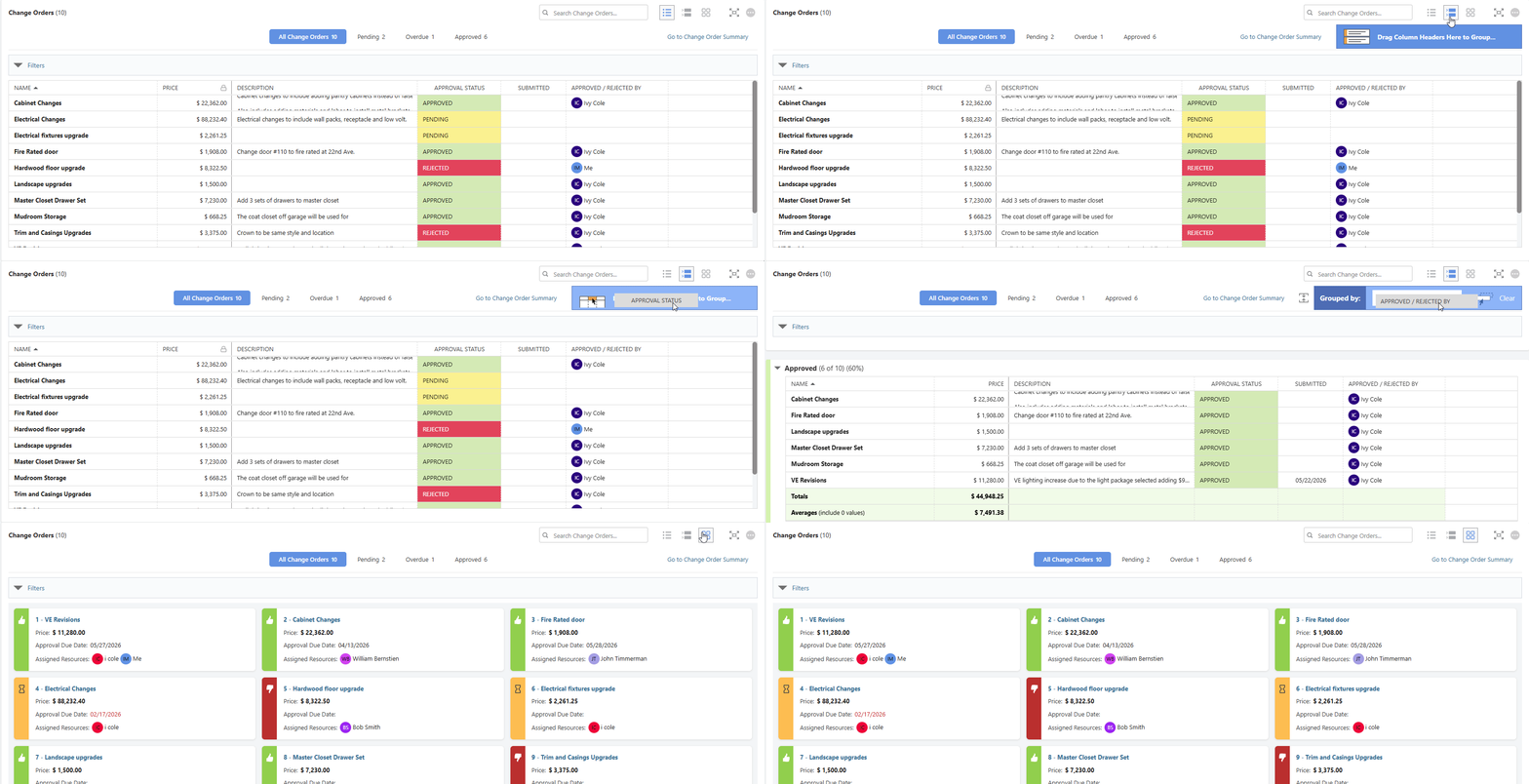
Status Tabs
At the top of the Change Orders pane, four status tabs allow you to quickly filter your Change Orders by category - 
- All Change Orders — Displays every Change Order on your project
- Pending — Displays Change Orders that are awaiting your approval
- Overdue — Displays Change Orders whose Approval Due Date has passed without a response. Overdue dates are displayed in red for easy identification
- Approved — Displays Change Orders that have been approved
A count appears next to each tab indicating the number of Change Orders within that category, giving you an immediate overview of where things stand.
Filters
You can apply one or multiple Filters within any status tab to further narrow your Change Orders. Available filter criteria include -
- Date
- Type
- Resource(s)
- Change Reason
- Trade
- Approval Status
- Tags
- Order/Delivery Status
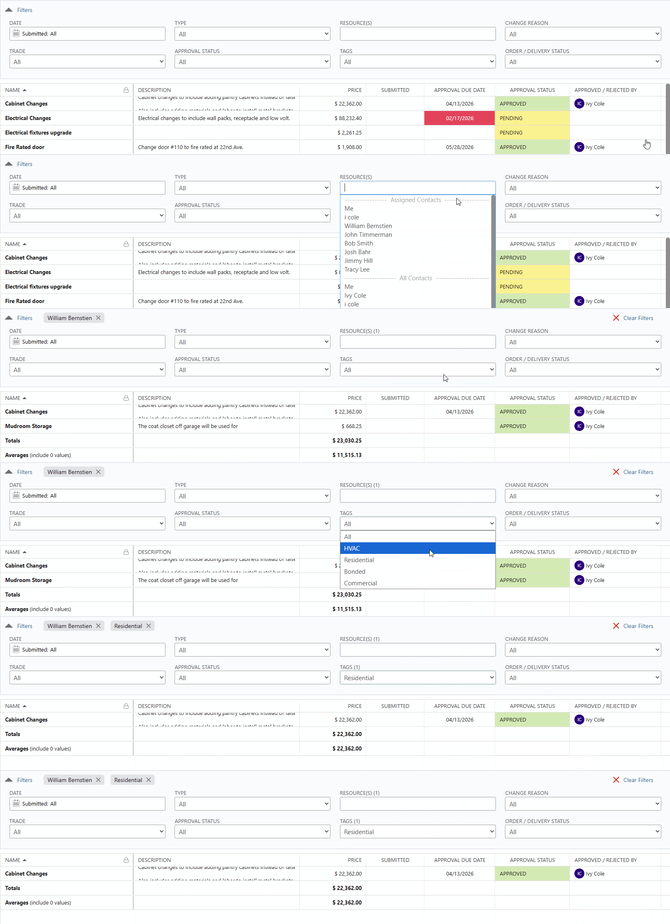
To clear established Filters, you can -
Column Order & Visibility
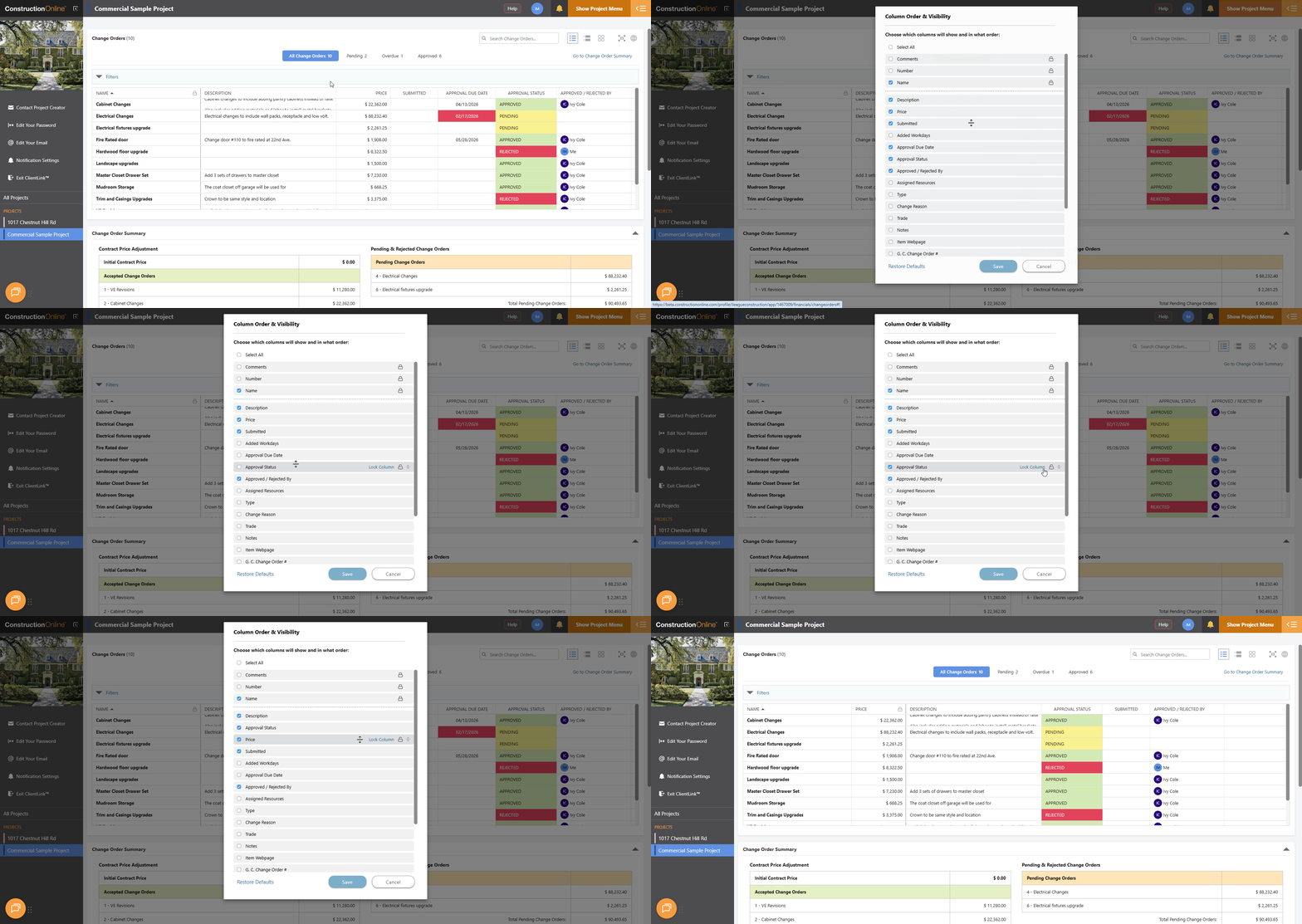
In List and Group-by Views, you can customize which columns are visible and how they are arranged. Right-click any column header and select "Show/Hide Columns" to open the "Column Order & Visibility" panel, where columns can be toggled on or off and rearranged to your preference.
View Change Order Details
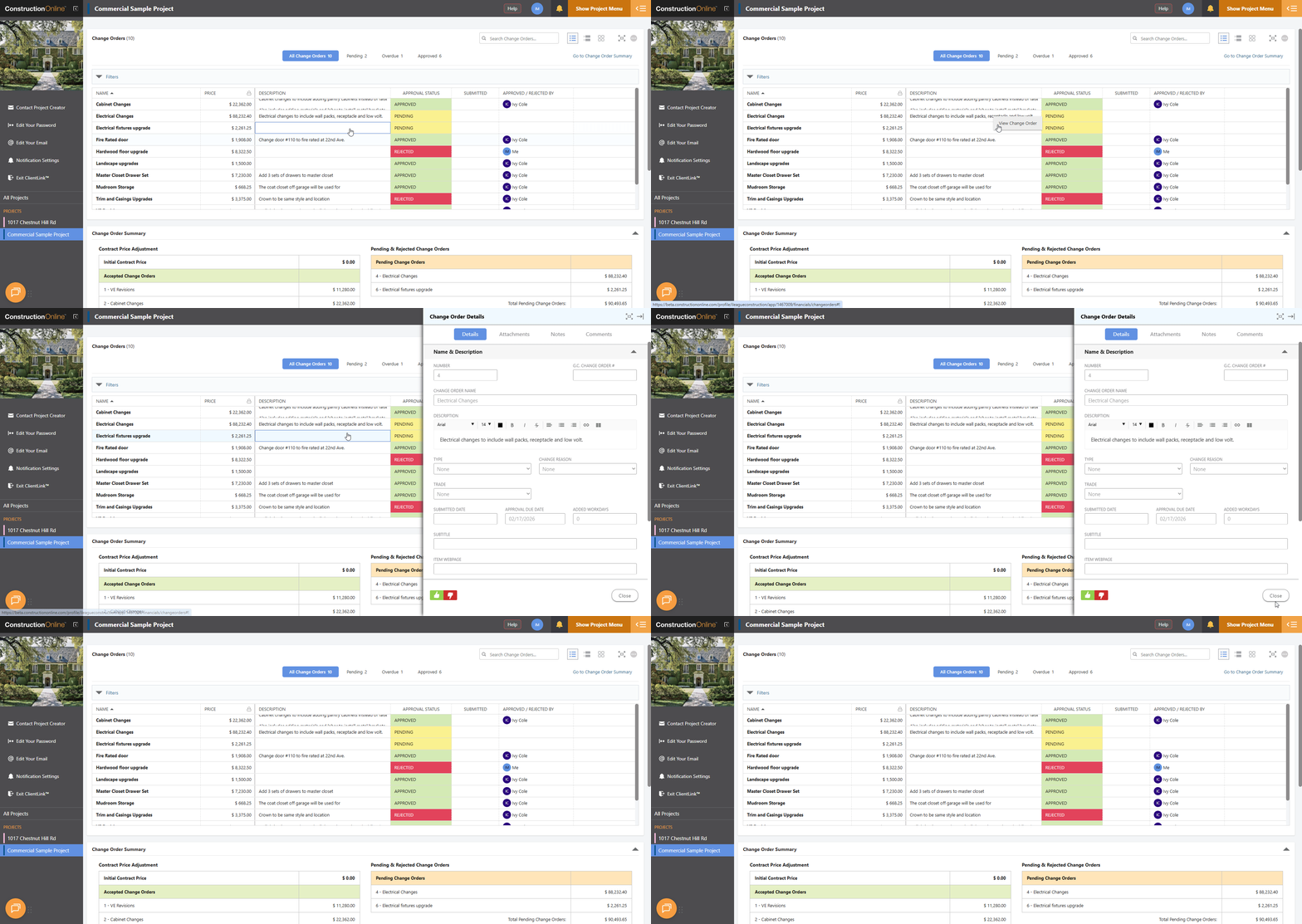
You can access the full details of any Change Order directly from the Portal by right-clicking on the desired Change Order. The "Change Order Details" panel provides access to key information about the Change Order.
Approve or Reject Change Orders
You can approve or reject Change Orders directly from the Portal using the green 👍thumbs up Approve and red👎thumbs down buttons available within the "Change Order Details" panel. When acting on a Change Order, you will be prompted to confirm your decision through a confirmation window displaying the Change Order name, description, and client price -
- Approving — The confirmation window includes a reminder that clicking the blue "Approve" button constitutes agreement to the terms and conditions set forth in the Change Order.
- Rejecting — The confirmation window includes a Reason for Rejection field, allowing you to provide context or explanation for your decision before clicking the red "Reject" button.
Change Order Summary
Below the Change Orders pane, the Change Order Summary provides a structured financial overview of your project's Change Orders, including Contract Price Adjustment, Added Time Summary, Paid vs. Remaining, and Pending & Rejected Change Orders. The summary is visible from any view and can also be accessed directly using the blue "Go to Change Order Summary" text in the top right corner of the Change Orders pane. 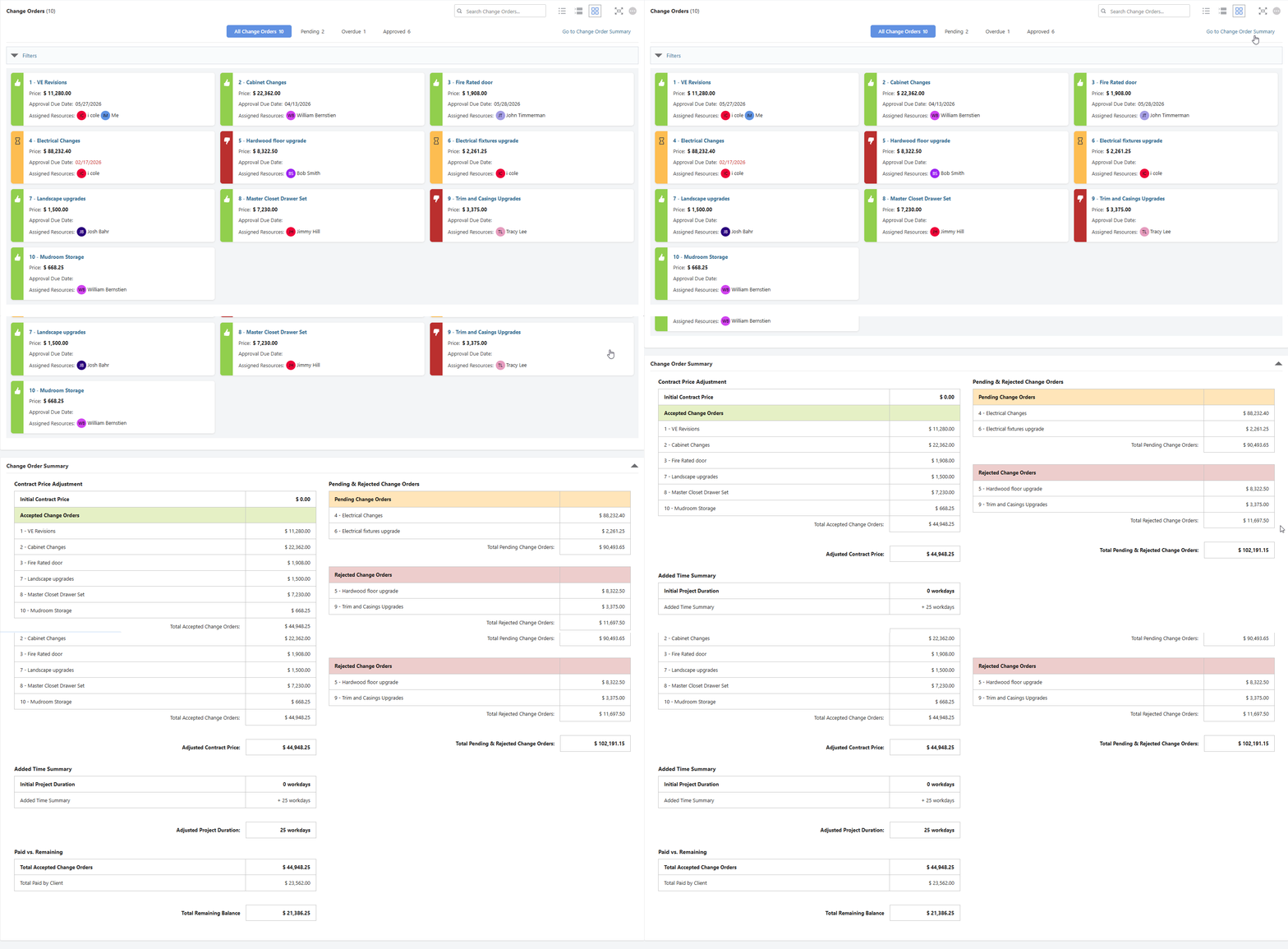
Print Change Order Overview
You can print your Change Orders by clicking the gray 3-dot Action Menu in the top right corner of the Change Orders pane and selecting "Print Change Order Overview" from the dropdown menu. This will generate a Change Order Summary by Status report displaying all Change Orders and their current approval statuses.
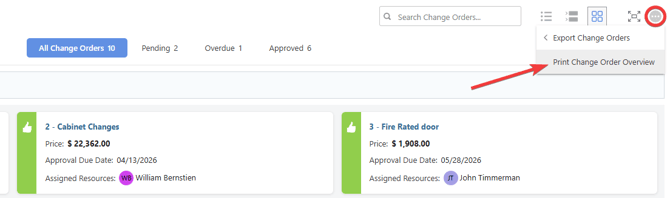
From the report preview, click the "Print" button in the upper right corner to configure your printer settings and print the Change Order Summary.
Export Change Orders
You can export your Change Orders for reference or import by clicking the gray 3-dot Action Menu in the top right corner of the Change Order pane and selecting "Export Change Orders" from the dropdown menu. 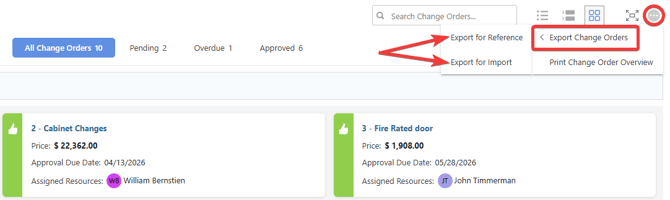
- Export for Reference — Exports a formatted version of your Change Orders for easy reference.
- Export for Import — Exports your Change Order data in a format suitable for importing into another system.
ADDITIONAL INFORMATION
- Permissions: ClientLink permissions are managed by your builder. If you have any questions about your level of access within the ClientLink Portal, contact your builder directly.
- CO™ Mobile App: Change Orders can be accessed and managed via the mobile app; however, the full suite of Change Order Views—including Column Order & Visibility settings—requires browser access to ConstructionOnline.
HAVE MORE QUESTIONS?
- Frequently asked questions (FAQ) for ClientLink Users can be found in the article FAQ: ClientLink.
- If you need additional assistance, chat with a ConstructionOnline Specialist by clicking the orange Chat icon in the bottom left corner or visit the UDA Support Page for more options.