
BACKGROUND
ConstructionOnline's List View and Group-by View for Change Orders provide a cutting-edge dynamic table that simplifies viewing, organizing, and updating your project's Change Orders. Featuring a familiar spreadsheet format, both views offer exceptional flexibility and control with functions like inline editing, interactive cell elements, adjustable column controls, and more.
To ensure users can arrange their Change Order data to best suit their specific workflows and preferences, ConstructionOnline™ provides the ability to choose what columns appear—and where they appear—with Column Order & Visibility settings. Within these controls, users can display or remove columns from view, define the order in which columns appear, and fix columns in place to ensure they're always viewing the information they need, the way they need it.
⚠️ Important: Any changes made to Column Order & Visibility are user-specific and do not affect other team members' views.
HOW TO MANAGE CHANGE ORDER COLUMN ORDER & VISIBILITY
- Navigate to either the List View or Group-by View within the Change Orders feature.
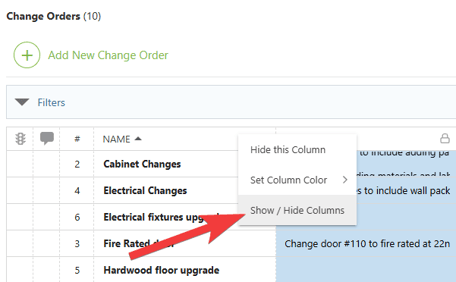
- Right-click on any column header and select the "Show/Hide Columns" option.
- Within the "Column Order & Visibility" window, choose which columns to show and in what order with the following actions -
- Show/Hide Columns — Mark the checkbox next to columns you want to be visible and/or unmark checkboxes next to the columns you want to remove from view.
- All columns are shown by default. If you've made changes to column visibility and would like to show all columns again, mark the checkbox next to "Select All."
- Order Columns — Customize the order in which columns appear by clicking and dragging column rows in the list to establish the way they appear in List and Group-by Views.
- Lock Columns — To keep important columns visible while scrolling horizontally, columns can be locked by hovering over the desired column name and clicking the blue "Lock Column" text or the 🔓lock icon.
- The Traffic, Comments, Number, and Name columns are locked by default.
- Upon locking a column, the column will move above the dotted line at the top of the "Column Order & Visibility" window. This differentiates locked columns and signifies that they will appear at the beginning of the dynamic table.
- Columns can be unlocked at any time by hovering over the locked column name and clicking the blue "Unlock Column" text or the 🔒lock icon.
🗒️ Note: A maximum of 5 columns can be locked at a time.
- Restore Defaults — The default settings for "Column Order & Visibility" can be restored at any time by clicking the blue "Restore Defaults" text at the bottom of the "Column Order & Visibility" window. This will make all columns visible, restore the column order to the original arrangement, and reset locks to the default columns.
- Show/Hide Columns — Mark the checkbox next to columns you want to be visible and/or unmark checkboxes next to the columns you want to remove from view.
- Once you've finalized your changes, click the blue "Save" button.
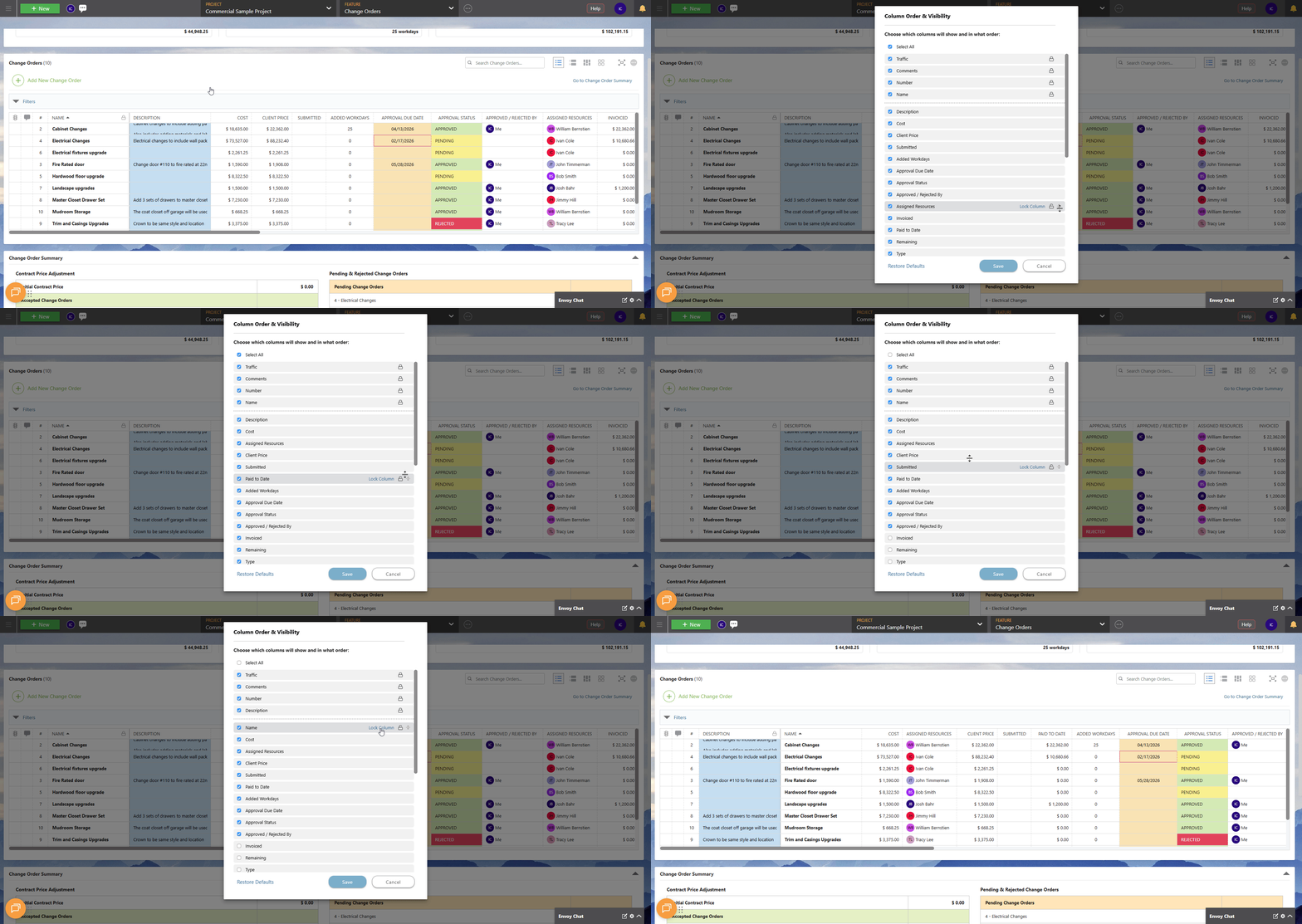
🗒️ Note: Changes to Column Order & Visibility apply consistently across both List and Group-by Views.
💡 Helpful Hint: Individual columns can also be hidden directly from the table by right-clicking on the column header and selecting the "Hide This Column" option. 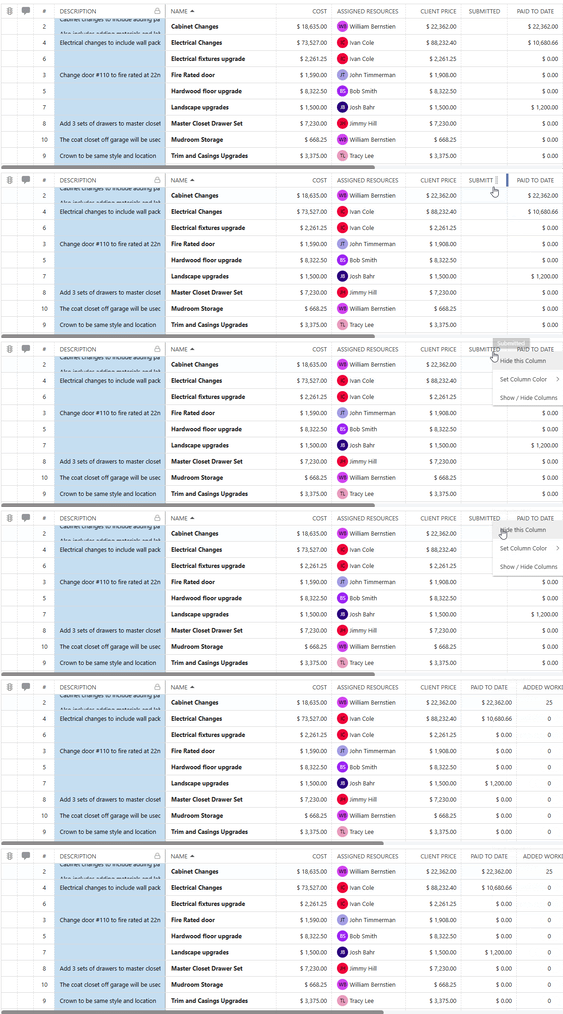
ADDITIONAL INFORMATION
- Subscription Level: Change Orders are available in all active ConstructionOnline subscriptions.
- For legacy plans that do not include ConstructionOnline's Change Orders feature, it is available as a Per-User Add-On.
- Permissions: Admin Users and Company Users with Change Orders permissions set to "Can View" or "Can Create, Edit, & Delete" can manage Column Order & Visibility for Change Orders.
- ClientLink Access: Clients with Change Order permissions enabled can view and approve Change Orders from the Portal. Refer to this article for more information on ClientLink Change Order access.
- TeamLink™ Access: Subcontractors and vendors with TeamLink Portal access and Change Order permissions enabled, can view Change Orders assigned to them from within the Portal. Refer to this article for more information on TeamLink Change Order access.
- CO™ Mobile App: Change Orders can be accessed and managed via the mobile app; however, the full suite of Change Order Views—including Column Order & Visibility settings—requires browser access to ConstructionOnline.
HAVE MORE QUESTIONS?
- Frequently asked questions (FAQ) about Change Orders can be found in the article FAQ: Change Orders.
- If you need additional assistance, chat with a ConstructionOnline Specialist by clicking the orange Chat icon in the bottom left corner or visit the UDA Support Page for more options.