
List View brings the full power of ConstructionOnline's dynamic table technology to your project's Change Orders—putting financial data, approval status, resource assignments, and more all in one place. With a familiar spreadsheet-style format and extensive customization options, List View gives you the visibility and control to stay on top of every Change Order detail, from initial submission to final payment. 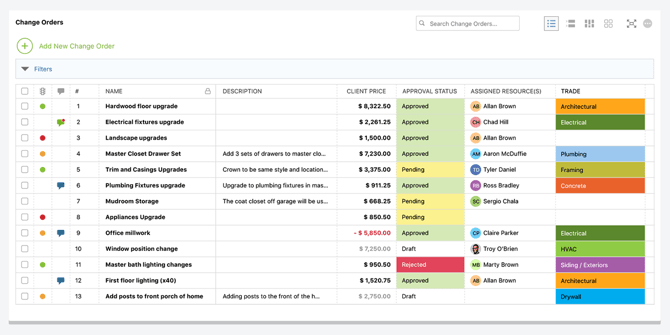
To ensure that each member of your project team can customize their Change Order management experience to meet their specific needs, any styling and formatting changes made in ConstructionOnline's Change Orders feature are user-specific. This means any changes to the way Change Order data is displayed or organized—such as column order, column visibility, and row management—will only be reflected for the user making the customizations. However, actual data changes made to Change Orders—such as inline edits made to a name, cost, or approval status—apply across the entire company account and are reflected in real time for all users, ensuring your team is always working from the most up-to-date information.
With an emphasis on comprehensive yet customizable data display, List View offers a powerful and intuitive interface for efficient Change Order management, including the following capabilities -
Better Visibility on Change Order Data
List View's spreadsheet-style dynamic table offers ultimate visibility into your project's Change Orders by providing easy navigation and access to data alongside interactive cells like the Traffic Light and Tags; color-coded Approval Status indicators; financial totals and averages calculated automatically at the bottom of the table; and cutting-edge sort and filter options.
Effortless Inline Editing
With inline editing capabilities, users can update Change Order details directly within table cells, making it quick and easy to make changes without navigating away from the list. Simply click into any editable cell to begin making changes—changes are saved in real time and reflected immediately for all users. 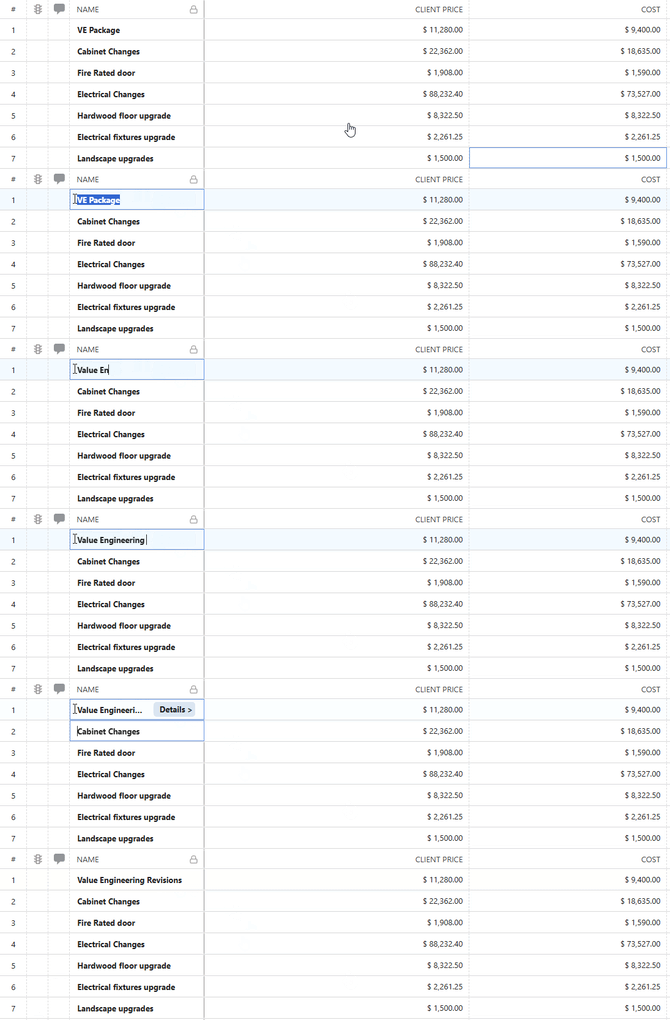
Comprehensive Change Order Details via Blade Extension
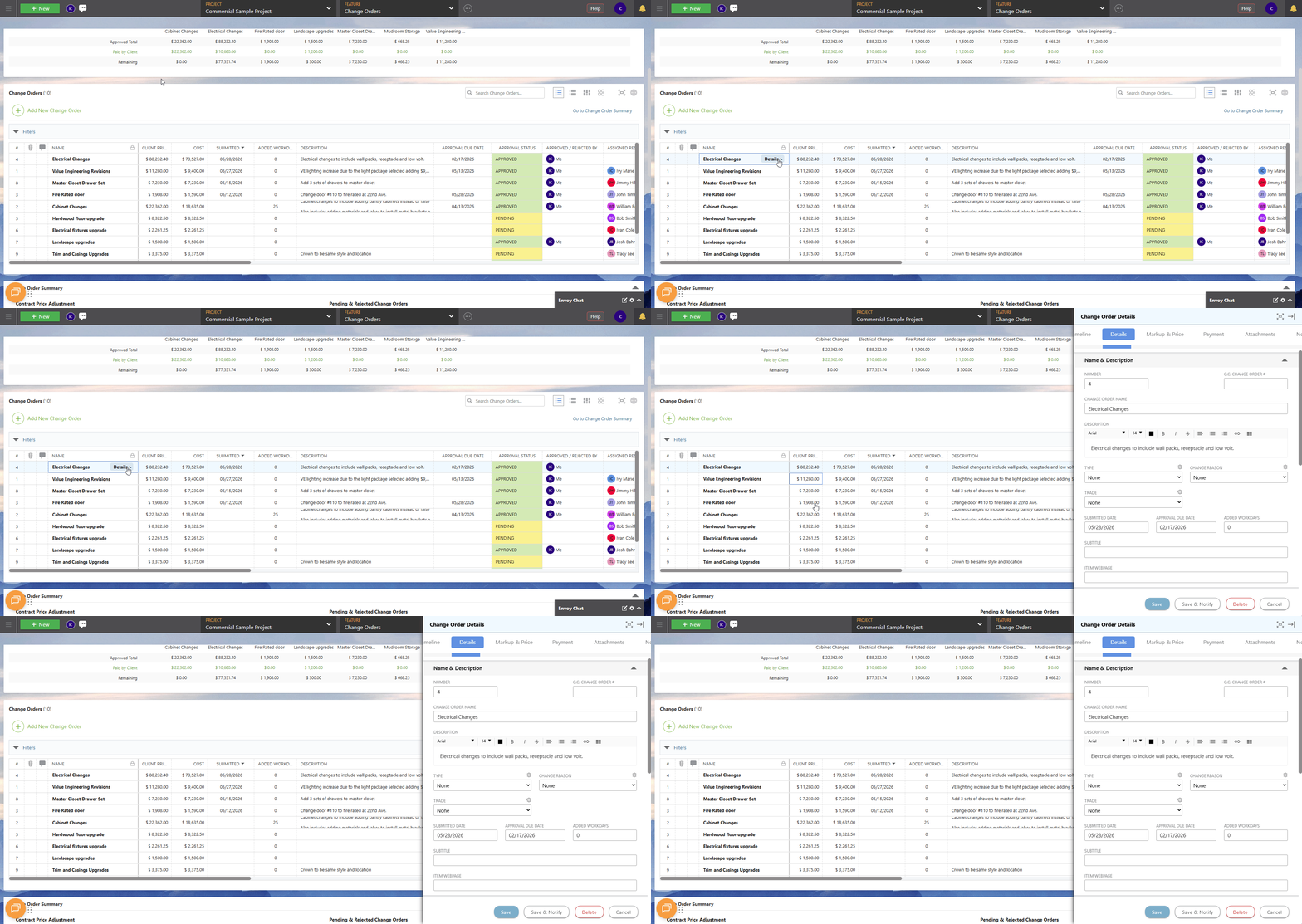
Need to view or update the full details of a Change Order without losing your place in the list? Double-clicking most cells within a Change Order row opens the Change Order Details extension blade—a full editing panel that slides in alongside the list. The blade is organized into the following tabs:
- Timeline — Displays a chronological history of all actions taken on the Change Order, including when it was credited, edited, and approved or rejected.
- Details — Provides access to all core Change Order fields, including Name, Description, Type, Change Reason, Dates, and more.
- Markup & Price — Displays and manages the Change Order's line items, including individual cost entries with Unit Cost, Quantity, Total Cost, Tax, Markup, and more. A Your Cost / Actuals summary at the bottom calculates the Remaining balance by subtracting Actuals from the overall Cost.
- Payment — Displays the Change Order's payment status, including Invoiced to Date, Total Payment Received, and Outstanding Balance. Any Invoices created for the Change Order are accessible here.
- Attachments — Stores files associated with the Change Order, such as drawings, photos, or supporting documentation.
- Notes — Provides a space for internal notes related to the Change Order.
- Item Image — Allows a thumbnail image to be added to the Change Order for quick visual reference.
- Comments — Displays and manages Comments associated with the Change Order.
Flexible Column Controls
Designed to give construction companies the utmost control over their Change Order management, ConstructionOnline's List View provides multiple ways to personalize your dynamic table -
Sortable Columns
Easily sort and find information in chronological, ascending, or descending order with sortable columns. 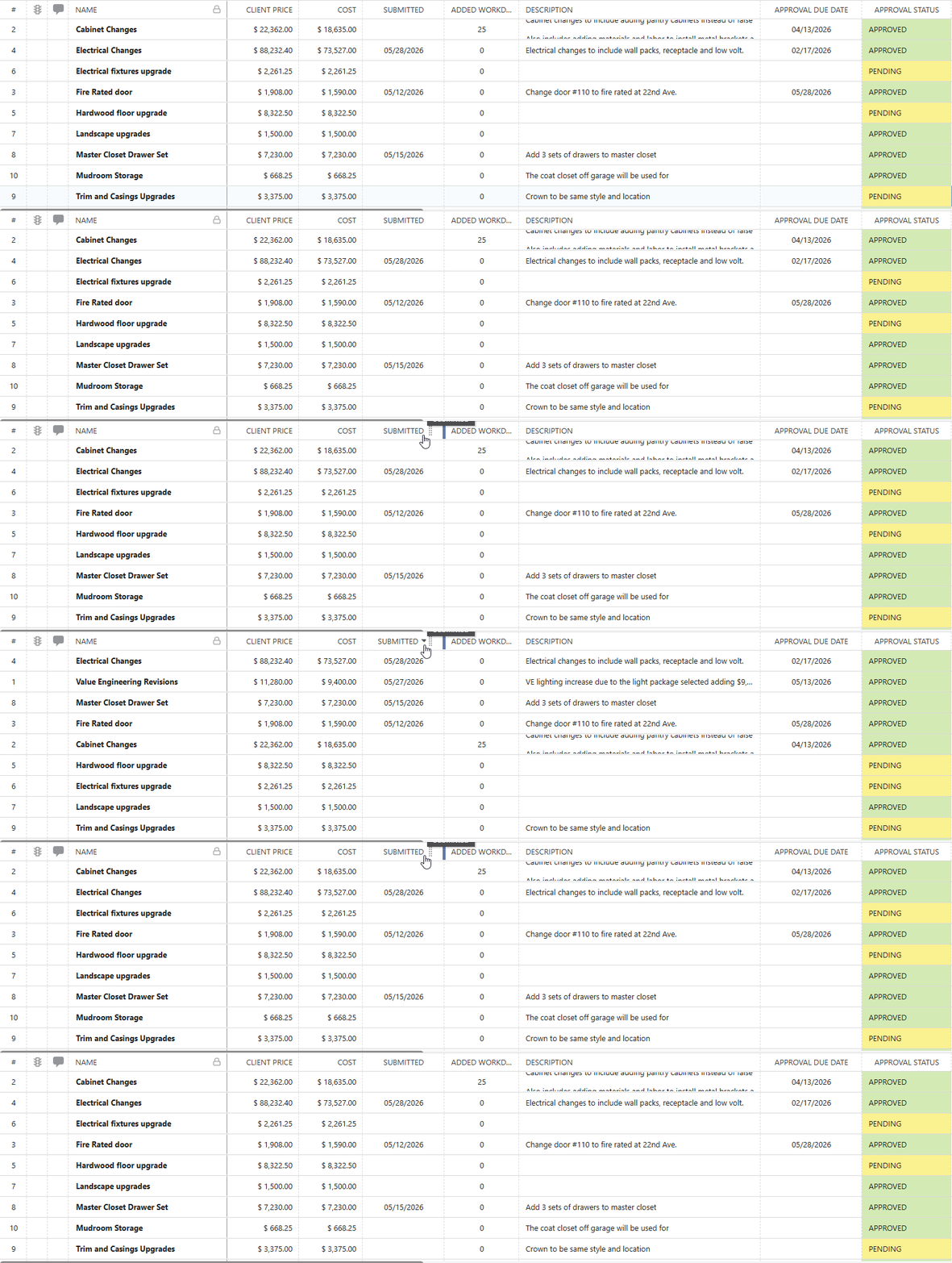
Adjustable Column Width
Modify the width of each column by dragging the boundary on the right side of the desired column until it fits your viewing preference. 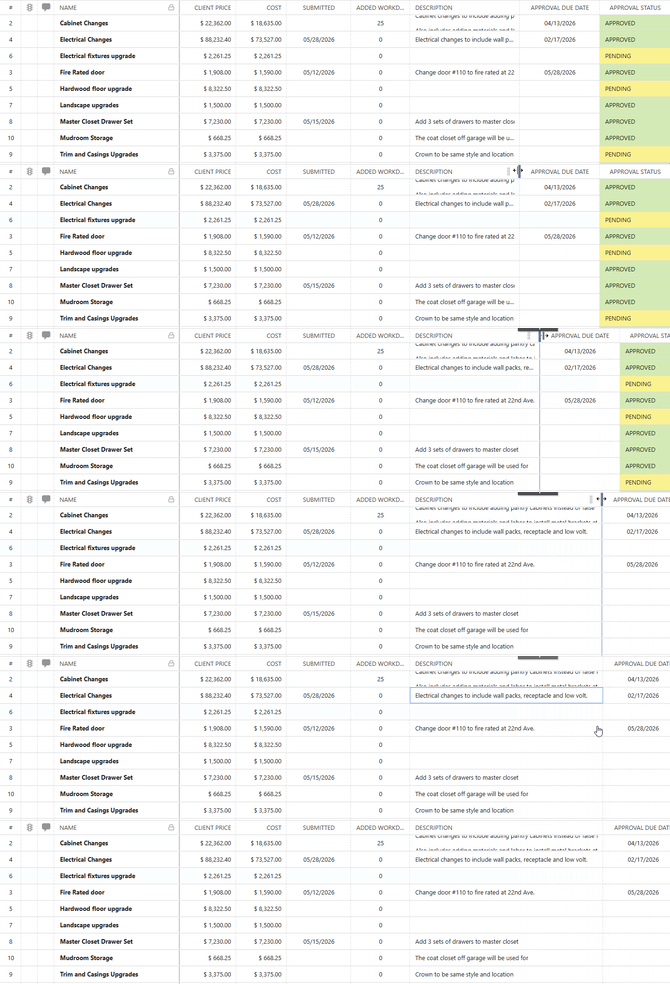
Secure Column Locks
Ensure key information remains visible while scrolling horizontally through the table with column locks. 
Custom Column Order & Visibility
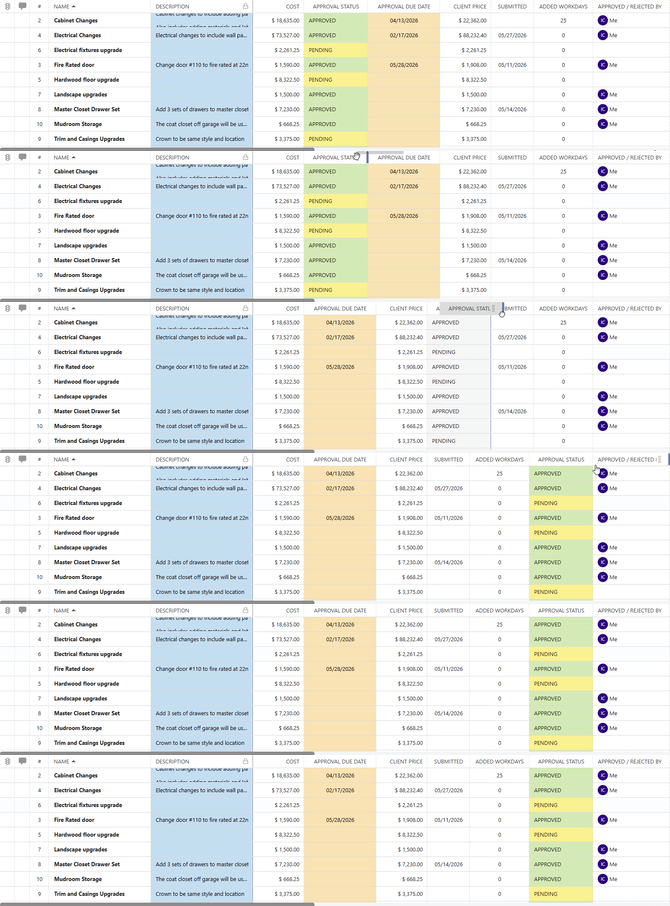
Display the information most important to you by reordering columns and choosing which ones to show or hide.
Columns can be reordered by clicking and dragging any column header left or right to your preferred position.
To manage column visibility and arrangement, right-click any column header and select "Show/Hide Columns" to open the Column Order & Visibility panel, where the full list of available columns can be toggled on or off and arranged in your preferred order. 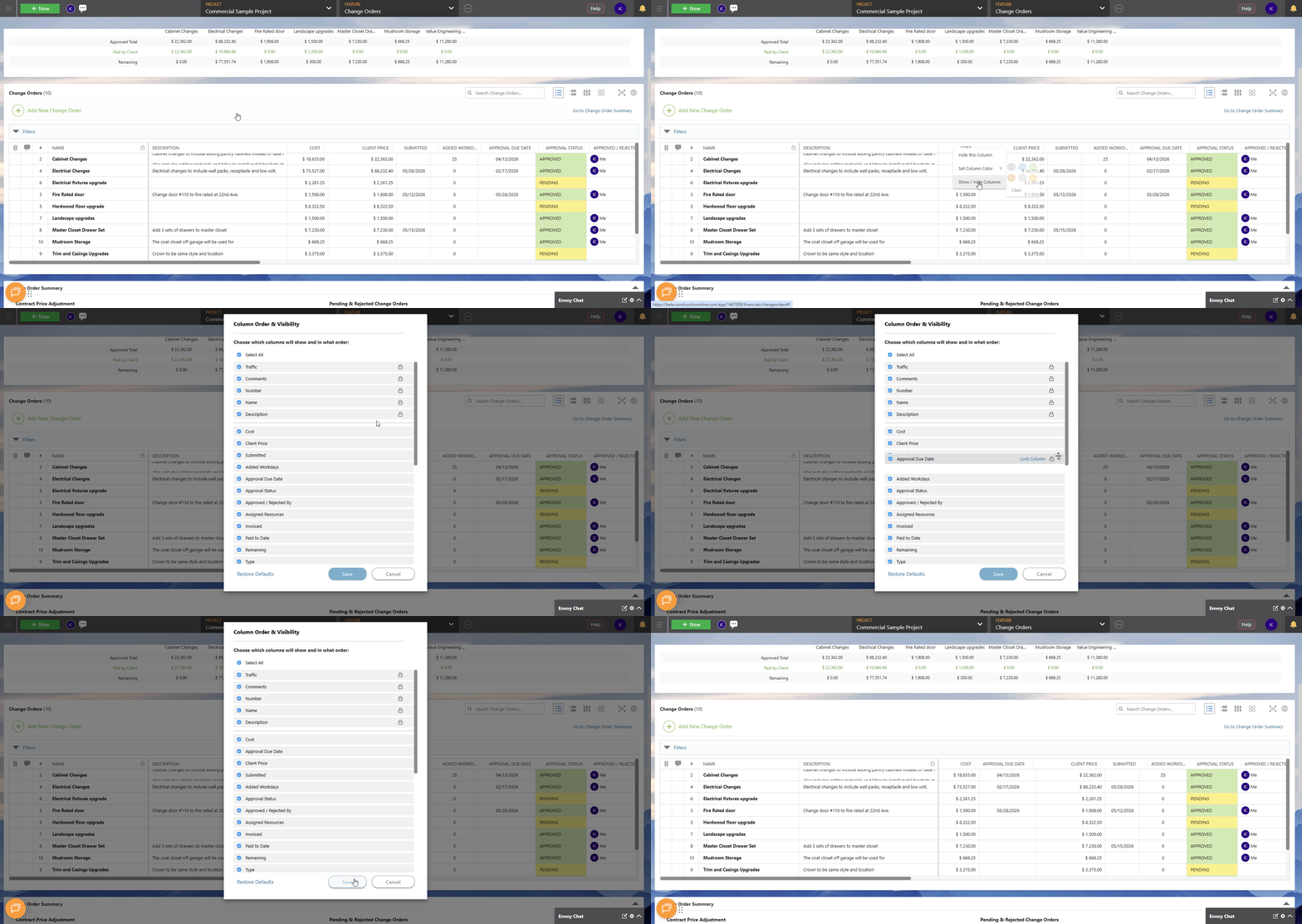
Color Code Columns
Visually distinguish different types of information or highlight the data most important to you by color coding columns. Right-click any column header and select "Set Column Color" to apply a color to that column. 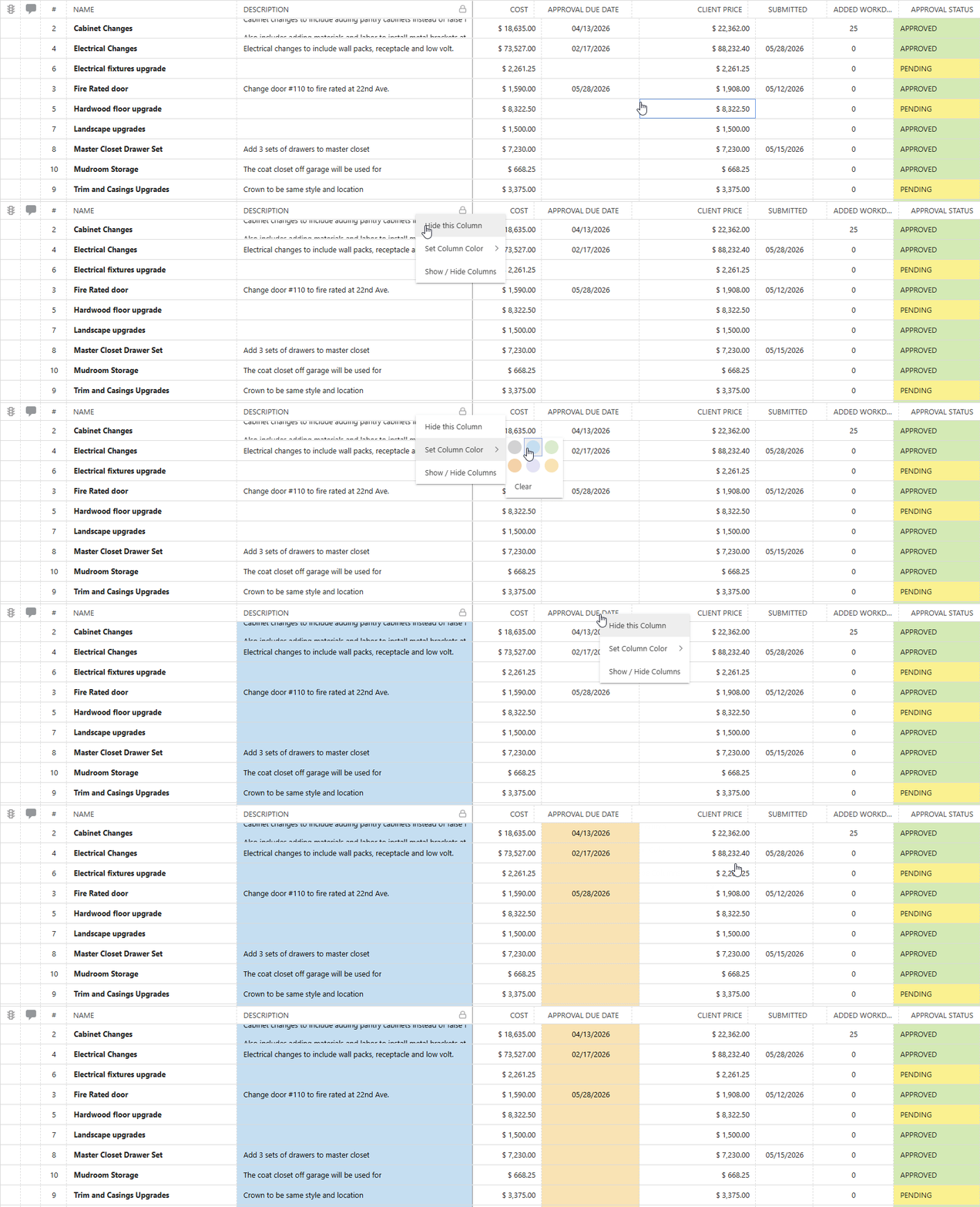
💡Discover the perfect fit for your Change Order management needs by exploring our other Knowledge Base resources on Change Order Views:
ADDITIONAL INFORMATION
- Subscription Level: Change Orders are available in all active ConstructionOnline™ subscriptions.
- For legacy plans that do not include ConstructionOnline's Change Orders feature, it is available as a Per-User Add-On.
- Permissions: Admin Users and Company Users with Change Orders permissions set to "Can View" or "Can Create, Edit, & Delete" can view Change Orders from all four interfaces. Available actions within each view will vary based on the user's permission level.
- ClientLink Access: Clients with Change Order permissions enabled can view and approve Change Orders from the Portal. Refer to this article for more information on ClientLink Change Order access.
- TeamLink™ Access: Subcontractors and vendors with TeamLink Portal access and Change Order permissions enabled, can view Change Orders assigned to them from within the Portal. Refer to this article for more information on TeamLink Change Order access.
- CO™ Mobile App: Change Orders can be accessed and managed via the mobile app; however, the full suite of Change Order Views requires browser access to ConstructionOnline.
HAVE MORE QUESTIONS?
- Frequently asked questions (FAQ) about Change Orders can be found in the article FAQ: Change Orders.
- If you need additional assistance, chat with a ConstructionOnline Specialist by clicking the orange Chat icon in the bottom left corner or visit the UDA Support Page for more options.