
Card View is a unique interface available exclusively in ConstructionOnline™ Change Orders, designed to give your team a fast, visual read on the status of every Change Order in your project. Rather than managing Change Orders from a spreadsheet-style table, Card View presents each Change Order as an individual card, making it easy to scan approval statuses, review key details, act on pending approvals, and monitor payment progress.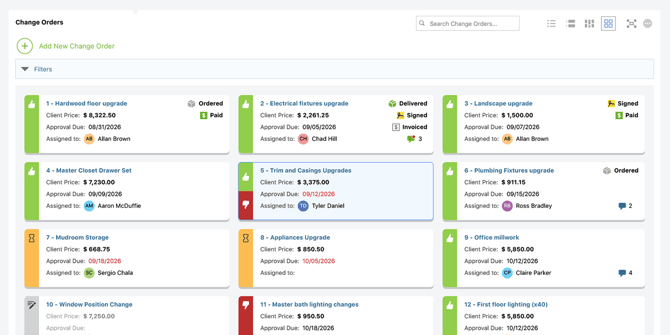
ConstructionOnline's Card View provides a visual and intuitive way to monitor and act on your project's Change Orders with the following capabilities -
At-a-Glance Change Order Overview
Card View presents each Change Order as an easy-to-scan card displaying key details at a glance, including Client Price, Approval Due Date, and Assigned Resources. Cards are arranged in a grid layout, allowing your team to quickly survey the full scope of a project's Change Orders without scrolling through a table or opening individual records.
Color-Coded Approval Status
Each Change Order card is color-coded by approval status, making it immediately clear where every Change Order stands without reading a single label. A green card indicates an Approved Change Order, orange indicates Pending Approval, and red indicates Rejected—giving your team an instant visual snapshot of your project's Change Order pipeline. 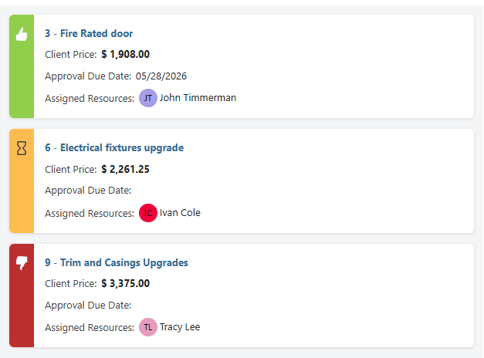
Payment & Delivery Status Indicators
Status indicators displayed on each card show whether a Change Order has been ordered, delivered, signed, invoiced, paid, or a combination of these—providing your team with a quick read on payment and delivery progress without needing to open each Change Order individually. .png?width=427&height=165&name=ChatGPT%20Image%20May%2014%2c%202026%2c%2002_16_14%20PM%20(1).png)
Client Approval Controls
Change Orders can be approved or rejected on behalf of clients directly from the Card View using the approve (green thumbs up  ) and reject (red thumbs down
  ) controls that appear when you hover over the yellow hourglass icon. This allows your team to act on pending approvals quickly and efficiently without navigating away from the view.
 .png?width=430&height=182&name=ChatGPT%20Image%20May%2014%2c%202026%2c%2002_19_01%20PM%20(1).png)
Detailed Change Order Access
Need to view or update the full details of a Change Order without leaving Card View? Clicking any Change Order card opens the Change Order Details extension blade—a full editing panel that slides open alongside the card view, providing access to key Change Order information and editing capabilities. 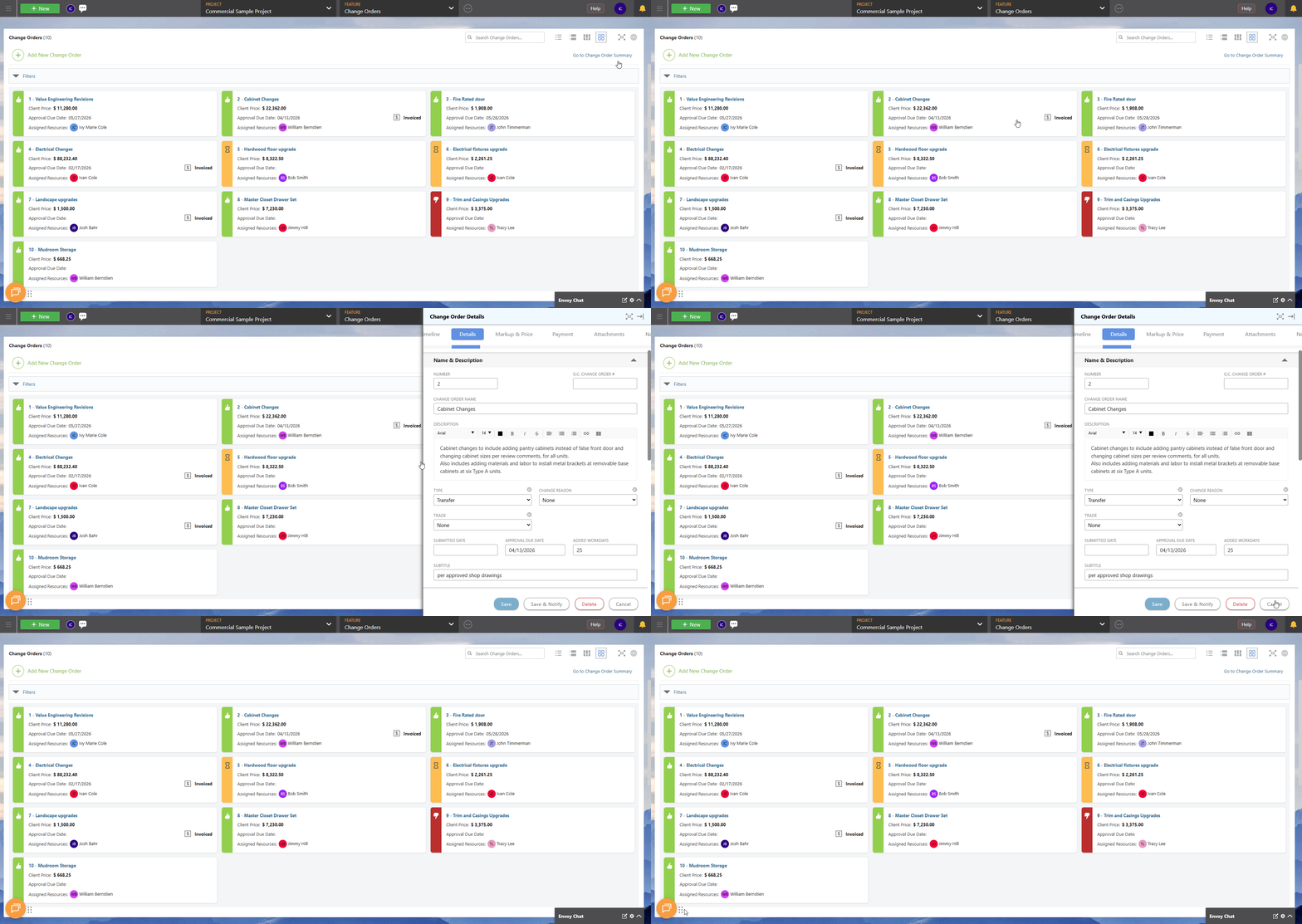
💡Discover the perfect fit for your Change Order management needs by exploring our other Knowledge Base resources on Change Order Views:
ADDITIONAL INFORMATION
- Subscription Level: Change Orders are available in all active ConstructionOnline subscriptions.
- For legacy plans that do not include ConstructionOnline's Change Orders feature, it is available as a Per-User Add-On.
- Permissions: ConstructionOnline Company Users with Change Orders permissions set to "Can View" or "Can Create, Edit, & Delete" can view Change Orders from all four interfaces.
- ClientLink Access: Clients with Change Order permissions enabled can view and approve Change Orders from the Portal. Refer to this article for more information on ClientLink Change Order access.
- TeamLink™ Access: Subcontractors and vendors with TeamLink Portal access and Change Order permissions enabled, can view Change Orders assigned to them from within the Portal. Refer to this article for more information on TeamLink Change Order access.
- CO™ Mobile App: Change Orders can be accessed and managed via the mobile app; however, the full suite of Change Order Views requires browser access to ConstructionOnline.
HAVE MORE QUESTIONS?
- Frequently asked questions (FAQ) about Change Orders can be found in the article FAQ: Change Orders.
- If you need additional assistance, chat with a ConstructionOnline Specialist by clicking the orange Chat icon in the bottom left corner or visit the UDA Support Page for more options.