
The Group-by View for ConstructionOnline™ Change Orders builds on List View with the added ability to organize (or group) your Change Orders into collapsible tables by any column value, making it easier to visualize approval statuses, identify cost trends, assess schedule impact, and make informed decisions to keep your projects on track.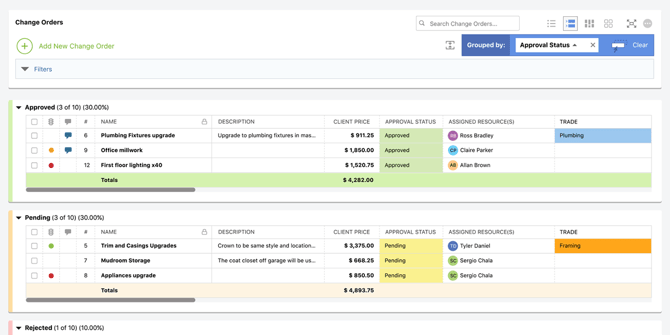
To ensure that each member of your project team can customize their Change Order management experience to meet their specific needs, any styling and formatting changes made in ConstructionOnline's Change Orders feature are user-specific. This means any changes to the way Change Order data is displayed or organized—such as column order, column visibility, and row management—will only be reflected for the user making the customizations. While each user's interface may appear different due to their selected view and personal customizations, it's important to understand that these changes do not modify the underlying data. Any actual data changes made to Change Orders are reflected in real time for all users, so your team is always working from the most up-to-date information.
Group-by View offers the same dynamic table and functions available in List View, with the following added features -
 Seamless Drag-and-Drop
Group your Change Orders by clicking and dragging any column header into the "Drag Column Headers Here to Group..." grouping zone at the top of the pane. The "Grouped by:" bar will then indicate the active grouping column(s), sort direction, and options to remove the grouping—keeping your view organized and easy to adjust at any time.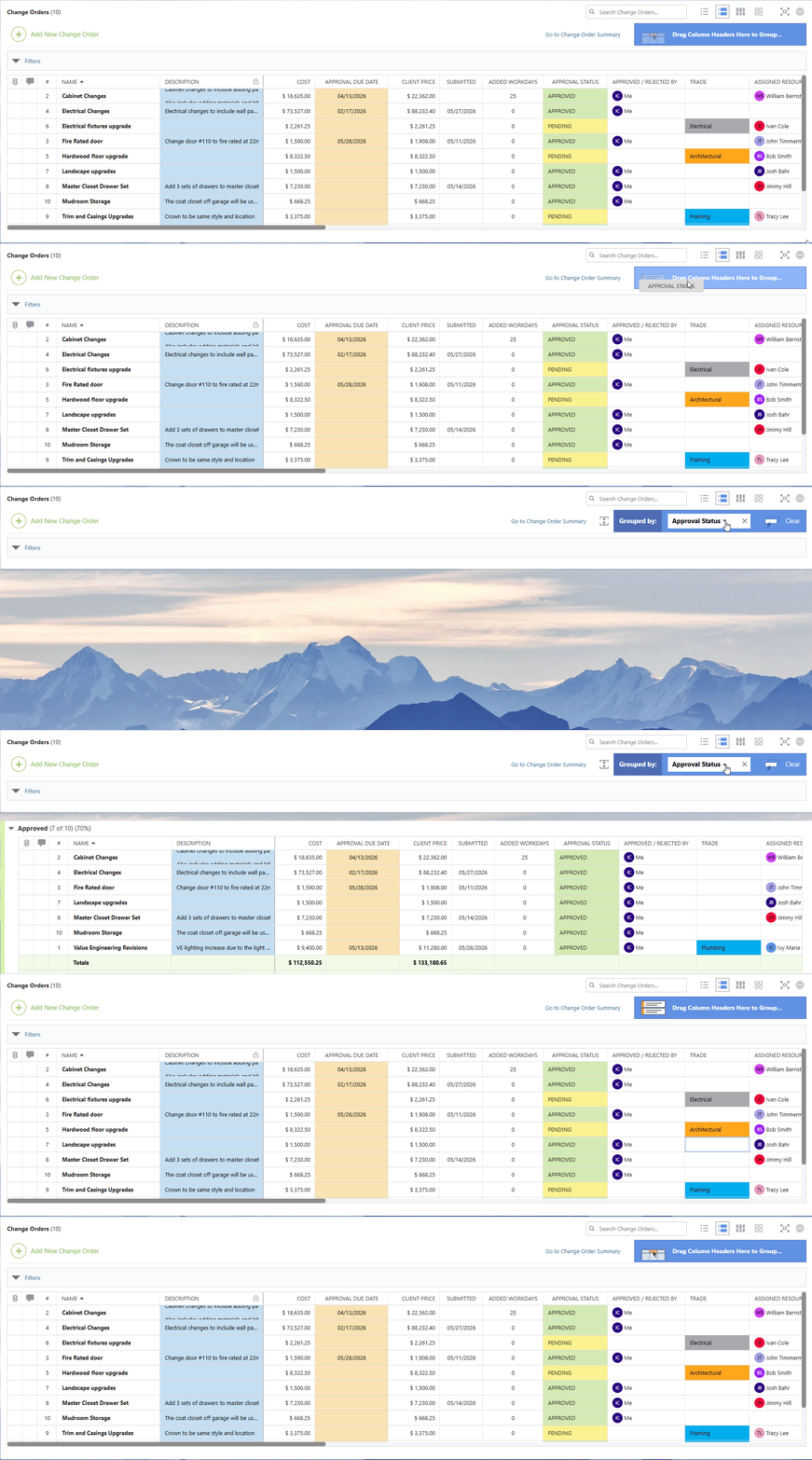
.png?width=66&height=30&name=ChatGPT%20Image%20May%2013%2c%202026%2c%2010_17_50%20AM%20(2).png) Nestable Compound Grouping
Nestable Compound Grouping
Don't stop at just one! Drag multiple column headers into the grouping zone to further organize your Change Orders into nested sub-groups for additional insight. For example, grouping first by Approval Status and then by Trade breaks your Change Orders down by status, with each group subdivided by trade—making it easy to see which subcontractors have outstanding approvals at a glance. 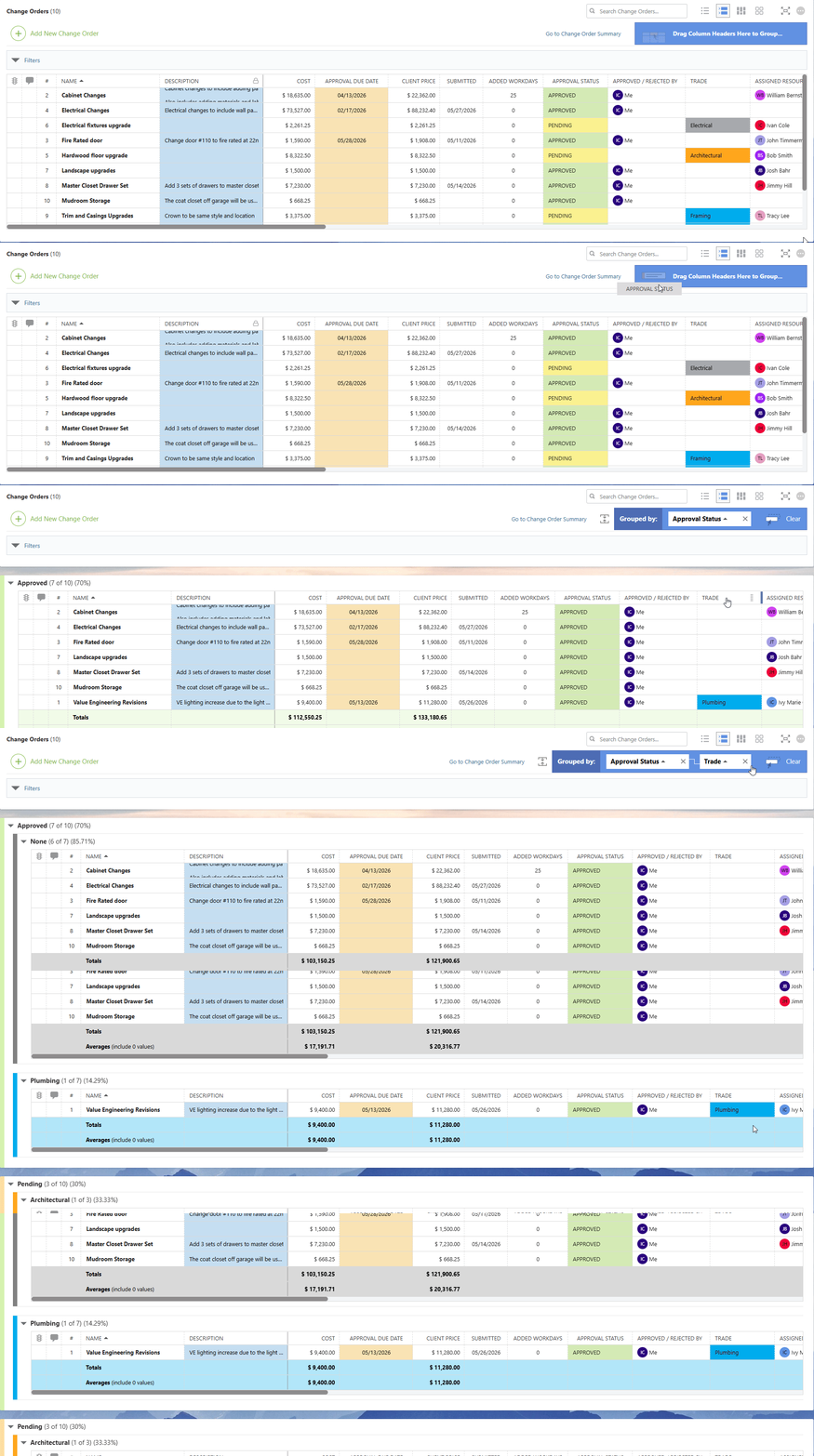
.png?width=39&height=39&name=ChatGPT%20Image%20May%2013%2c%202026%2c%2010_44_22%20AM%20(1).png) Sortable Grouping
Sortable Grouping
Easily sort groups in either direction by clicking the sort arrow next to the column name in the grouping zone. For date-based columns—such as Approval Due Date or Submitted—click the calendar icon in the grouping zone to choose how dates are grouped: by Day, Week, Month, Quarter, Year, or Day of Week. 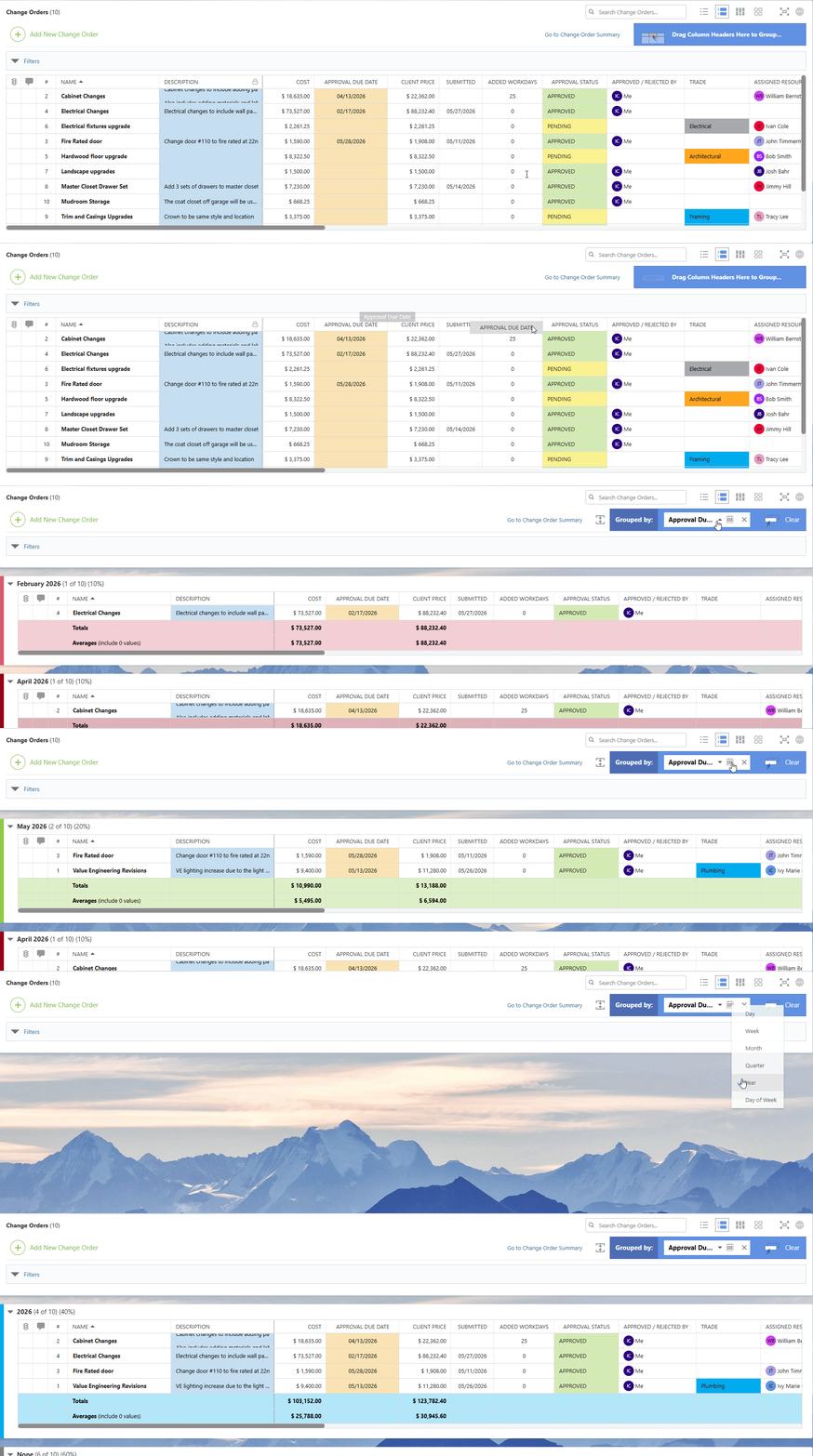
%20(1).png?width=35&height=28&name=ChatGPT%20Image%20May%2013%2c%202026%2c%2010_50_26%20AM%20(1)%20(1).png) Collapsible Grouping
Collapsible Grouping
Quickly condense individual groups for a more streamlined display of data that's easy to navigate, especially when dealing with a large number of Change Orders. Click the arrow to the left of any group header to collapse or expand that group. 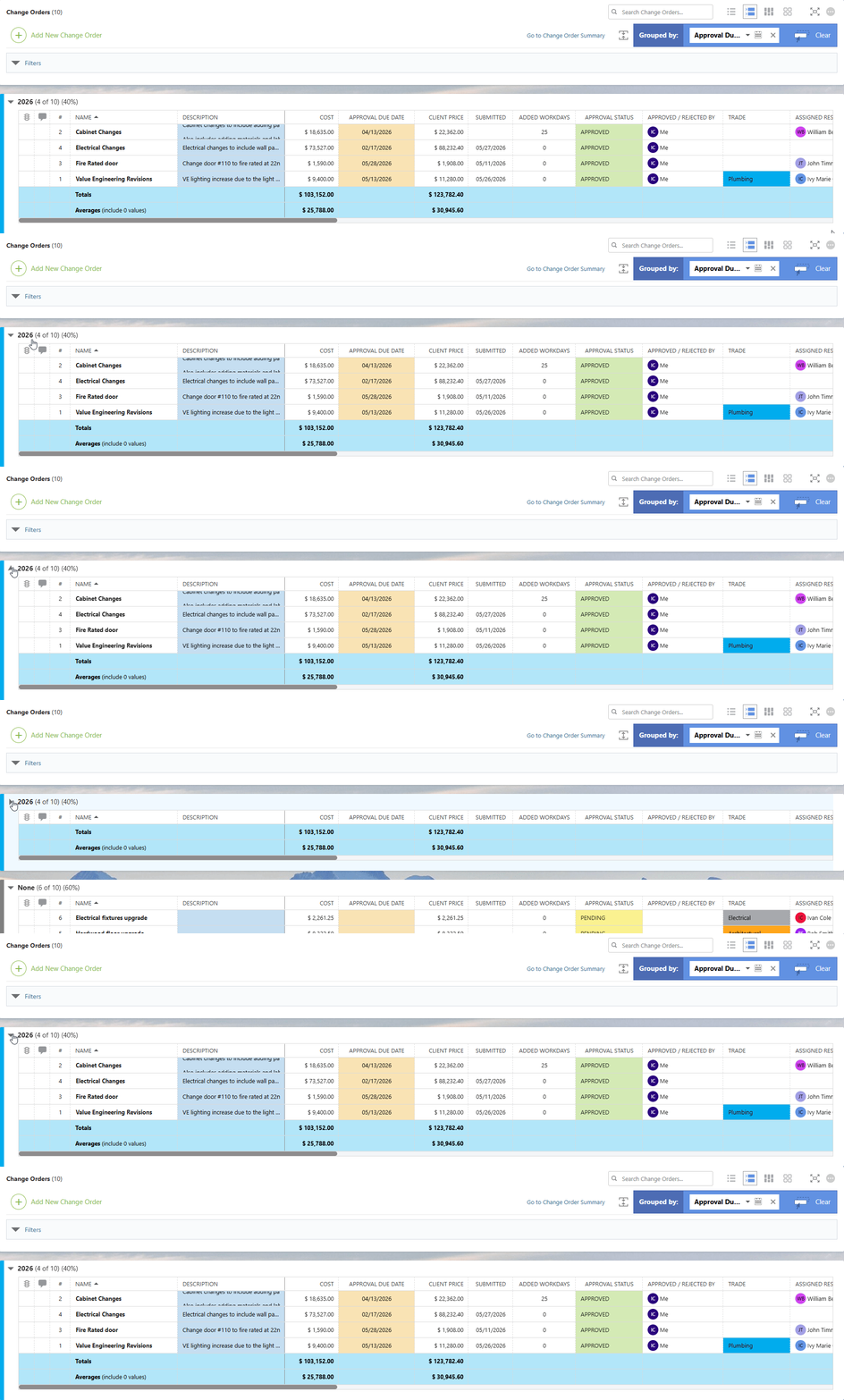
💲Financial Totals & Averages per Group
Designed specifically for construction financial management, Group-by View automatically calculates and displays Totals and Averages for each group based on its Change Orders—making it easy to assess cost impact, track payment progress, and compare values across groups at a glance.
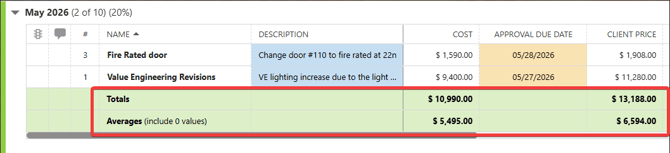
Additional display options including Minimum, Median, Maximum, and Count values are also available within the Totals & Averages Row Settings. 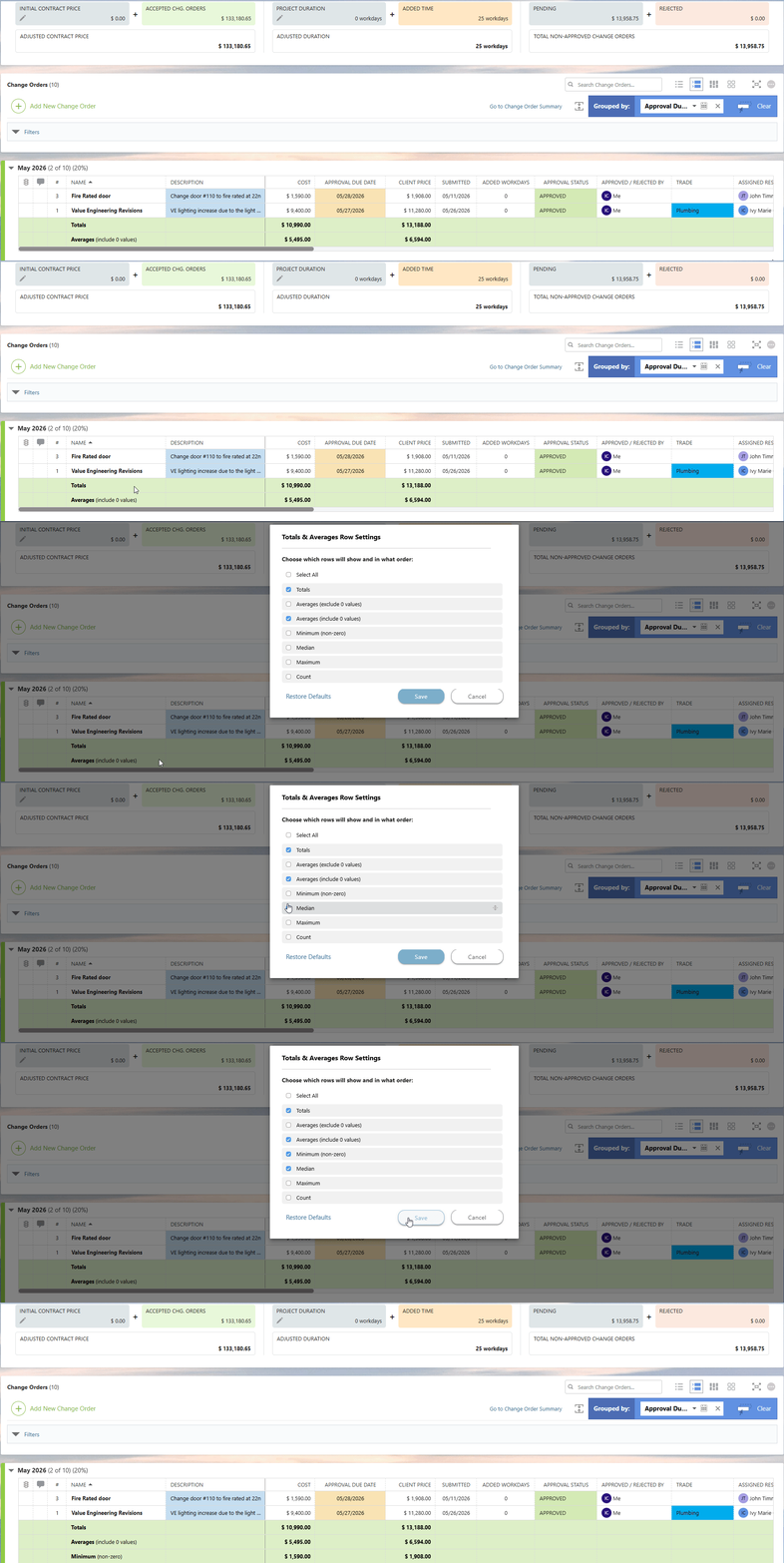
💡Discover the perfect fit for your Change Order management needs by exploring our other Knowledge Base resources on Change Order Views:
ADDITIONAL INFORMATION
- Subscription Level: Change Orders are available in all active ConstructionOnline subscriptions.
- For legacy plans that do not include ConstructionOnline's Change Orders feature, it is available as a Per-User Add-On.
- Permissions: Admin Users and Company Users with Change Orders permissions set to "Can View" or "Can Create, Edit, & Delete" can view Change Orders from all four interfaces. Available actions within each view will vary based on the user's permission level.
- ClientLink Access: Clients with Change Order permissions enabled can view and approve Change Orders from the Portal. Refer to this article for more information on ClientLink Change Order access.
- TeamLink™ Access: Subcontractors and vendors with TeamLink Portal access and Change Order permissions enabled, can view Change Orders assigned to them from within the Portal. Refer to this article for more information on TeamLink Change Order access.
- CO™ Mobile App: Change Orders can be accessed and managed via the mobile app; however, the full suite of Change Order Views requires browser access to ConstructionOnline.
HAVE MORE QUESTIONS?
- Frequently asked questions (FAQ) about Change Orders can be found in the article FAQ: Change Orders.
- If you need additional assistance, chat with a ConstructionOnline Specialist by clicking the orange Chat icon in the bottom left corner or visit the UDA Support Page for more options.