
BACKGROUND
Managing bid information across multiple tools can create gaps in communication and increase risk during the bidding process. ConstructionOnline's Bid Tracking feature centralizes scope, timelines, documents, and bidder communication into a single Bid Package.
Creating a Bid Package from scratch allows teams to fully customize bid details to match the unique requirements of each Project or Opportunity, ensuring greater clarity, consistency, and control from the outset.
THINGS TO CONSIDER
- Bid Packages can be accessed at both the Company and Project/Opportunity levels:
- Company-Level: Displays all Bid Packages across all projects.
- Project/Opportunity-Level: Displays only Bid Packages associated with the selected Project or Opportunity.
HOW TO CREATE A NEW BID PACKAGE
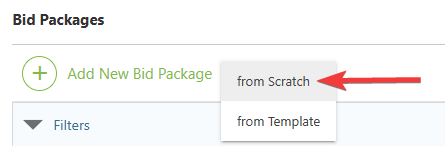
- From within your "Bid Packages" list, click the green (+) Add New Bid Package button and choose the "from Scratch" option from the dropdown menu.
- The "Create A New Bid Package" extension blade will open on the right side of your screen, where you can enter information about the Bid Package, including -
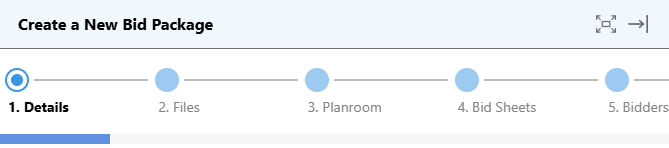
- Details:
- General Details
- Related Project/Opportunity: Select the Project or Opportunity associated with the Bid Package.
- By default, ConstructionOnline™ selects the first Project in your "Company Projects" List (alphabetically). If you are already working within a Project or Opportunity, that selection is applied automatically.
- Bid Package Number: The number assigned to the Bid Package for organizational purposes.
- ConstructionOnline assigns the next sequential Bid Package number by default. However, this number can be changed or deleted.
- Bid Package Title: Provide a clear, descriptive title that reflects the scope of work being bid. This field is required.
- Color: Choose a color to visually distinguish the Bid Package within the "Bid Packages" List.
- Primary Bidding Contact: Select the Contact(s) responsible for managing Bidder communications.
- Their Public Details (Name, Company, and Email) will appear in bid invitation emails and within the Bid Package.
- Related Project/Opportunity: Select the Project or Opportunity associated with the Bid Package.
- Important Dates
🗒️ Note: All date fields entered below will automatically appear in the "Bidding Timeline" once the Bid Package is created, making it easier to track key milestones.
- Bid Docs Release Date: Specify the date when bid documents will be shared with Bidders.
- Site Visit: Schedule an optional date and time for a pre-bid site walk.
- Deadline for RFIs: Set the final date Bidders may submit Requests for Information.
- Addendum Deadline: Enter the latest date addenda can be issued to Bidders.
- Anticipated Award Deadline: Indicate the target date for selecting and awarding a bid.
- Bid Submission Deadline: Provide the date and time by which all bids must be submitted. This field is required.
- Don't allow Bids to be awarded prior to the Bid Submission Deadline: Enable this option to prevent early award decisions, keeping all Bids open until the submission deadline passes.
- By default, ConstructionOnline has this option toggled on.
⚠️ Important: We strongly recommend waiting to award bids until after the deadline. Keeping the award locked until the set date ensures all Bidders have an equal opportunity and allows your team to make fully informed decisions using the complete pool of submissions.
- By default, ConstructionOnline has this option toggled on.
- Don't allow Bids to be awarded prior to the Bid Submission Deadline: Enable this option to prevent early award decisions, keeping all Bids open until the submission deadline passes.
- Bid Package Scope of Work
- Description: Describe the overall scope of work for the Bid Package.
- This description applies to all Bid Sheets in the package and will be visible to all invited Bidders, regardless of which Bid Sheet(s) they've been added to.
- Description: Describe the overall scope of work for the Bid Package.
- Bidding Instructions
- Description: Specify any submission requirements, pricing expectations, coordination responsibilities, or special conditions Bidders must follow when submitting their bids.
- ConstructionOnline automatically includes standard bidding instructions in each Bid Package to guide Bidders through the submission process. These system-generated instructions cannot be modified.
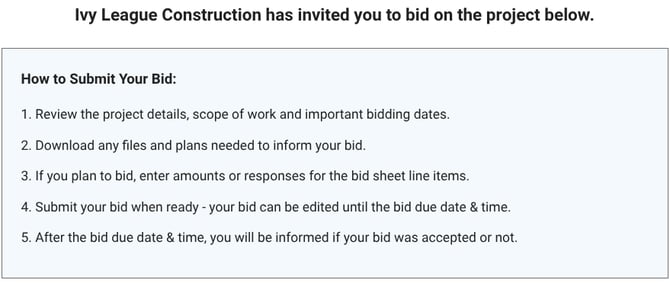
- ConstructionOnline automatically includes standard bidding instructions in each Bid Package to guide Bidders through the submission process. These system-generated instructions cannot be modified.
- Description: Specify any submission requirements, pricing expectations, coordination responsibilities, or special conditions Bidders must follow when submitting their bids.
- Additional Details
🗒️ Note: These fields define the "From:" address that appears in bid invitation emails. They automatically populate from your Company Account information in Account Settings. Editing them here updates the information for this specific Bid Package. To configure a new default for all future Bid Packages, click the blue "Manage Default Address" or "Manage Default Contact Info" text.- Your Company Name: The Company issuing the invitation to bid.
- Street Address: Mailing or office address for the Company.
- City: City associated with the address.
- State/Province: State or province.
- Zip: Postal or ZIP code.
- Phone Number: Primary contact phone number.
- Email Address: Email address.
- Tags: Assign any predefined keywords or labels to the Bid Package.
- By using Tags in ConstructionOnline, you can easily sort and track information within the system.
- Labor Affiliation: Identify labor classification (Union or Non Union) and indicate if prevailing wage requirements apply.
- General Details
- Files: Upload any Project or Opportunity documents relevant to the Bid Package, including specifications, images, or other reference materials.
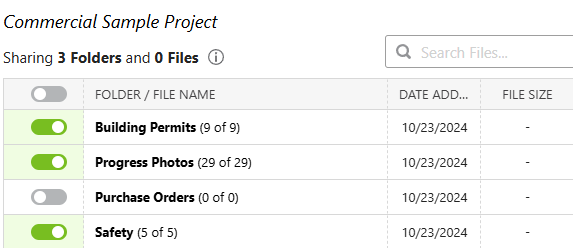
- Any documents added later to Folders/Albums already shared within the Bid Package are automatically included and visible to invited Bidders.
- If you attempt to upload a Private Folder, a message will flash in the bottom-right corner indicating that the Folder cannot be shared.
- Planroom: Select plan sheets from the Current Set to share with invited Bidders.
- Bid Sheets: Add one or more Bid Sheets to define what line items will be available for bidding.
- A Bid Package can be created without adding Bid Sheets, however, Bidders cannot be invited until at least one Bid Sheet exists.
- Bidders: Add Contact(s) to specific Bid Sheets by clicking the green (+) Add New Bid Recipient button and selecting from Contacts in your Company Directory.
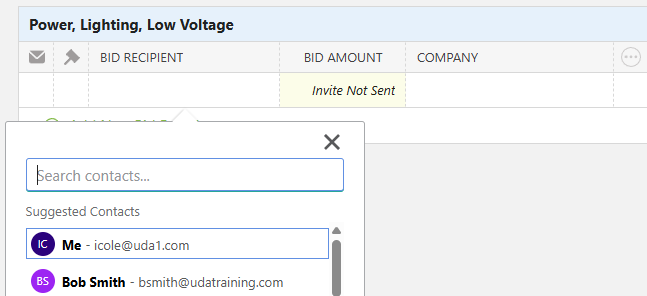
- Bidders do not have to be added to Bid Sheets or sent Bid Package invitations at the time of creation. Invitations are automatically queued as Bidders are added, but you can turn this off using the toggle.
- Each Bidder can only see the Bid Sheet(s) they are invited to and the associated Bid Package information—they will not see others' invitations.
- Reminder Recipients: Set up Reminders for the Bid Package.
- Internal Recipients: Company Users in your ConstructionOnline account.
- For all Bid Packages
- For the specific Bid Package being created
- External Recipients: Any Contacts within your ConstructionOnline account.
- For the specific Bid Package being created
- When a contact is added as a bidder on any Bid Sheet within the Bid Package, they will be added as an External Reminder Recipient.
🗒️ Note: The automated email reminders being sent to the chosen recipients are those that have been configured within your Bid Package Reminder Settings. You can modify these reminders by clicking the blue "your reminder settings" text.
- When a contact is added as a bidder on any Bid Sheet within the Bid Package, they will be added as an External Reminder Recipient.
- For the specific Bid Package being created
- Internal Recipients: Company Users in your ConstructionOnline account.
- Details:
- Once all desired information has been entered, press the blue "Save" button to create the Bid Package.
- Any queued bid invitations will be sent, and the Bid Tracking Status will be set to "Open."
ADDITIONAL INFORMATION
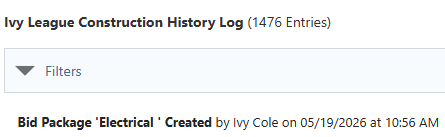
- You can see information regarding this activity logged in the Company History Log, where ConstructionOnline records that the Bid Package was created, the user who created the package, and the date and time of creation.
- Subscription Level: Bid Tracking is available for ConstructionOnline accounts with active subscriptions at the Residential Business, Commercial Team and Business, Multi-Family Team and Business, and Enterprise levels.
- The Bid Tracking feature is also available as a Per-Company Add-On for all other plans.
- Permissions: Admin Users and Company Users with "Can Create, Edit, and Delete" permissions for Bid Tracking can create new Bid Packages from scratch.
- CO™ Mobile App: The Bid Tracking feature is currently available exclusively via browser access to ConstructionOnline.
HAVE MORE QUESTIONS?
- Frequently asked questions (FAQ) about Bid Tracking can be found in the article FAQ: Bid Tracking.
- If you need additional assistance, chat with a ConstructionOnline Specialist by clicking the orange Chat icon in the bottom left corner or visit the UDA Support Page for more options.