
BACKGROUND
Adding the right subcontractors and vendors to a Bid Package is essential for competitive pricing and timely procurement. ConstructionOnline allows teams to add Bidders during Bid Package creation or to existing Bid Packages as bidding progresses.
Bidders are added to at the Bid Sheet level, ensuring that invitations are sent only to contacts responsible for relevant portions of work.
⚠️ Important: You must add at least one Bid Sheet to the Bid Package before adding any Bidders, as bid invitations are tied to specific Bid Sheets.
THINGS TO CONSIDER
When adding Bidders, invitation behavior depends on whether the Bid Package is being created or edited and whether invitation queuing is enabled.
- During Bid Package Creation: By default, the option "Queue invites to Bidders as they are added. Invites will be sent after the Bid Package is saved." is enabled. This means invitations will be automatically queued for all added Bidders and sent when you click "Save."
- If this toggle is turned off, invitations will not be queued automatically—you'll need to manually queue and send them by clicking within the Bidder's invitation (envelope) column or their gray 3-dot Action Menu. A blue arrow indicates an invitation is queued.
- When Editing an Existing Bid Package: Invitations are only queued if the toggle is enabled. If it is turned off, you must either enable it before adding Bidders or manually queue invitations after adding them. Any queued invitations are sent when you click "Save."
👉 For detailed steps, see "Send/Resend Invitations to Bid."
HOW TO ADD BIDDER(S) TO A BID PACKAGE
A. During Bid Package Creation:
- Bidders can be added during the Bid Package creation process.
- Once within the "Create a New Bid Package" extension blade that opens on the right side of your screen, navigate to the "Bidders" tab.
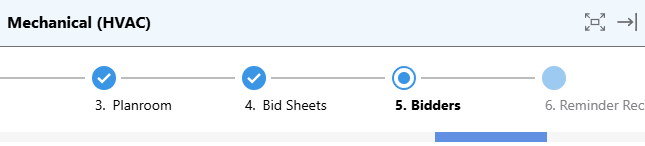
- Press the green (+) Add New Bid Recipient button on the Bid Sheet to which you want to add Bidders .

- ConstructionOnline will automatically populate a list of "Suggested Contacts."
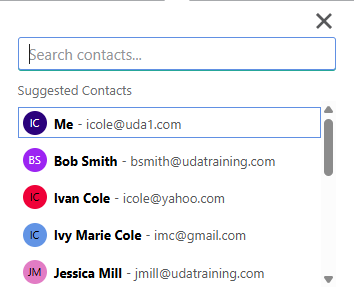
- The list will appear with your own user profile ("Me") first, followed by your ConstructionOnline Contacts in alphabetical order.
- ConstructionOnline will automatically populate a list of "Suggested Contacts."
- Search and select the desired Contact(s) or click on the Contact(s) from the list of those suggested to add as Bidders.

- Once you have finished adding the Bidders and other package information you wish to include, click the blue "Save" button to create the Bid Package and send any queued bid invitations.
B. From within an Existing Bid Package:
- From within your "Bid Packages" list, click on the desired Bid Package to which you want to add Bidders.
- Navigate to the "Bidders" tab.

- Select the green (+) Add New Bidder button.

- This will open the Bid Package's extension blade on the right side of your screen.
- Follow Steps 3-5 from the section above.
ADDITIONAL INFORMATION
- Subscription Level: Bid Tracking is available for ConstructionOnline accounts with active subscriptions at the Residential Business, Commercial Team and Business, Multi-Family Team and Business, and Enterprise levels.
- The Bid Tracking feature is also available as a Per-Company Add-On for all other plans.
- Permissions: Admin Users and Company Users with "Can Create, Edit, and Delete" permissions for Bid Tracking can add Bidders to a Bid Package.
- CO™ Mobile App: The Bid Tracking feature is currently available exclusively via browser access to ConstructionOnline.
HAVE MORE QUESTIONS?
- Frequently asked questions (FAQ) about Bid Tracking can be found in the article FAQ: Bid Tracking.
- If you need additional assistance, chat with a ConstructionOnline Specialist by clicking the orange Chat icon in the bottom left corner or visit the UDA Support Page for more options.