
BACKGROUND
Bid Sheets define the scope of work that Bidders will price, making them a critical component of an accurate and efficient bidding process. Clear, well-organized Bid Sheets help Bidders understand expectations, reduce errors, and let your team track and manage submissions with confidence. Properly configured Bid Sheets streamline communication and save time for both your company and invited Bidders.
ConstructionOnline makes it easy to add Bid Sheets either during the creation of a new Bid Package or within an existing package. Whether building from scratch, importing from the linked Estimate, or generating from a Change Order, you can tailor each Bid Sheet to reflect your project's unique requirements.
HOW TO CREATE A BID SHEET
A. During Bid Package Creation:
- Bid Sheets can be added during the Bid Package creation process.
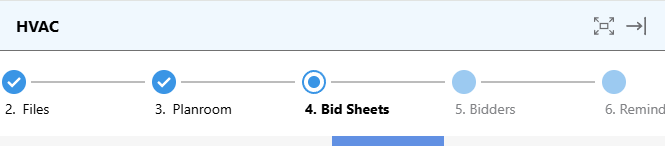
- Once within the "Create a New Bid Package" extension blade that opens up on the right side of your screen, navigate to the "Bid Sheets" tab.
- Press the green (+) Add New Bid Sheet button.

- The "Create a New Bid Sheet for [Bid Package Name]" window will open, where you can enter information about the Bid Sheet, including -

- General Details
- Bid Sheet Name: Enter a clear, descriptive name to help Bidders understand the work being bid. This field is required.
- Notes: Add any additional context that applies specifically to the Bid Sheet.
- Creation Method:
Choose how the Bid Sheet will be structured -
- From scratch: Define the Categories and Subcategories and enter line items manually.
- From the Project Estimate: Select Categories, Subcategories, and line items from the linked Estimate.
- If no Estimate has been linked to the Project/Opportunity, this option will be unavailable.
- From a Change Order: Choose an associated Change Order, whether unapproved or approved, to automatically generate line items.
- If no Change Orders exist for the Project/Opportunity, this option will be unavailable.
- Line Items: Enter or select Categories, Subcategories, and line items to define the work Bidders will price. When selecting line items from the Estimate, their descriptions will automatically pull into the Bid Sheet. Descriptions can also be added or modified within the Bid Sheet; however, any changes made to the description column at this point will not update the Estimate.
⚠️ Important: At least one line item is required to create a Bid Sheet.
- General Details
- Once you've finalized the items available for bidding and their bid format, press the blue "Save" button to create the Bid Sheet.
B. From within an Existing Bid Package:
- From within your "Bid Packages" list, locate and select the desired Bid Package to which you want to add a Bid Sheet.
- Navigate to the "Bid Sheets" tab.

- Follow Steps 3-5 from the section above.
ADDITIONAL INFORMATION
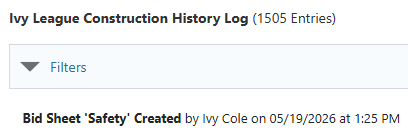
- You can see information regarding this activity logged in the Company History Log, where ConstructionOnline records that the Bid Sheet was created, the user who created the sheet, and the date and time of creation.
- Subscription Level: Bid Tracking is available for ConstructionOnline accounts with active subscriptions at the Residential Business, Commercial Team and Business, Multi-Family Team and Business, and Enterprise levels.
- The Bid Tracking feature is also available as a Per-Company Add-On for all other plans.
- Permissions: Admin Users and Company Users with "Can Create, Edit, and Delete" permissions for Bid Tracking can create new Bid Sheets.
- CO™ Mobile App: The Bid Tracking feature is currently available exclusively via browser access to ConstructionOnline.
HAVE MORE QUESTIONS?
- Frequently asked questions (FAQ) about Bid Tracking can be found in the article FAQ: Bid Tracking.
- If you need additional assistance, chat with a ConstructionOnline Specialist by clicking the orange Chat icon in the bottom left corner or visit the UDA Support Page for more options.