
BACKGROUND
Inviting subcontractors and vendors to bid is a critical step in the procurement process, and timing matters. Missed or delayed invitations can limit competition, affect pricing, and slow project schedules.
ConstructionOnline provides flexible options for preparing, queuing, and sending bid invitations—whether they're sent automatically during Bid Package creation or manually for individual Bidders. Invitations are first queued, then sent when specific actions occur, giving teams control over both who receives an invite and when it's delivered.
Understanding how invitation queuing and sending work helps ensure bid requests reach the right contacts at the right time, without accidental sends or missed opportunities.
THINGS TO CONSIDER
In ConstructionOnline, sending bid invitations follows a two-step process:
- Queuing: Invitations are prepared and added to a pending list.
- Sending (Triggering): Queued invitations are sent when you create a new Bid Package or save changes to an existing one.
◻️Empty Box: No invitation is queued
.png?width=24&height=19&name=ChatGPT%20Image%20May%2019%2c%202026%2c%2002_37_08%20PM%20(1).png) Blue Arrow: Invitation is queued and will be sent upon saving
Blue Arrow: Invitation is queued and will be sent upon saving
.png?width=22&height=17&name=ChatGPT%20Image%20May%2019%2c%202026%2c%2002_39_32%20PM%20(1).png) Envelope: Invitation has been sent
Envelope: Invitation has been sent
This article will walk you through the various methods for sending invitations to bid in ConstructionOnline. You'll learn how to:
- Send invitations automatically when creating a new Bid Package
- Manually send/resend invitations to individual Bidders
METHODS TO SEND INVITATIONS TO BID
A. Automatically Send Invitations After Bid Package Creation:
When you create a new Bid Package, by default, invitations are automatically queued and sent.
- From the "Create a New Bid Package" extension blade that opens on the right side of your screen, navigate to the "Bidders" tab.
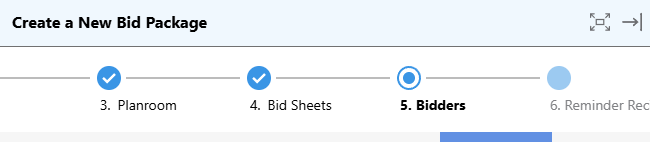
- Add Bidders and ConstructionOnline will automatically queue an invitation for each one.
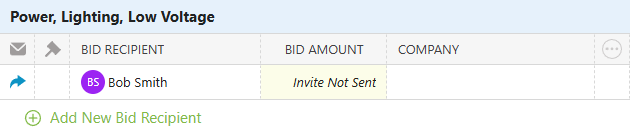
- If you do not want to queue invites, turn off the toggle "Queue invites to Bidders as they are added. Invites will be sent after the Bid Package is saved" before adding Bidders.

⚠️ Important: Turning this toggle off does not remove invitations that are already queued. Any Bidders added while the toggle was enabled will still have pending invitations.
- If you do not want to queue invites, turn off the toggle "Queue invites to Bidders as they are added. Invites will be sent after the Bid Package is saved" before adding Bidders.
- After finalizing all Bid Package details, click the blue "Save" button.
- This creates the Bid Package and triggers invitations for all Bidders added while the invitation queue toggle was enabled.
B. Manually Send/Resend Invitations to Individual Bidders:
You also have the flexibility to send or resend an invitation to any specific Bidder.
- From within your "Bid Packages" list, select the desired Bid Package you wish to send invitations for.
- Navigate to the "Bidders" tab.

- Right-click on the Bidder you wish to send/resend an invite to and select "Send/Resend Invite" from the dropdown menu.
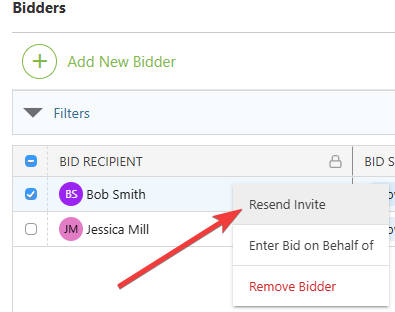
- ConstructionOnline will flash a message in the bottom right corner of your screen once the invitation is successfully sent.

- ConstructionOnline will flash a message in the bottom right corner of your screen once the invitation is successfully sent.
🗒️ Note: The "Bid Invites" column displays the date of the most recent invitation sent to a Bidder.
ADDITIONAL INFORMATION
- Alternative Access Point: You can also manually send/resend bid invites within the Bidders tab of a Bid Package by clicking within the invitation (envelope) column of the desired Bidder or their gray 3-dot Action Menu.
- Subscription Level: Bid Tracking is available for ConstructionOnline accounts with active subscriptions at the Residential Business, Commercial Team and Business, Multi-Family Team and Business, and Enterprise levels.
- The Bid Tracking feature is also available as a Per-Company Add-On for all other plans.
- Permissions: Admin Users and Company Users with "Can Create, Edit, and Delete" permissions for Bid Tracking can send/resend bid invitations.
- CO™ Mobile App: The Bid Tracking feature is currently available exclusively via browser access to ConstructionOnline.
HAVE MORE QUESTIONS?
- Frequently asked questions (FAQ) about Bid Tracking can be found in the article FAQ: Bid Tracking.
- If you need additional assistance, chat with a ConstructionOnline Specialist by clicking the orange Chat icon in the bottom left corner or visit the UDA Support Page for more options.