
BACKGROUND
Redline™ Planroom in ConstructionOnline provides TeamLink Users with a centralized location to view, manage, and submit plan documentation for projects they are a part of. With upload permissions enabled, TeamLink Users can upload Redline Sheets directly from the Portal, allowing subcontractors and team members to contribute updated plans and documentation as part of their existing portal workflow.
THINGS TO CONSIDER
-
Access to Redline Planroom via the TeamLink Portal requires an existing TeamLink User account. If you do not currently have TeamLink access, contact the general contractor to be added as a TeamLink User.
- Review the Redline Sheet Requirements to ensure plans are formatted correctly before uploading.
HOW TO UPLOAD REDLINE SHEETS FROM THE TEAMLINK PORTAL
-
Navigate to the Redline Planroom feature within the desired Project.
- Click the green (+) Add New... button and select your desired upload method:
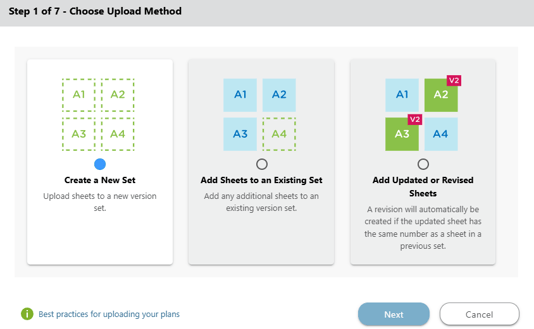
- Create a New Set — Upload sheets to a new version set
- Add Sheets to an Existing Set — Add additional sheets to an existing version set
- Add Updated or Revised Sheets — Upload updated or revised sheets.
- Enter a Version Set Name and press the blue "Next" button.
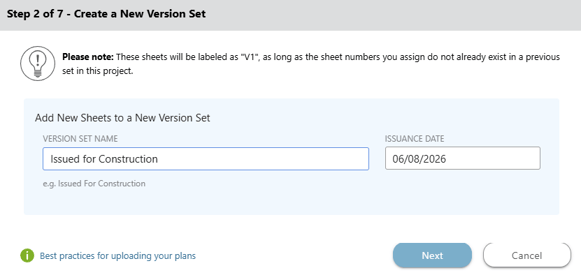
- ConstructionOnline will automatically populate the Issuance Date with the current date but this field can be updated as needed.
- Uploaded sheets will be labeled as "V1" as long as the sheet numbers assigned do not already exist in a previous set in the project.
- Choose your plan file using one of ConstructionOnline's upload methods.
- ConstructionOnline will begin processing the upload and scanning sheet numbers.
- Once the sheets have successfully uploaded, you will need to Review your Redline Sheets.
ADDITIONAL INFORMATION
- Permissions: TeamLink permissions are managed by ConstructionOnline Company Users. If you have questions about your level of access within the TeamLink Portal, contact the general contractor directly.
- CO™ Mobile App: The Bid Tracking feature is currently available exclusively via browser access to ConstructionOnline.
HAVE MORE QUESTIONS?
- Frequently asked questions (FAQ) for TeamLink Users can be found in the article FAQ: TeamLink.
- If you need additional assistance, chat with a ConstructionOnline Specialist by clicking the orange Chat icon in the bottom left corner or visit the UDA Support Page for more options.