
BACKGROUND
A Labor Expense may need to be updated after it is first recorded to add more detail, document payments, or save supporting files. ConstructionOnline allows users to edit logged Labor Expenses after creation from the Labor Expense Edit Blade, which brings the expense's details together in one place, helping construction teams maintain complete, accurate financial records as projects progress.
THINGS TO CONSIDER
- Available options for editing a Labor Expense may vary, depending upon the permissions of the user accessing the Labor Expense and/or the configuration of the associated Project.
- The Link to Estimate tab only appears when the associated Project has an existing Estimate.
- The Project associated with a Labor Expense cannot be modified after creation.
- Once any line item has been included in an Invoice, the item's Billable status locks and may not be modified.
HOW TO EDIT A LABOR EXPENSE
- From Purchasing, select the Labor Expenses tab.
- Locate the Labor Expense you want to update and right-click to choose the "Edit" option.
- This will open the editing view for the Labor Expense, providing access to the record's—
- Timeline: See a full history of the Labor Expense—including whether it was created from Time Tracking Shifts or from Scratch, along with a chronological record of modifications and individual entries for any related Bills and/or Payments.
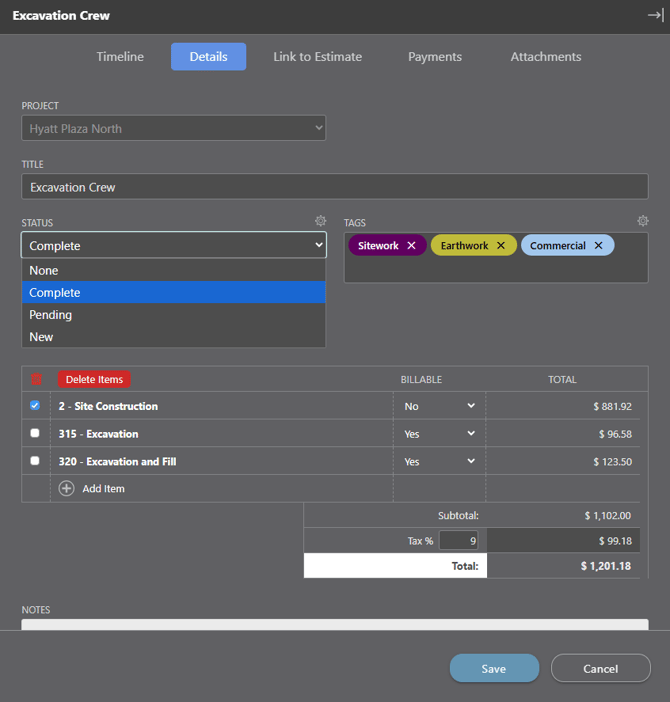
- Details: Update the Title, Status, Tags, Date Range, and Notes, as needed.
- The Project field is locked and cannot be modified after creation.
- Use the (+) Add Item button to add a line item to the Labor Expense, and populate the Name, Billable status, and Total for the new line item.
- To remove line items, select the checkbox on the item's row and choose the red "Delete Items" button to confirm. A Labor Expense must retain at least one line item.
- In the Tax fields, enter applicable Tax amounts as a percentage or dollar value.
- The Subtotal, Tax, and Total values will recalculate automatically following the addition of new line items and/or updates to applied Tax values.
- Link to Estimate: When the associated Project has an existing Estimating, you may associate line items from the Labor Expense with the corresponding Category, Subcategory, and/or Line Item within the Estimate. See Link Labor Expenses to an Estimate.
- Payments: Lists all Payments associated to the Labor Expense and displays the Total Paid amount, automatically calculated for convenient reference.
- Select Record Payment to open the payment creation modal, with the current Labor Expense preselected for easy, efficient documentation.
- Attachments: View, manage, and upload any files and/or photos related to the Labor Expense.
ADDITIONAL INFORMATION
- Subscription Level: The Labor Expenses feature is available for any active ConstructionOnline subscription with access to OnCost Purchasing, whether included at the Team, Business, and Enterprise levels or as a Per-Company Add-On.
- Permissions: Admin Users and Company Users with "Can Create & Edit" or "Can Create, Edit, & Delete" Expenses & Receipts permissions can edit Labor Expenses.
HAVE MORE QUESTIONS?
- If you need additional assistance, chat with a ConstructionOnline Specialist by clicking the orange Chat icon in the bottom left corner or visit the UDA Support Page for more options.