
BACKGROUND
ConstructionOnline's Estimating feature allows construction teams to build detailed project estimates tied directly to plan measurements. When used alongside Redline Takeoff, users can generate a new estimate from existing takeoff data—automatically building the estimate's category and subcategory structure to match takeoff configurations and pulling measured quantities from project plans. This eliminates redundant data entry and ensures estimate quantities reflect what was actually measured in the field.
THINGS TO CONSIDER
- Access to Redline Takeoff and creating estimates using takeoff measurements requires an active Redline Takeoff license. For more information on license assignment, see How are Redline Takeoff licenses assigned?
- At least one takeoff must exist within the project before an estimate can be generated from takeoff data. If no takeoffs have been created, the option will be disabled and clicking it will prompt you to navigate to Redline Takeoff to create one.
- Creating an estimate from Redline Takeoff requires the Standard Estimate (3-level) structure, which organizes estimates into Categories, Subcategories, and Items. This structure is selected by default during setup.
⚠️ Important: Each project is limited to a single estimate to ensure accurate cost estimating and financial reporting. To create a new estimate for a project that already has an existing estimate, the existing estimate must first be deleted.
HOW TO CREATE AN ESTIMATE FROM REDLINE TAKEOFF
-
Navigate to the Estimating feature of the desired Project and click the green "Add New Estimate..." button.
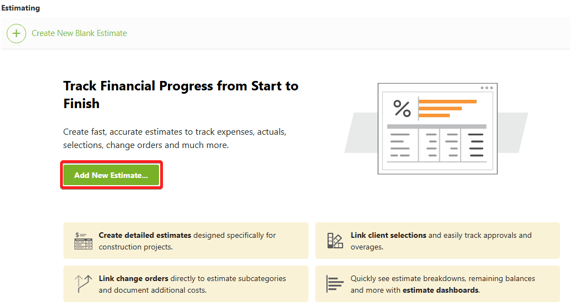
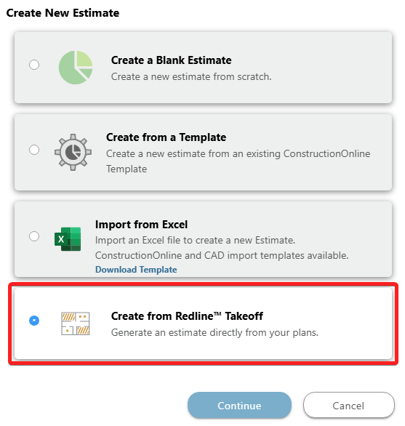
- This will open the "Create New Estimate" window.
- Select the "Create from Redline Takeoff" option, then press the blue "Continue" button.
- If no takeoffs have been created in the project yet, ConstructionOnline will notify users with a pop-up message prompting them to navigate to the Redline Takeoff feature. Click the blue "Go to Redline Takeoff" button to proceed, or click "Close" to dismiss the message and select a different estimate creation method.
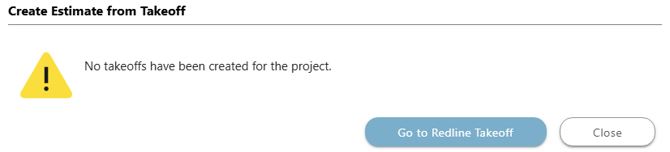
- If no takeoffs have been created in the project yet, ConstructionOnline will notify users with a pop-up message prompting them to navigate to the Redline Takeoff feature. Click the blue "Go to Redline Takeoff" button to proceed, or click "Close" to dismiss the message and select a different estimate creation method.
- The "Create New Estimate" window will open, where you can configure information about the estimate, including -

- Name & Cost Codes
- Estimate Name: Enter a name for the new estimate. This field is required.
- By default, ConstructionOnline will name the new estimate "[Project Name] Estimate." This can be edited as needed.
- Cost Code List: Choose the Cost Code List that will apply to the estimate.
- If a Cost Code List has already been assigned at the project level, it will appear here and cannot be changed. If no Cost Code List has been assigned to the project, click "Assign here" to select from your Company Account's Cost Code Lists.
- Identical Item Organization: Pick how line items that share the same takeoff subcategory but originate from different takeoff sheets should appear in the estimate —
- Aggregate identical line items in their estimate subcategory: combines matching line items into a single row.
- Keep each identical line item on its own row within their subcategory: lists each occurrence separately.
- Estimate Name: Enter a name for the new estimate. This field is required.
- Estimate Structure
- Estimate Detail Level: The Standard Estimate (3-level) structure is required for Redline Takeoff integration and is selected by default. This structure organizes estimates into Categories, Subcategories, and Items.
- Calculation Method: Choose how Base Cost will be calculated —
- Standard Calculation: Base Cost is calculated by multiplying Quantity × Unit Cost.
- 5-Column Calculation: Base Cost is calculated by multiplying Quantity × the sum of Material, Labor, Subcontractor, Equipment, and Other costs.
- Tax Settings
- Calculation Method: Select the desired method for calculating tax (e.g., Tax then Markup).
- Show Tax Settings For: Specify the applicable country.
- Tax Type and Tax: Review the tax rates listed for each Tax Type (e.g., Material, Service) and their subtypes (Local, County, State).
- Click the gray pencil icon to edit individual rates.
- Press the green (+) Add Tax Type text to add additional types as needed.
- Name & Cost Codes
- Click the blue "Save" button.
- ConstructionOnline will begin importing the takeoff data, building the estimate's category and subcategory structure to match the project's takeoff configurations.
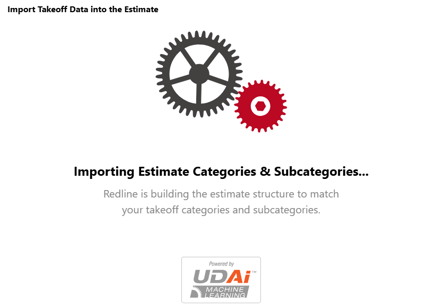
- Once complete, the new estimate will open with the imported category and subcategory structure in place.
- ConstructionOnline will begin importing the takeoff data, building the estimate's category and subcategory structure to match the project's takeoff configurations.
ADDITIONAL INFORMATION
- Alternative Access Point: An estimate can also be generated from takeoff data from within Redline Takeoff by using the green "Send to Estimate" button.
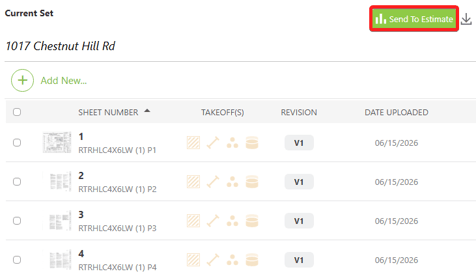
- For more information on building takeoffs and sending data to an estimate, see Redline Takeoff + Estimating Integration.
- Subscription Level: Redline Takeoff is available for ConstructionOnline accounts with active subscriptions at the Team, Business, and Enterprise levels across all subscription types, with the number of included licenses varying by plan.
- Redline Takeoff is also available as a Per-User Add-On for additional licenses or for plans where Takeoff is not included.
- Permissions: ConstructionOnline Users with an active Redline Takeoff license and the appropriate estimating permissions ("Can Create, Edit, & Delete") can create a project estimate from takeoff measurements.
- CO™ Mobile App: Redline Takeoff and the ability to create a project estimate are currently available exclusively via browser access to ConstructionOnline.
HAVE MORE QUESTIONS?
- Frequently asked questions (FAQs) about Redline Takeoff can be found in the article FAQ: Redline Takeoff.
- If you need additional assistance, chat with a Specialist by clicking the orange Chat icon located in the bottom left corner or visit the UDA support page for additional options.