
BACKGROUND
Work-in-Progress (WIP) Reporting is used to track the financial position of active construction projects as work progresses. It provides visibility into contract value, costs incurred, earned revenue, and billing status so teams can understand how each job is performing. 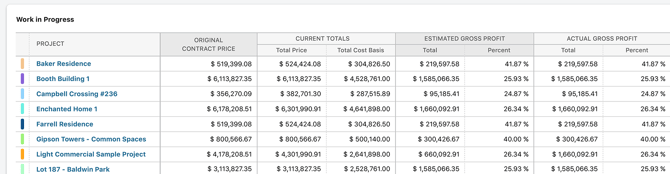
In many construction workflows, WIP reporting is built outside of the primary system. Project data is gathered from multiple sources, then reviewed and adjusted before a report can be finalized. This process often takes place at the end of the month, after financial activity has already occurred.
Because of that delay, WIP reports may not reflect current project conditions. Changes in cost, progress, or billing can take time to appear, which limits how quickly teams can respond to issues or gaps.
TrueVision WIP Reporting in ConstructionOnline uses financial data already stored within the platform, including OnCost™ Estimating, Change Orders, Client Selections, and Invoicing. As project activity is updated, WIP information is updated alongside it, allowing teams to review current financial performance without rebuilding reports outside the system.
NAVIGATING THE WIP TABLE
The WIP Reporting table provides a clear, real-time view of each active project's financial position, including contract value, cost to date, earned revenue, and billing status. Configurable columns, along with grouping, filtering, and sorting tools, allow users to quickly analyze performance, identify gaps, and understand where each project stands.
⚠️ Important: Any changes made to the display or organization of the Work in Progress table - including any changes made to Column Order & Visibility - are user-specific and do not affect other team members' views.
FILTERS
The Filters panel allows teams to focus the WIP table on specific subsets of the portfolio. Filters can be applied individually or in combination and update the table in real time.
Note: ConstructionOnline, by default, sets each Filter category to display "All."
By expanding the Filters feature in the Work in Progress dynamic table, you can choose to filter by -

- Created Date: Select the date range to focus on projects within a specific timeframe.
- Project Status: Show live and/or pending projects.
- Project Type: Narrow results based on project types.
- Project Group: Refine the list using company-defined groupings.
- Project Stage: Focus on a specific phase of the project lifecycle.
- Project Category: Filter based on project categories.
- Project Office: View projects associated with a specific office location.
- Project Division: Isolate projects tied to a particular business unit.
- Project Region: Compare projects across different geographic regions.
- Tags: Narrow results using any tags applied to projects.
- Client: View projects associated with a specific client.
To clear established Filters, you can -
- Select the white X next to the specific Filter category you want to revert back to "All."
- Use the blue "Clear Filters" text next to the ❌ to reset the table to the default filters of "All" for each category.
LIST / GROUP BY VIEW
Right-click on any column header in the dynamic table and select the "Show / Hide Columns" option to choose which columns appear and in what order -
- Show/Hide Columns: Mark the checkbox next to the columns you want to be visible. Unmark checkboxes next to the columns you want to remove from view.
- All columns are shown by default; however, if you've made changes to the visibility of your columns and would like to show all columns once again, mark the checkbox next to "Select All."
- The Project column cannot be hidden. It remains visible at all times.
- Order Columns: The order in which columns appear can be customized by clicking and dragging column rows in the list to establish the way they appear on dynamic tables in List and Group By Views.
- Lock Columns: To keep important columns visible while scrolling horizontally, columns can be locked by hovering over the desired column name and clicking the blue "Lock Column" text or the lock icon.
- Upon locking a column, the column will move above the dotted line at the top of the "Column Order & Visibility" window. This differentiates columns that have been locked and signifies that they will appear at the beginning of the table.
- Columns can be unlocked at any time by hovering over the locked column name and hitting the blue "Unlock Column" text or the lock icon.
- Restore Defaults: The default settings for Column Order & Visibility can be restored at any time by clicking the blue "Restore Defaults" text at the bottom of the "Column Order & Visibility" window. This will make all columns visible and restore the order of the columns to their original arrangement.
Click the blue "Save" button to apply the changes made to your Work in Progress table Column Order & Visibility.
WIP TABLE COLUMNS
Each column group below describes the data it covers and how it supports financial analysis and decision-making.
Project Attributes:
- These columns carry the classification and segmentation data assigned to each project and are the foundation for filtering, grouping, and slicing WIP data across meaningful dimensions of the portfolio.
- Project Type
- Project Group
- Project Stage
- Project Category
- Project Office
- Division
- Region
- Tags
Contract & Pricing
- Contract columns establish the financial baseline for each project—what was originally contracted and how that value has evolved as estimates, selections, and change orders have been added or modified.
- Original Contract Price
- Provides a baseline for financial analysis. Compare to current contract totals to see how much scope has been added.
- Original Contract Price
-
- Current Contract Price - Estimate, Selections, Change Orders, Total
- The live contract value broken out by component, showing exactly how much of the current total comes from the original estimate, client selections, and approved change orders respectively.
- Current Contract Price - Estimate, Selections, Change Orders, Total
Cost Basis & Actuals to Date
- These columns track what the project is expected to cost versus what has actually been spent—broken out by estimate, selections, and change orders so teams can see exactly where costs are accumulating.
- Current Cost Basis - Estimate, Selections, Change Orders, Total
- The current expected cost for the project by component. The budget against which actuals are measured.
- Actuals to Date - Estimate, Selections, Change Orders, Total
- Real costs incurred on the project to date, broken out by source. Compare against Cost Basis columns to identify where spending is tracking ahead of or behind expectations.
- Remaining Job Cost Budget - Estimate, Selections, Change Orders, Total
- How much cost budget remains for each component. Low remaining budget on an incomplete project is an immediate flag for potential overrun.
- Current Cost Basis - Estimate, Selections, Change Orders, Total
Adjustments & Predicted Cost to Complete
-
These columns provide a forward-looking view of project financials—accounting for any cost adjustments and projecting what the final cost of the project is expected to be based on current progress and remaining work.
- Adjustments - Adjustment, Adjusted Estimate Cost Basis, Adjusted Total Cost Basis
- Captures any manual cost adjustments and their effect on the adjusted cost basis. Useful for projects where real-world conditions have shifted the expected cost picture.
- Predicted Cost to Complete - Estimate, Selections, Change Orders, Total
- Projects the remaining cost to finish the job by component. When combined with Actuals to Date, gives a complete picture of expected final cost versus contract value.
- Best Estimate of Job Costs - Estimate, Selections, Change Orders, Total
- The current best estimate of total job cost from start to finish, incorporating actuals and predictions. The most accurate available view of where the project will land financially.
- Adjustments - Adjustment, Adjusted Estimate Cost Basis, Adjusted Total Cost Basis
Gross Profit —Estimated & Actual
- Gross profit columns are where contract value and costs come together to reveal the margin picture. Both estimated and actual gross profit are available in dollar and percentage formats, broken out by estimate, selections, and change orders so teams can see exactly which components are driving or eroding margin.
- Estimated Gross Profit / Percent - Estimate, Selections, Change Orders, Total
- The margin the project was projected to deliver at the estimate stage. The baseline against which actual performance is measured.
- Actual Gross Profit / Percent - Estimate, Selections, Change Orders, Total
- The margin the project is actually delivering based on costs to date. The gap between estimated and actual gross profit is one of the most important signals in WIP analysis.
- Estimated Gross Profit / Percent - Estimate, Selections, Change Orders, Total
Estimate Variance
- Estimate variance columns measure the accuracy of the original estimate against where the project has actually tracked, revealing whether the company is systematically overbidding, underbidding, or estimating accurately across its portfolio.
- Estimate Variance - Percent Over, Total Overbid, Total Underbid
- Tracks how far actual performance has deviated from the original estimate in both directions. Percent Over and Total Overbid surface cost overruns, while Total Underbid reveals where the estimate left money on the table.
- Estimate Variance - Percent Over, Total Overbid, Total Underbid
Earned Value & Billing
- These columns are the heart of traditional WIP analysis, connecting the percentage of work completed to the revenue that has been earned and billed. Over- and underbilling positions are made visible here, giving financial teams the data they need to ensure billing stays aligned with project progress.
- Percent Complete, Earned Gross Profit, Cost and Earned Gross Profit
- Measures the value of work actually completed relative to the contract. Earned Gross Profit reflects the margin earned based on completion percentage, and Cost and Earned Gross Profit combines cost and earned value for a complete job performance picture.
- Billing - Total Invoiced to Date, Unearned Revenue (Overbilling), Unbilled Revenue (Underbilling)
- The most operationally critical WIP columns. Unearned Revenue flags projects where invoicing has gotten ahead of completed work (a liability), while Unbilled Revenue identifies work that has been completed but not yet invoiced (leaving money on the table).
- Remaining Contract Value, Remaining Costs, Working Capital in Backlog
- Tracks how much contract value and cost remain on the project, and the working capital represented by incomplete work. Essential for cash flow planning and capacity assessment.
- Percent Complete, Earned Gross Profit, Cost and Earned Gross Profit
Project Contacts
- The WIP table also includes columns for every project contact role configured in ConstructionOnline—from Realtor, Developer, and Lender to Architect, Engineer, Project Manager, General Contractor, and the full range of trade and administrative roles. These columns allow teams to filter and group WIP data by the people responsible for each project, supporting accountability tracking and stakeholder reporting.
EXAMPLE
A commercial general contractor uses the Group By View to group the WIP table by Project Stage at the start of the month. With Billing - Unbilled Revenue and Actual Gross Profit columns visible, the controller immediately spots three In Progress jobs with significant unbilled revenue relative to their percent complete. Rather than waiting for a month-end billing meeting to surface the issue, project managers are notified the same day, and invoices go out before the end of the week.
USING WIP REPORTING FOR FINANCIAL DECISION-MAKING
WIP Reporting is most powerful when it is reviewed consistently rather than only at financial close. Because ConstructionOnline updates WIP data in real time as estimates, change orders, selections, and invoices are created or modified, the table reflects the current state of every job at any point during the month.
Key Patterns to Watch
- Unbilled Revenue growing on active jobs: Completed work that hasn't been invoiced is a cash flow risk. WIP Reporting makes this visible before it becomes a collection problem.
- Actual Gross Profit tracking below Estimated Gross Profit: A consistent gap between estimated and actual margin, especially when visible early in a project, signals a cost control or estimating issue worth addressing before it compounds.
- Predicted Cost to Complete exceeding Remaining Job Cost Budget: When the projected cost to finish a job exceeds what's left in the budget, the project is headed for an overrun. Catching this mid-project creates options; catching it at closeout does not.
- Overbilling on early-stage projects: Unearned Revenue on projects that are still in early stages can create downstream risk if the project stalls or scope changes—worth monitoring alongside Project Complete.
- Estimate Variance patterns across project types or stages: Consistent overbid or underbid patterns by project type or stage point to estimating calibration opportunities that affect margin across the entire portfolio.
ADDITIONAL INFORMATION
- For a high-level overview of all TrueVision tools, see Overview: What is TrueVision™ Business Intelligence?
- Subscription Level: ConstructionOnline's TrueVision Business Intelligence is available for companies using ConstructionOnline subscriptions at the Business or Enterprise level.
-
CO™ Mobile App: Currently, the TrueVision feature is exclusively available through browser access to ConstructionOnline.
HAVE MORE QUESTIONS?
- If you need additional assistance, chat with a ConstructionOnline Specialist by clicking the orange Chat icon in the bottom left corner or visit the UDA Support Page for more options.