
BACKGROUND
TrueVision Sales Dashboards give construction companies a real-time, data-driven view of their sales pipeline—from first contact to closed contract. Rather than manually compiling lead and opportunity data from spreadsheets or separate CRM tools, Sales Dashboards surface that information automatically within ConstructionOnline, organized into four dedicated dashboard tabs: Sales Overview, Leads, Opportunities, and Sales Rep.
Each dashboard is fully customizable—individual widgets can be shown or hidden, resized to prioritize the data that matters most, and exported for reporting or stakeholder sharing. Together, the four dashboards cover the full arc of sales performance, from pipeline volume and lead quality to rep activity and close rates.
🗒️ Note: You can access the Sales Dashboards section of ConstructionOnline via the TrueVision Intelligence tab in the Left Sidebar or the Company Selector in the Top Navigation Bar.
SALES OVERVIEW DASHBOARDS
The Sales Overview Dashboard consolidates high-level metrics across both Leads and Opportunities into a single view, giving owners and sales managers an immediate read on pipeline volume, creation trends, and the value of work being won and lost. 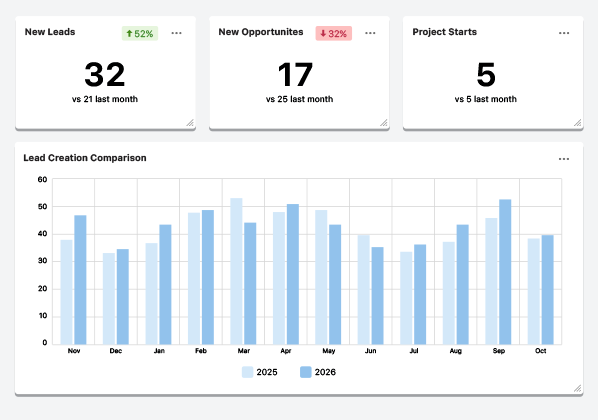
WIDGETS
- New Leads: The total number of new Leads created within the month
- Tracks pipeline intake volume and reveals whether lead generation efforts are gaining or losing momentum
- New Opportunities: Total number of new Opportunities created within the month
- Measures how many Leads are advancing into active sales conversations
- Project Starts: Number of projects that have moved to an active start status
- Connects sales activity to actual construction pipeline and workload planning
- Avg. Project Start Value: Average contract value of projects that have reached a start status
- Helps benchmark typical project size and identify shifts in the value of work being pursued
- Lead Creation Comparison: Side-by-side comparison of Lead creation volume across the year
- Surfaces seasonal trends and the impact of marketing and outreach changes on top-of-funnel activity
- Opportunity Creation Comparison: Side-by-side comparison of Opportunity creation volume across the year
- Tracks how effectively Leads are being converted into active Opportunities over time
- Lead Closed-Won Value Comparison: Compares the total value of closed-won Leads across the year
- Shows whether the company is closing higher- or lower-value work compared to prior periods
- Opportunity Closed-Won Comparison: Compares the total value of closed-won Opportunities across time periods
- Tracks revenue momentum and supports forecasting at the Opportunity level
- Lead Quality by Source: Breakdown of Lead volume and value by the source that generated them
- Identifies which referral channels, marketing efforts, or outreach strategies are producing the most valuable work
EXAMPLE
A residential builder notices in July that Lead Creation Comparison shows new leads trending down over the past two months despite a busy season. Cross-referencing Lead Quality by Source reveals referral Leads are holding steady, but Leads from a paid advertising channel have dropped sharply since May. That single data point informs a mid-year decision about whether to reinvest in or redirect that marketing spend, without pulling a single spreadsheet.
LEAD DASHBOARDS
The Lead Dashboards provide a detailed breakdown of pipeline activity at the lead stage—covering volume, source quality, conversion outcomes, and the reasons deals are won or lost. 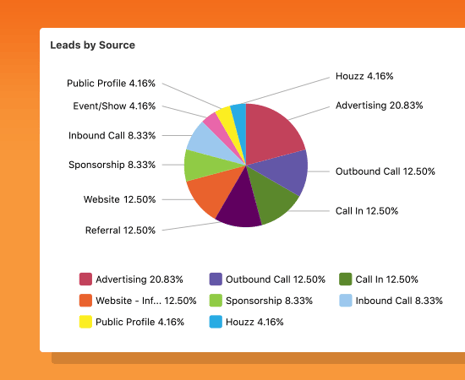
FILTERS
Note: ConstructionOnline, by default, sets each Filter category to display "All."
By expanding the Filters feature in the Lead Dashboards, you can choose to filter by -

- Date: Select a date range to focus on Lead activity within a specific timeframe.
- Stage: Limit results to Leads at a specific pipeline stage.
- Status: Show only Leads with a particular status.
- Source: Filter by the channel or source that generated the Lead.
- Type: Narrow results based on Lead type.
- Sales Representative: Show Leads assigned to a specific sales rep.
- Quality: Limit results based on Lead quality rating.
- Probability: Focus on Leads within a specific probability of conversion range.
- Related Opportunity: Filter Leads associated with a specific Opportunity.
- Office: View Leads associated with a specific office location.
- Division: Isolate Leads tied to a particular business unit.
- Region: Focus on Leads within a specific geographic region.
To clear established Filters, you can -
- Select the white X next to the specific Filter category you want to revert back to "All."
- Use the blue "Clear Filters" text next to the ❌ to reset the table to the default filters of "All" for each category.
WIDGETS
- Lead Pipeline: Visual representation of Leads currently active across all pipeline stages
- Gives sales managers an at-a-glance view of where volume is concentrated and where Leads may be stalling
- Leads by Source: Breakdown of Leads by the channel or source that generated them
- Identifies which sources are producing the most Leads, informing where to focus business development efforts
- Leads by Status: Distribution of Leads across status categories
- Quickly surfaces status imbalances that may require follow-up
- Leads Created: Volume of new Leads created over the year, displayed over time
- Tracks Lead generation trends and helps correlate intake volume with specific outreach or marketing activity
- Lead Value - Created vs. Closed: Compares the total value of Leads created against the value of Leads closed over the same period
- Reveals how much pipeline value is being generated versus captured, highlighting potential gaps in conversion
- Top Closed-Won Leads: Ranked list of the highest-value Leads that were closed-won
- Identifies the characteristics of your best projects to help prioritize similar opportunities in the future
- Top Closed-Lost Leads: Ranked list of the highest-value Leads that were closed-lost
- Surfaces where the most significant revenue is being left on the table, prompting a closer look at why those deals were lost
- Closed-Won Rate (%): Percentage of Leads that resulted in a closed-won outcome
- The clearest measure of overall sales effectiveness—benchmark it over time to track whether close rates are improving
- Closed-Lost Rate (%): Percentage of Leads that resulted in a closed-lost outcome
- Tracks attrition in the pipeline and, when reviewed alongside Lost Reasons, points to fixable patterns
- Closed-Won Reasons: Breakdown of the reasons logged when Leads are marked closed-won.
- Reveals what factors most often drive a successful close—useful for replicating winning approaches across the team
- Closed-Lost Reasons: Breakdown of the reasons logged when Leads are marked closed-lost
- Identifies recurring loss patterns—whether price, timeline, scope, or competitor—so the team can address root causes
🗒️ Note: For Leads by Source and Leads by Status, the Hide Zero Values option removes empty categories from the chart, keeping the view clean and focused on active data. The same option is available for Closed-Won Reasons and Closed-Lost Reasons.
EXAMPLE
A general contractor's Closed-Lost Reasons widget shows that "Price" accounts for 58% of lost Leads over the past six months. Rather than assuming all those deals were unwinnable, the sales manager reviews Top Closed-Lost Leads and finds that several were high-value projects with clients who ultimately went with a competitor. That data triggers a review of the estimating process and a conversation about how proposals are being positioned—changes that would have never happened without a clear pattern to point to.
OPPORTUNITY DASHBOARDS
The Opportunity Dashboards mirror the structure of the Lead Dashboards but focus specifically on Opportunities—the later-stage, higher-commitment entries in the sales pipeline. Where Lead Dashboards help teams manage top-of-funnel volume and quality, the Opportunity Dashboards focus on close strategy, deal value, and revenue forecasting.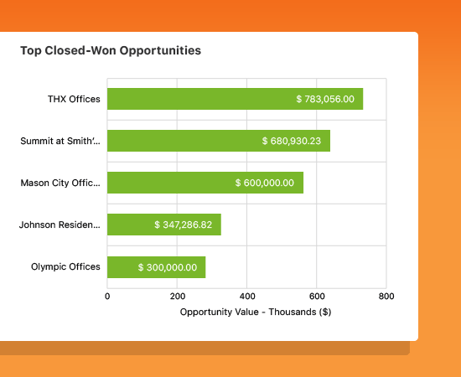
FILTERS
By expanding the Filters feature in the Opportunity Dashboards, you can choose to filter by -
- Date: Select a date range to focus on Opportunity activity within a specific timeframe.
- Opportunity Type: Narrow results based on Opportunity type.
- Opportunity Status: Show only Opportunities with a particular status.
- Opportunity Stage: Limit results to Opportunities at a specific pipeline stage.
- Opportunity Source: Filter by the channel or source that generated the Opportunity.
- Office: View Opportunities associated with a specific office location.
- Division: Isolate Opportunities tied to a particular business unit.
- Region: Focus on Opportunities within a specific geographic region.
- Related Lead: Filter Opportunities associated with a specific Lead.
- Sales Rep: Show Opportunities assigned to a specific sales representative.
- Tags: Narrow results using any Tags applied to Opportunities.
- Quality: Limit results based on Opportunity quality rating.
WIDGETS
- Opportunity Pipeline: Visual representation of Opportunities currently active across all pipeline stages
- Provides a real-time snapshot of the revenue potentially in play and where it sits in the sales process
- Opportunities by Source: Breakdown of Opportunities by the channel or source that generated them
- Shows which sources are producing not just Lead volume but Opportunities worth pursuing, refining ROI analysis on business development spend
- Opportunities by Status: Distribution of Opportunities across status categories
- Quickly surfaces status imbalances that may require follow-up
- Opportunities Created: Volume of new Opportunities created over the year
- Tracks how consistently the pipeline is being replenished at the Opportunity level
- Top Closed-Won Opportunities: Ranked list of the highest-value Opportunities that were closed-won
- Highlights the most successful deals and their characteristics—useful for identifying ideal client and project profiles
- Top Closed-Lost Opportunities: Ranked list of the highest-value Opportunities that were closed-lost
- Pinpoints where the largest revenue misses are occurring and helps prioritize post-mortem conversations with the team
- Closed-Won Rate (%): Percentage of Opportunities that resulted in a closed-won outcome
- A key performance indicator for sales effectiveness at the Opportunity stage—more meaningful than Lead close rate because these further-qualified deals
- Closed-Lost Rate (%): Percentage of Opportunities that resulted in a closed-lost outcome
- Tracks loss frequency at the Opportunity stage, where the cost of a lost deal is highest
- Closed-Won Reasons: Breakdown of the reasons logged when Opportunities are marked closed-won.
- Captures the factors behind successful closes so teams can replicate what's working
- Closed-Lost Reasons: Breakdown of the reasons logged when Opportunities are marked closed-lost
- Exposes recurring patterns in deal losses, from pricing and timeline concerns to scope misalignment or competitor wins
🗒️ Note: For Opportunities by Source and Opportunities by Status, the Hide Zero Values option removes empty categories from the chart, keeping the view clean and focused on active data. The same option is available for Closed-Won Reasons and Closed-Lost Reasons.
EXAMPLE
A commercial contractor reviews Closed-Lost Reasons mid-year and finds "No Response" is the top reason logged across lost opportunities. Pulling up Top Closed-Lost Opportunities reveals that several of the highest-value deals in that category had proposals sent in Q1 with no recorded follow-up activity. The sales manager implements a structured follow-up protocol for all open opportunities above a certain value. By Q4, the Closed-Won Rate widget reflects a measurable improvement—and the team has a documented process to build on.
SALES REP DASHBOARDS
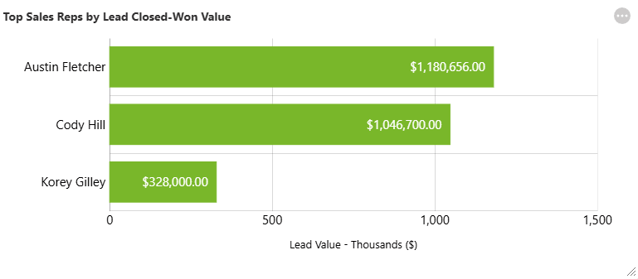
The Sales Rep Dashboards shift the focus from pipeline metrics to people metrics, giving sales managers and company leadership a clear view of individual rep performance, activity levels, and contribution to closed revenue. For companies with dedicated sales staff or multiple team members managing Leads and Opportunities, these dashboards are where accountability and coaching are grounded in data.
FILTERS
By expanding the Filters feature in the Sales Rep Dashboards, you can choose to filter by -
- Date: Select a date range to focus on rep activity within a specific timeframe.
- Sales Representative: Filter by a specific sales rep.
- Lead Source: Focus on the source that generated the Leads attributed to each rep.
- Lead Type: Narrow results by Lead Type.
- Office: View rep performance associated with a specific office location.
- Division: Isolate rep activity tied to a particular business unit.
- Region: Focus on rep performance within a specific geographic region.
WIDGETS
- Sales Rep Activity Breakdown: Breakdown of logged activity per rep, including calls, messages, notes, and events
- Reveals how actively each rep is engaging with Leads and Opportunities—high activity with low close rates signals a coaching opportunity; low activity with high close rates may indicate underreporting
- Closed-Won % Rate by Sales Rep: Each rep's closed-won percentage, displayed comparatively across the team
- The clearest performance benchmark for individual reps—used to identify top performers, set realistic targets, and structure incentive conversations
- Top Sales Reps by Lead Closed-Won Value: Ranking of reps by the total value of Leads they have closed-won
- Measures revenue contribution by rep, not just volume—useful when some reps specialize in higher-volume work
- Top Sales Reps by Lead Closed-Lost: Ranking of reps by the total value of Leads they have closed-lost
- Identifies where the most significant losses are occurring by rep, prompting targeted coaching on deal strategy or proposal quality
- Lead Value by Sales Rep - Closed-Won: Visual breakdown of total closed-won Lead value attributed to each rep over time
- Tracks individual revenue contribution trends and supports performance reviews, territory planning, and commission calculations
EXAMPLE
A remodeling company with three sales reps uses the Sales Rep Dashboards during a quarterly review. Closed-Won % Rate by Sales Rep shows that one rep is closing at 62% while the other two are at 38% and 41%. Sales Rep Activity Breakdown reveals the top-performing rep is logging nearly twice as many follow-up notes and calls per Lead. Rather than simply celebrating the gap, the sales manager uses the data to structure a team training session around the follow-up habits driving that rep's close rate—turning one person's success into a team-wide process.
CUSTOMIZATION & EXPORT
Every widget across all four Sales Dashboards can be individually shown or hidden, resized, and exported. Each user can configure their dashboard to match their role.
- Show/Hide Widgets: Select the gray 3-dot Action Menu in the upper corner of the Company Reporting section and choose Manage Dashboards from the dropdown. From there, you can choose which widget dashboards appear. To hide a specific widget, open the three-dot menu in the upper corner of that widget and select Hide.
- Resize Widgets: Drag the lower right corner of a widget to resize it.
- Move Widgets: Click and drag anywhere on a widget to reposition it.
- Export: Select the widget's gray three-dot Action Menu and choose Export as... from the dropdown.
- Restore Default Layout Settings: Press the gray three-dot Action Menu in the upper right corner of the Company Reporting section and select Restore Default Layout Settings from the dropdown to reset all widget positions, sizes, and visibility to their original default configuration.
ADDITIONAL INFORMATION
- For a high-level overview of all TrueVision tools, see Overview: What is TrueVision™ Business Intelligence?
- Subscription Level: ConstructionOnline's TrueVision Business Intelligence is available for companies using ConstructionOnline subscriptions at the Business or Enterprise level.
- TrueVision's Sales Analytics tools are also available as a Per-Company Add-On for all other plans.
-
CO™ Mobile App: Currently, the TrueVision feature is exclusively available through browser access to ConstructionOnline.
HAVE MORE QUESTIONS?
- If you need additional assistance, chat with a ConstructionOnline Specialist by clicking the orange Chat icon in the bottom left corner or visit the UDA Support Page for more options.