
BACKGROUND
Once a Takeoff Template has been saved to a Company Account in ConstructionOnline, the Template can be applied directly to a new Takeoff within Redline Takeoff. Starting a Takeoff from a Template carries over the saved measurement type, color, shape, height, name, and description, along with any Costbook Items assigned to the Template, removing the need to rebuild those settings each time a recurring takeoff type needs to be measured on a new sheet.
THINGS TO CONSIDER
- Access to Takeoff Templates requires an active Redline Takeoff license. For more information on license assignment, see How are Redline Takeoff licenses assigned?
- At least one Takeoff Template must already be saved to your Company Account before this option is available. See Create a Takeoff Template for instructions on building one.
HOW TO START A TAKEOFF FROM A TEMPLATE
-
Within an open Takeoff Sheet, navigate to the Takeoff Category and Subcategory where the new Takeoff should be added.
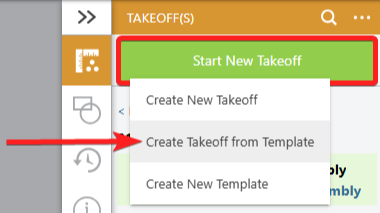
- Click the green "Start New Takeoff" button and select "Create Takeoff from Template" from the dropdown menu.
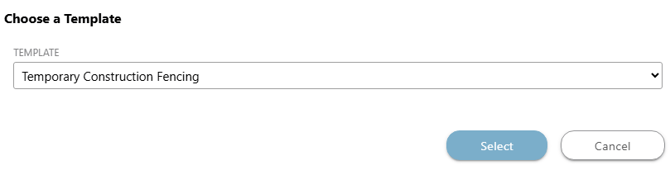
- In the "Choose a Template" window, select the desired Template from the dropdown menu, then press the blue "Select" button.
- This opens the "Takeoff Details" window, pre-populated with the settings saved to the Template.
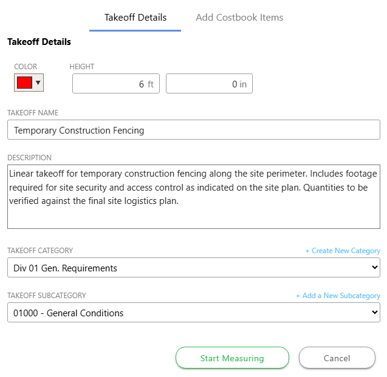
- Edit any of the pre-filled fields as needed for this specific Takeoff.
- To review or add Costbook Items before measuring, select the "Add Costbook Items" tab at the top of the window.
- This opens the "Takeoff Details" window, pre-populated with the settings saved to the Template.
- Once you've confirmed the template details and made any desired changes for the new Takeoff, hit the green "Start Measuring" button.
- If this is the first measurement taken on this Sheet, the "Set Calibration for this Sheet" window will open.
- Press the green "Set Sheet Calibration" button to measure a known distance directly on the Sheet (Recommended Method), or select the "Standard Scales" tab to choose from a list of standard drawing scales.
- If this is the first measurement taken on this Sheet, the "Set Calibration for this Sheet" window will open.
- Use the available measurement tools in the left toolbar to complete the takeoff directly on the plan.
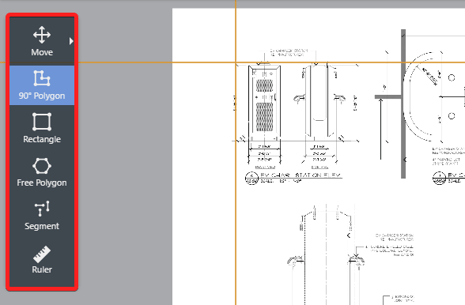
- Press the green "FINISH MEASURING" button once the Takeoff is complete.

- The completed Takeoff will appear in the "Takeoff(s)" panel under its assigned Category and Subcategory, along with its calculated quantity.
- If Costbook Items weren't already assigned via the Template, select "Add Costbook Items" to assign them now.
- The completed Takeoff will appear in the "Takeoff(s)" panel under its assigned Category and Subcategory, along with its calculated quantity.
ADDITIONAL INFORMATION
- Subscription Level: Redline Takeoff is available for ConstructionOnline accounts with active subscriptions at the Team, Business, and Enterprise levels across all subscription types, with the number of included licenses varying by plan.
- Redline Takeoff is also available as a Per-User Add-On for additional licenses or for plans where Takeoff is not included.
- Permissions: ConstructionOnline Users with an active Redline Takeoff license can create Takeoff Templates and new Takeoffs from Templates.
- CO™ Mobile App: Redline Takeoff and Takeoff Templates are currently available exclusively via browser access to ConstructionOnline.
HAVE MORE QUESTIONS?
- Frequently asked questions (FAQs) about Redline Takeoff can be found in the article FAQ: Redline Takeoff.
- If you need additional assistance, chat with a Specialist by clicking the orange Chat icon located in the bottom left corner or visit the UDA support page for additional options.