
BACKGROUND
ConstructionOnline's Redline Takeoff allows construction teams to perform detailed digital takeoffs directly from project plans. To support faster and more consistent markup workflows, ConstructionOnline allows users to create reusable Takeoff measurement templates—saving frequently used takeoff configurations so they can be applied across projects without starting from scratch each time.
THINGS TO CONSIDER
-
Access to Takeoff Templates requires an active Redline Takeoff license. For more information on license assignment, see How are Redline Takeoff licenses assigned?
- Once a Takeoff Template is saved, it can be selected when starting a new Takeoff by choosing "Create Takeoff from Template" from the "Start New Takeoff" dropdown.
HOW TO CREATE A TAKEOFF TEMPLATE
- Navigate to Takeoff Templates from the Company Overview or within the Redline Takeoff feature.
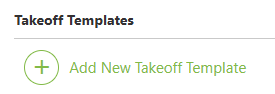
- Click the green (+) Add New Takeoff Template button in the top left corner of the screen.
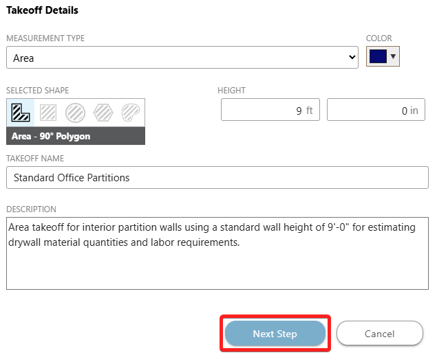
- This will open the "Takeoff Details" window, where you can configure details about the Takeoff Template, including -
- Measurement Type: Select the desired measurement type from the dropdown menu (e.g., Area, Linear, Count)
- Color: Select a color to identify the template's measurements on the sheet
- Selected Shape: Choose the desired measurement shape
- Height: Input a height value if applicable to the selected measurement type
- Takeoff Name: Enter a name for the Takeoff and Template. This field is required.
- Description: Enter a description to provide additional context
- Press the blue "Next Step" button.
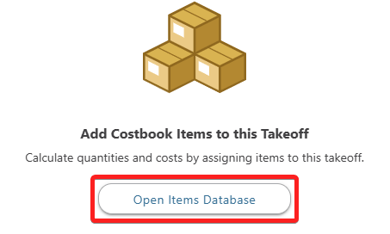
- Costbook Items can optionally be assigned to the template at this point by clicking on the "Open Items Database" button.
- Select the desired Costbook from the dropdown menu.
- Choose the desired Items from the Costbook.
- Only Items with units of measure compatible with the template's measurement type will be available to choose from.
- If the desired Item does not exist within the Costbook, you can click the (+) Add Item button.
- Once you have selected the desired Items, press the blue "Add Item(s) to Takeoff" button.
- Press the blue "Save Template" button to save the completed template to your Company Account.
.png?width=175&height=46&name=ChatGPT%20Image%20Jun%209%2c%202026%2c%2002_35_59%20PM%20(1).png)
ADDITIONAL INFORMATION
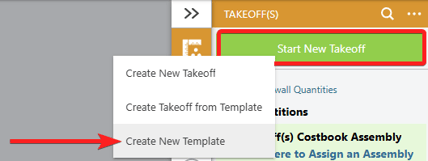
- Alternative Access Point: Takeoff Templates can also be created directly from the Takeoff feature within a project by clicking the green "Start New Takeoff" button and selecting "Create New Template" from the dropdown menu.
- Subscription Level: Redline Takeoff is available for ConstructionOnline accounts with active subscriptions at the Team, Business, and Enterprise levels across all subscription types, with the number of included licenses varying by plan.
- Redline Takeoff is also available as a Per-User Add-On for additional licenses or for plans where Takeoff is not included.
- Permissions: ConstructionOnline Users with an active Redline Takeoff license can create Takeoff Templates.
- CO™ Mobile App: Redline Takeoff and Takeoff Templates are currently available exclusively via browser access to ConstructionOnline.
HAVE MORE QUESTIONS?
- Frequently asked questions (FAQs) about Redline Takeoff can be found in the article FAQ: Redline Takeoff.
- If you need additional assistance, chat with a Specialist by clicking the orange Chat icon located in the bottom left corner or visit the UDA support page for additional options.