
BACKGROUND
Keeping everyone—from project manager and subcontractor to clients and suppliers—in the loop is essential to avoid delays and miscommunication. That's why ConstructionOnline's Meeting Minutes feature includes flexible tools for managing meeting invitations.
Whether you're automatically notifying attendees when creating a meeting, sending updates to the entire group, or inviting individuals on the fly, ConstructionOnline ensures that the right people get the right information at the right time—keeping teams aligned and projects on track.
THINGS TO CONSIDER
In ConstructionOnline, sending meeting invitations is a two-step process:
- Queueing: Invitations are prepared and added to a pending list.
- Sending (Triggering): Queued invitations are sent when you create a new meeting or save changes to an existing one.
This article will walk you through the various methods for sending meeting invitations in ConstructionOnline. You'll learn how to:
- Send invitations automatically when creating a new meeting
- Manually send/resend invitations to all attendees of an existing meeting
- Send/resend invitations to individual attendees
⚠️ Important: Inviting a user to a meeting overrides their current permissions for Meeting Minutes, granting them access to view that specific meeting.
METHODS FOR SENDING MEETING INVITATIONS
A. Automatically Send Invitations After Meeting Creation:
When you create a new meeting, by default, invitations are automatically queued and sent.
- From the "Create Meeting" extension blade that opens on the right side of your screen, navigate to the "Attendees" tab.
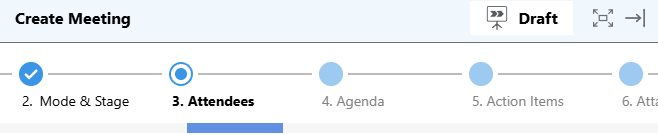
- Add Attendees and ConstructionOnline will automatically queue an invitation for each one.
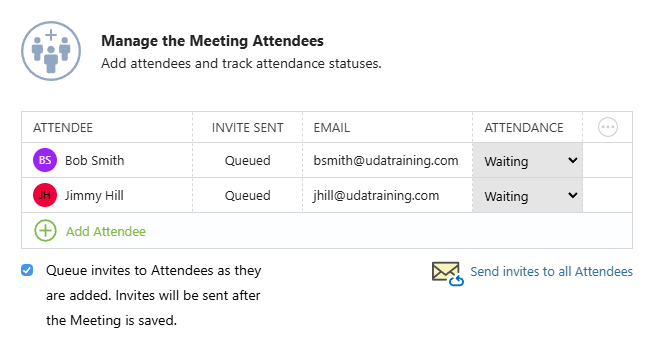
- If you do not wish to queue invites to Attendees, uncheck the box next to "Queue invites to Attendees as they are added. Invites will be sent after the Meeting is saved."
- After finalizing all Meeting Details, click the blue "Create" button. This creates the meeting and triggers invitations for all Attendees.
B. Manually Send/Resend Invitations to All Attendees (From an Existing Meeting):
You can easily send or resend invitations to all Attendees of an existing meeting.
- From within the "Meetings" tab, hover the desired meeting and either press the blue "Details>" button or right-click and select "Edit."
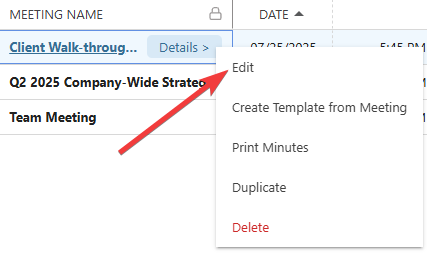
- This will open the Meeting's extension blade on the right side of your screen.
- Navigate to the "Attendees" tab.
- Click the blue "Send invites to all Attendees" text to queue invitations for the entire Attendee List.

- Click the blue "Save" button to finalize your changes and trigger sending of the meeting invites.
C. Send/Resend Meeting Invitations to Individual Attendees:
You also have the flexibility to send or resend an invitation to any specific Attendee.
- Either create a new meeting or edit an existing meeting to open the extension blade.
- Navigate to the "Attendees" tab.
- Click the gray 3-dot Action Menu
 next to the Attendee you wish to invite.
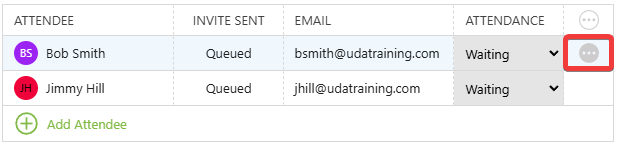
- Select "Send Invite" from the dropdown menu to queue a meeting invitation for that specific Attendee.
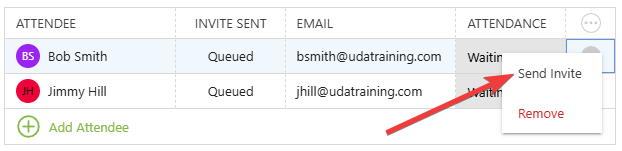
- Press the blue "Create" (for new meetings) or "Save" (for existing meetings) button to finalize your changes and send the invitation(s) to the selected Attendee(s).
🗒️ Note: The "Invite Sent" column displays the date of the most recent invitation sent to an Attendee.
ADDITIONAL INFORMATION
- Subscription Level: Meeting Minutes is available for companies with current ConstructionOnline Commercial or Multi-Family subscriptions at the Team, Business, and Enterprise level.
- Meeting Minutes is also available as a Per-Company Add-On for all other plans.
- Permissions: Admin Users and Company Users with "Can Create, Edit, and Delete" for Meeting Minutes can manage meeting invitations for meetings that are visible to them.
- For Company Users, this includes meetings they've created, are invited to, or that are set as Public.
- CO™ Mobile App: Users with the appropriate permissions can send/resend meeting invitations via the ConstructionOnline Mobile App.
HAVE MORE QUESTIONS?
- Frequently asked questions (FAQ) about Meeting Minutes can be found in the article FAQ: Meeting Minutes.
- If you need additional assistance, chat with a ConstructionOnline Specialist by clicking the orange Chat icon in the bottom left corner or visit the UDA Support Page for more options.