
BACKGROUND
Construction projects often involve a chaotic mix of files, photos, and documents scattered across various locations. Integrating a ConstructionOnline account with personal cloud storage simplifies this process. Users can access files and photos directly from their external cloud-based storage account(s) (Google Drive, OneDrive, Dropbox, and/or Box) within ConstructionOnline. While shared drives aren’t directly supported due to their security protocols, connecting one’s personal drive(s) offers a convenient and efficient way to centralize project documentation.
THINGS TO CONSIDER
- Files and photos will not be automatically synced between ConstructionOnline and integrated cloud storage applications.
- Files in ConstructionOnline can be copied or shared with Company Employees, TeamLink and ClientLink Users, and others.
⚠️ Important: Files and photos can only be uploaded from a personal drive. Due to certain security protocols placed on shared drives, integration is not available for these collaborative spaces and is exclusively offered for personal, cloud-based drives.
HOW TO RETRIEVE FILES/PHOTOS FROM CLOUD STORAGE APPS
- Access the “File & Photos” tab through the Left Sidebar or Company Selector in the Top Navigation Bar.
- Select either “Company Files” or “My Files."
- For more information about the difference between the two, check out "Company Files vs My Files."
- Hit the green (+) Add New… button and select “New Upload.”
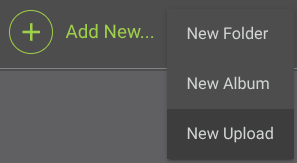
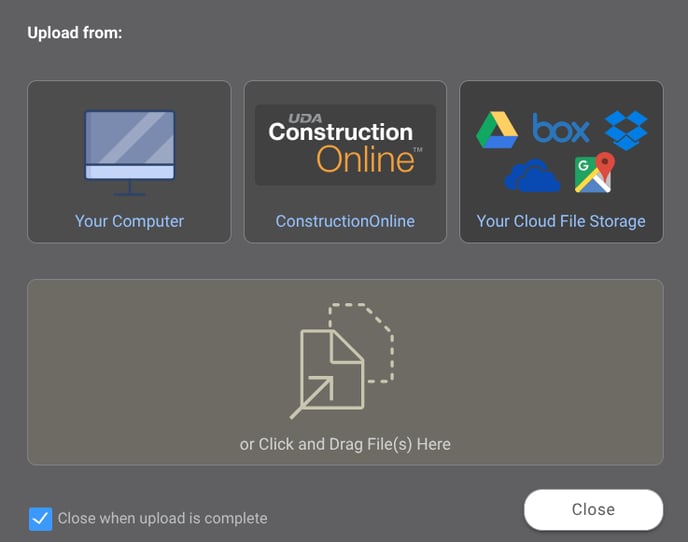
- This will open the “Upload File(s)” window.
- Select the “Your Cloud File Storage” option.
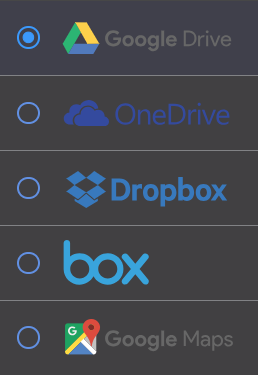
- From the left-hand list of options, choose the cloud storage app that you wish to upload files/photos to ConstructionOnline.
- No files/photos will populate in the window if you have not yet integrated the selected cloud storage app. Press the blue “Click here” text to manage your cloud integrations.

- No files/photos will populate in the window if you have not yet integrated the selected cloud storage app. Press the blue “Click here” text to manage your cloud integrations.
- Select the desired files/photos you want to copy from the account.
- Entire albums/folders can be uploaded to ConstructionOnline.
- Finalize by clicking the blue “Copy item(s) to ConstructionOnline” button.
- A message will appear as the files/photos are transferring and again upon a successful transfer.
ADDITIONAL INFORMATION
- Editing and/or deleting files & photos in ConstructionOnline that were uploaded from your cloud storage account(s) will have no effect on the original.
- Alternative Access Point: Files/photos may also be copied into ConstructionOnline from within the “Files” tab of a specific Project.
- Subscription Level: ConstructionOnline's Cloud Integrations are available for all companies with active ConstructionOnline subscriptions.
- CO™ Mobile App: Cloud Integration features are exclusively available via browser access to ConstructionOnline.
HAVE MORE QUESTIONS?
- Frequently asked questions (FAQ) about Files & Photos can be found in the article FAQ: Files & Photos.
- If you need additional assistance, chat with a ConstructionOnline Specialist by clicking the orange Chat icon in the bottom left corner or visit the UDA Support Page for more options.