
BACKGROUND
Construction teams constantly juggle various files, photos, and schedules, often saved in different locations and shared with several people. This haphazard approach to file management can lead to disorganization and miscommunication, creating inefficiencies and hindering project progress.
Integrating your ConstructionOnline account with external cloud storage applications offers a solution that centralizes critical project information in a secure online platform. Users can upload files and photos to ConstructionOnline directly from their personal cloud-based storage accounts (Google, Microsoft 365, Dropbox, and/or Box).
Additional calendar integration options allow ConstructionOnline Users to view their active project calendars alongside external personal calendars, providing clarity and visibility around upcoming deadlines and project milestones. Direct integration with these cloud storage platforms allows ConstructionOnline to streamline software adoption and enhance construction project management.
THINGS TO CONSIDER
- Integrating systems does not automatically sync data. You must initiate the sharing process.
- After initial setup, Calendar Integration must be activated per project/calendar in ConstructionOnline.
- Once activated, they will appear in the “My Calendars” section of your Google and/or Outlook Calendar.
- After initial setup, Calendar Integration must be activated per project/calendar in ConstructionOnline.
⚠️ Important:
- Calendar Events can only be pushed to Google and/or Outlook Calendars; they cannot be pulled from these accounts into ConstructionOnline.
- For a Project Schedule's Tasks to sync with a Google and/or Outlook Calendars, you must export the Project Schedule separately.
- Files and photos can only be uploaded from a personal drive.
- Due to certain security protocols placed on shared drives, integration is not available for these collaborative spaces and is exclusively offered for personal, cloud-based drives.
HOW TO MANAGE CLOUD INTEGRATIONS
- Navigate to the Account Settings Menu in the Top Navigation Bar.
- Under the “Account Settings” section, select Integrations.
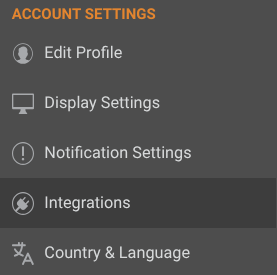
- This will open the “Integrations” tab in the "Profile Settings" window.

- This will open the “Integrations” tab in the "Profile Settings" window.
- Toggle on the switch next to the account(s) that you wish to allow ConstructionOnline to access.
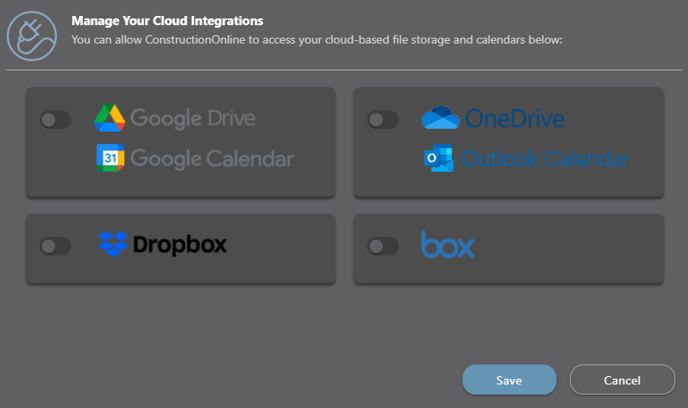
- As you turn on each integration, you will be prompted to enter/confirm your login information for the account.
- Review permissions for ConstructionOnline to access, and select "Allow" to continue.
- A confirmation message will appear upon successful integration.
- Click the blue "Save" button to finalize the desired integration(s).
ADDITIONAL INFORMATION
- If you would like to switch the account you are integrating with, log out of the integrated account (Google, Microsoft 365, Dropbox, and/or Box) on your device, toggle off the integration, hit the blue “Save” button, and then toggle it On again to reopen at the sign in page.
- If it is occurring even after following these steps, open ConstructionOnline in an Incognito window and toggle on the integration to prompt the account’s login screen.
- Editing and/or deleting files & photos in ConstructionOnline that were uploaded from your other account(s) will have no effect on the original.
- Subscription Level: ConstructionOnline's Cloud Integrations are available for all companies with active ConstructionOnline subscriptions.
- CO™ Mobile App: Cloud Integration features are exclusively available via browser access to ConstructionOnline.
HAVE MORE QUESTIONS?
- Frequently asked questions (FAQ) about Files & Photos can be found in the article FAQ: Files & Photos.
- If you need additional assistance, chat with a ConstructionOnline Specialist by clicking the orange Chat icon in the bottom left corner or visit the UDA Support Page for more options.