
BACKGROUND
This article explains the mechanics of Payment Applications inside ConstructionOnline—how the feature is configured, where values are calculated from, how the exported document is structured, and how the system manages billing across the life of a Project.
- For a general introduction to payment applications and industry-standard terminology, see Overview: What Are Payment Applications?
🗒️ Note: Field/Column Names in ConstructionOnline's Payment Application feature may differ from the labels used on the exported Payment Application and Certification document. This article uses ConstructionOnline's internal naming.
PREREQUISITES
Before a Payment Application can be created in ConstructionOnline, the following must be in place:
- A Project Estimate: Estimate data is required to generate the Schedule of Values. Without an active Estimate, line items and contract values cannot be populated.
- At least one valid Project Invoice: A valid Invoice must exist on the Project before a Payment Application can be created. Invoices serve as the basis for documenting amounts billed in the current and prior periods.
Only one Payment Application may be active at a time per Project. A Payment Application must reach Approved status before a new one can be created for the next billing period, ensuring that billing periods remain distinct and that cumulative totals carry forward accurately from one application to the next.
🗒️ Note: Creating the first Payment Application permanently locks certain Project data.
After a Payment Application is created:
-
Estimate line items and Selections cannot be edited.
-
Invoices and Change Orders included in a Pay App cannot be deleted.
These restrictions apply for the lifetime of the Project and cannot be reversed.
Before creating the first Payment Application, confirm that all Estimate and Selection data is finalized.
PAYMENT APPLICATION SETUP
The first time a Payment Application is created for a Project, ConstructionOnline will prompt the user to complete the Payment Application Setup. This one-time setup establishes Project-level settings that apply to all Payment Applications created on the Project. 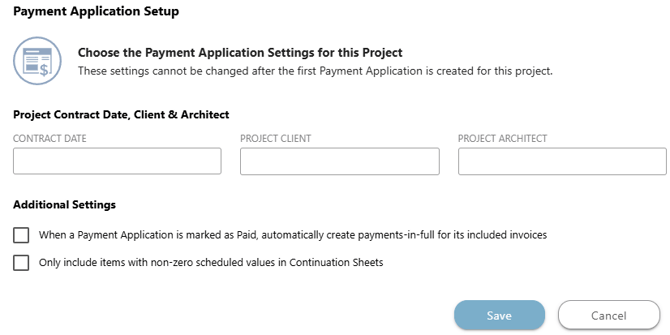
⚠️ Important: Payment Application settings cannot be changed after the first Payment Application is created for the Project. Users should review all settings carefully before saving.
The following required fields are entered manually during Payment Application Setup and will appear on all exported Payment Application and Certification documents for the Project:
- Contract Date: The date of the original construction contract.
- Project Client: The name of the Project owner or client.
- Project Architect: The name of the architect of record.
Additional Settings:
Two optional settings are available during setup and can be enabled or disabled based on Project preferences:
-
- When a Payment Application is marked as Paid, automatically create payments-in-full for its included Invoices: When enabled, this automatic creation eliminates the need to record payments manually on individual Invoices.
- Only include items with non-zero scheduled values in Continuation Sheets: When enabled, this exclusion of line items from the Project Estimate with a Scheduled Value of $0.00 keeps the billing document focused on active, billable items.
VALID AND INVALID RECORDS
ConstructionOnline distinguishes between valid and invalid Invoices and Change Orders when assembling a Payment Application. Understanding this distinction helps explain why certain records may or may not be available for inclusion in a given application.
Invoices:
- Valid Invoices: Non-draft Invoices whose line items are fully accounted for in the Project Estimate, and have not been included in a previous Payment Application. These are available for inclusion.
- Invalid Invoices: Draft Invoices, Invoices with additional items, or Invoices that have already been included in a previous Payment Application. These are not available for inclusion.
Change Orders:
- Valid Change Orders: Approved Change Orders that have not been included in a previous Payment Application. These are available for inclusion.
- Invalid Change Orders: Non-approved Change Orders, or Change Orders that have already been included in a previous Payment Application. These are not available for inclusion.
Once an Invoice or Change Order has been included in a Payment Application, it is protected from modification and cannot be deleted, preserving the integrity of the billing record across the life of the Project.
PAYMENT APPLICATION DOCUMENT STRUCTURE
When exported, a ConstructionOnline Payment Application generates a document that consists of two components: the Application Cover and one or more Continuation Sheets, depending on the number of line items in the Project Estimate.
Application Cover:
The Application Cover presents the high-level financial summary of the project at the time of billing. Contractor details, application number, billing period, contract date, project client, and project architect are displayed at the top of the cover alongside the following calculated fields:
- Original Contract Amount: Calculated from the Project Estimate as Base Cost + Sales Tax + Markup + Selections Total. The system uses the allowance for non-approved Selections and the client price for approved Selections.
- Total Change Orders: The total client price for all Change Orders included in the current or previous Payment Applications.
- Contract Amount to Date: Original Contract Amount + Total Change Orders
- Completed to Date: The total of all Payment Applications on the Project, including the current application if applicable, + Retainage.
- Retainage: The total retainage of all Invoices included in any Payment Application on the Project. Retainage is calculated separately for completed work and stored materials.
- Completed Less Retainage: Completed to Date - Retainage
- Total Previous Pay Apps: The total of all previous Payment Applications on the Project, including retainage.
- Total This Pay App: The total of all Invoices included in the current Payment Application, less retainage.
- Balance to Finish: Contract Amount to Date - Completed Less Retainage.
The Application Cover also includes a Change Order Summary table, which breaks down Change Order additions and deductions approved in previous periods and approved in the current period, along with the resulting net total. The cover additionally includes a Contractor's Application for Payment certification section and an Architects Certification for Payment section, both formatted to widely recognized industry conventions.
Continuation Sheet:
The Continuation Sheet is generated directly from the Project's Estimate and breaks down contract values and billing amounts by individual cost line items or categories. Depending on the number of line items in the Project Estimate, the exported document may include multiple Continuation Sheets. Each includes these calculated fields:
- Scheduled Value:
- For Estimate items: Base Cost + Sales Tax + Markup, including prorated COM if applicable.
- For Selections: allowance for non-approved Selections and client price for approved Selections.
- For Retainage line: the total of all Invoices from retainage included in current and previous Payment Applications only.
- Work Completed—From Previous Application: The invoiced amount for each line item from Invoices included in previous Payment Applications only.
- Work Completed—This Period: The invoiced amount for each line item from Invoices included in the current Payment Application only.
- Materials Presently Stored (Not in D or E): Always 0.
- Total Completed and Stored to Date: Work Completed From Previous Application + Work Completed This Period.
- % (G/C): Total Completed and Stored to Date divided by Scheduled Value, expressed as a percentage.
- Balance to Finish (C - G): Scheduled Value - Total Completed and Stored to Date.
- Retainage (If Variable Rate): The retainage amount for each line item from Invoices included in the current and previous Payment Applications.
Continuation Sheet values are calculated based on Project and Payment Application data until a Payment Application is Submitted or Approved, at which point they are saved with the Payment Application. If the Only include items with non-zero scheduled values in Continuation Sheets setting was enabled during Payment Application Setup, line items with a Scheduled Value of $0.00 will not appear.
PAYMENT APPLICATION STATUS TRACKING
Each Payment Application in ConstructionOnline is assigned a status that reflects its current stage in the billing lifecycle. Users manually update the status as the application progresses, from preparation and review to final submission.
🔵 In Progress:
The Payment Application has been created and is actively being built or edited. It has not yet been submitted for review.
🟣 Submitted:
The Payment Application has been completed and submitted to the owner or relevant party for review and approval.
🟢 Approved:
The Payment Application has been reviewed and approved. A new Payment Application may now be created for the next billing period, and the option to mark the application as Paid becomes available.
🔴 Rejected:
The Payment Application has been reviewed and rejected, requiring corrections or resubmission before payment can be authorized.
Once a Payment Application has been set to Approved status, it can be marked as Paid to indicate that payment has been received for that billing period. If the When a Payment Application is marked as Paid, automatically create payments-in-full for its included Invoices setting was enabled during Payment Application Setup, ConstructionOnline will automatically generate payments-in-full for all included Invoices at the time the application is marked as Paid.
EXPORTING & SHARING PAYMENT APPLICATIONS
Payment Applications can be printed, emailed, or exported to Excel (.XLSX) at any point during the billing process. The exported document includes the Application Cover and all Continuation Sheets, providing a complete, submission-ready billing package formatted to widely recognized industry conventions.
ADDITIONAL INFORMATION
- Subscription Level: ConstructionOnline's Payment Applications are available for companies using ConstructionOnline Commercial, Specialty, or Multi-family subscriptions at the Business or Enterprise level.
- The Payment Applications feature is also available as a Per-Company Add-On for all other plans.
-
CO™ Mobile App: Currently, the Payment Applications feature is exclusively available through browser access to ConstructionOnline.
HAVE MORE QUESTIONS?
- Frequently asked questions (FAQ) about Payment Applications can be found in the article FAQ: Payment Applications.
- If you need additional assistance, chat with a ConstructionOnline Specialist by clicking the orange Chat icon in the bottom left corner or visit the UDA Support Page for more options.