
BACKGROUND
Once a Payment Application has been created in ConstructionOnline, it can be printed, emailed, or exported to Excel at any point during the billing lifecycle. The exported document—a Payment Application and Certification—follows widely recognized industry formatting and includes the Application Cover and all Continuation Sheets, providing a complete, submission-ready billing package for owners, architects, and lenders.
THINGS TO CONSIDER
- Payment Applications can be accessed at both the Company and Project levels:
- Company-Level: Displays all Payment Applications across all Projects.
- Project-Level: Displays only Payment Applications associated with the selected Project.
HOW TO SHARE/EXPORT A PAYMENT APPLICATION
- Navigate to the Payment Applications feature from within the desired Project.
- Right-click on the Payment Application you wish to share/download and select the desired option from the dropdown menu:
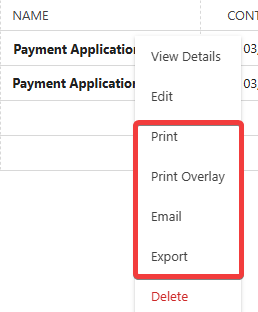
🗒️ Note: For more information on the "Print Overlay" option, check out "Print a Payment Application on AIA Forms."
- Print
- A new browser tab will open with the formatted Payment Application document.
- After reviewing the document for accuracy and completeness, click the "Print" button in the upper right corner to configure your printer settings and print your Payment Application.

- Email
- The "Send Payment Application" window will open, where you can enter information related to the Payment Application, including -

- Details
- Email Subject: Provide a description for the email.
- ConstructionOnline, by default, populates the subject line as "(For Review) [Payment Application Name]." However, this subject can be changed or deleted.
- ConstructionOnline, by default, populates the subject line as "(For Review) [Payment Application Name]." However, this subject can be changed or deleted.
- Message: Provide any additional context or instructions for the recipient(s).
- By default, ConstructionOnline populates the email message as "[Payment Application Name] for [Project Name] is attached for your review." However, this message can be changed or deleted.
- Email Subject: Provide a description for the email.
- Recipients
- Internal Recipients: Select any Company Employees on the Project Team who should receive the Payment Application.
- External Recipients: Select any ClientLink™ or TeamLink™ Users associated with the Project who should receive the Payment Application.
- Additional Recipients: Enter any additional ConstructionOnline Contacts from your Company Account who should receive the Payment Application.
- Attachments: Attach any files and/or photos to accompany the Payment Application in the email.
- Details
- Click the blue "Send" button to deliver the Payment Application and Certification document to the specified recipients' inboxes.
- The "Send Payment Application" window will open, where you can enter information related to the Payment Application, including -
- Export
- ConstructionOnline will generate and automatically download the Payment Application and Certification document to your device as an Excel (.XLSX) file.
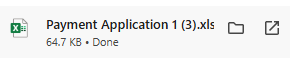
- ConstructionOnline will generate and automatically download the Payment Application and Certification document to your device as an Excel (.XLSX) file.
- Print
ADDITIONAL INFORMATION
- Subscription Level: ConstructionOnline's Payment Applications are available for companies using ConstructionOnline Commercial, Specialty, or Multi-family subscriptions at the Business or Enterprise level.
- The Payment Applications feature is also available as a Per-Company Add-On for all other plans.
- Permissions: Admin Users and Company Users with "Can View" or "Can Create, Edit, & Delete" permissions can share and export Payment Applications.
-
CO™ Mobile App: Currently, the Payment Applications feature is exclusively available through browser access to ConstructionOnline.
HAVE MORE QUESTIONS?
- Frequently asked questions (FAQ) about Payment Applications can be found in the article FAQ: Payment Applications.
- If you need additional assistance, chat with a ConstructionOnline Specialist by clicking the orange Chat icon in the bottom left corner or visit the UDA Support Page for more options.