
ConstructionOnline's Daily Logs give your construction team one place to document everything that happens on the jobsite—work performed, equipment and materials used, deliveries, visitors, delays, safety events, and more—with photos, weather conditions, and signatures all attached to the log record. The Essential Guide to Construction Daily Logs covers the full range of log types and how each is structured, while this Guide to Getting Started with Daily Logs focuses on getting you up and running: the views you'll work in every day, how to keep your team accountable with required logs and reminders, and how to turn daily log entries into professional reports.

Daily Logging Day View
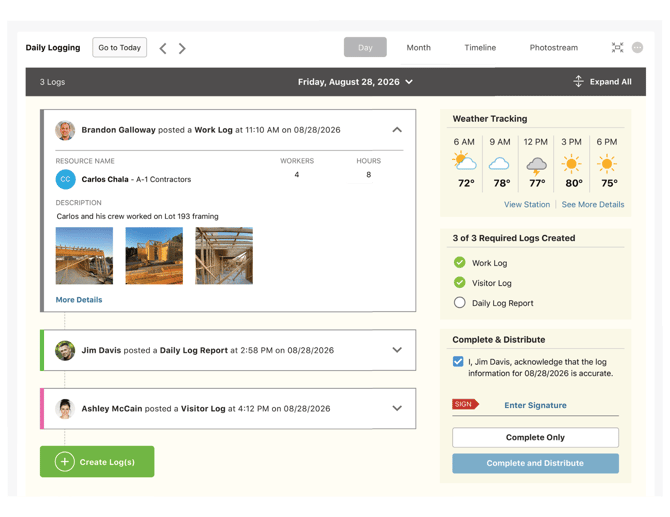
The Day View for Daily Logs shows every log entry for a project on the current or selected date, giving you the full picture of jobsite activity on any given day in one place.
From the Day View, you can:
- Create & Review Daily Logs: Add new entries and see details of logs posted by other team members for that date.
- View Project Weather Conditions: Automatic Weather Tracking documents jobsite conditions throughout the day, so running weather data becomes part of the project record.
- Meet Log Requirements: See at glance which mandatory logs have been created and which are still outstanding for the day.
- Sign Off & Share: Verify that the logs are Complete, sign off on log accuracy, and choose to Complete & Distribute to easily send the the day's reports to project stakeholders.
Daily Logging Month View
The Month View for Daily Logs gives you a calendar overview of an entire month, making it easy to spot gaps in your documentation before they become a problem.
From the Month View, you can:
- Review a Monthly Summary: See all of a project's logs for the month at a glance, organized by date and log type.
- Ensure Log Compliance: Days missing a required log are clearly flagged, making documentation gaps easy to catch and easy to resolve.
- Confirm Completed Days: Quickly see which days have been signed off and marked as Complete to make sure internal review processes are consistent.
Daily Logging Timeline View
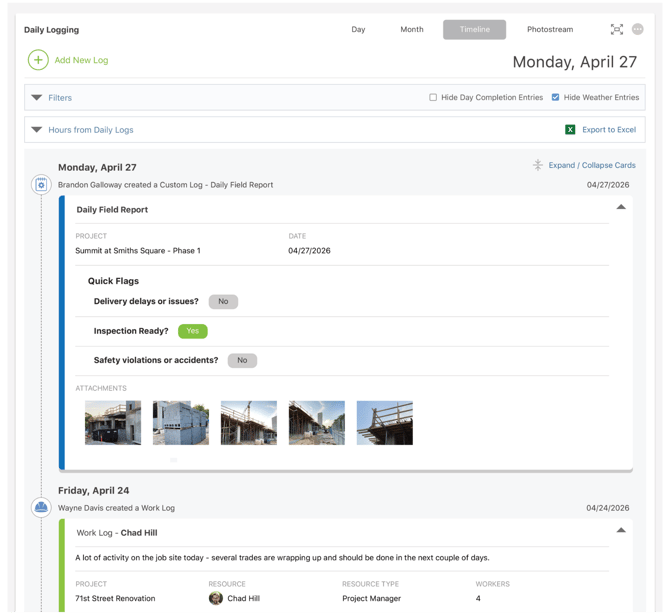
The Timeline View for Daily Logs is a running, chronological record of log entries—for a single project, or across all projects in your company account, when accessed from the Company Overview.
In the Timeline View, you can:
- Track Activity Across Projects: Follow a continuous feed of log entries company-wide to stay up-to-date on all action as it happens, or drill into a single project to see the most recent activity logged by that team.
- Filter to Find Logs Fast: Narrow the timeline by filtering by log creator, project, log type, and more to make it easy to find exactly what you're looking for in an instant.
- View Attachments Inline: See the photo and file attachments alongside associated log entries, without having to navigate to a different view.
- Compile Hours Worked by Employee: Review hours entered on Work Logs grouped by employee, on screen or as an Excel export.
Daily Logging Photostream™ View
The Photostream View for Daily Logs is a dynamic, chronological view that turns the photos your team attaches to log entries into a visual record of jobsite progress.
In the Photostream View, you can:
- See Site Photos Automatically: Every photo attached to a project log appears in the Logging Photostream in chronological order—no separate upload or configuration required.
- Filter the Stream: Refine your view by applying user-friendly filters for date range or associated contact.
- Jump to the Source: Every photo on the Photostream links directly to the associated log entry, so additional details are just a click away.
Setting Log Requirements & Reminders
Required Logs and Reminders help construction teams document project progress with consistency—and keep project managers from having to chase down jobsite updates.
- Required Logs: Designate one or more log types as required, meaning at least one entry of each must be created every workday. These requirements are reflected on the Day and Month Views for Daily Logs, helping to keep project documentation on track and make it easy to identify any incomplete records.
- Log Reminders: Schedule email and/or text reminders for specific log types to keep your team accountable. Reminders can be set per project, sent to multiple recipients, and cover more than one log type. ConstructionOnline's intelligent reminders are sent only if those logs haven't been created for the project that workday—so your team is prompted when something's missing and left alone when it isn't.
Creating Daily Logging Reports
Turn your team's log entries into professional, shareable reports for project stakeholders, clients, internal teams, and project archives.
- Combined Log Report: The Combined Log Report compiles daily logs of all types into a single, print-ready report that can be printed, saved, and shared with ease.
- Log by Type Reports: Focused log reports that compile all logs of a specific type into a single document, Log by Type Reports automatically filter results for a given purpose (e.g. Work Log Report, Project Notes Report, Visitor Log Report).
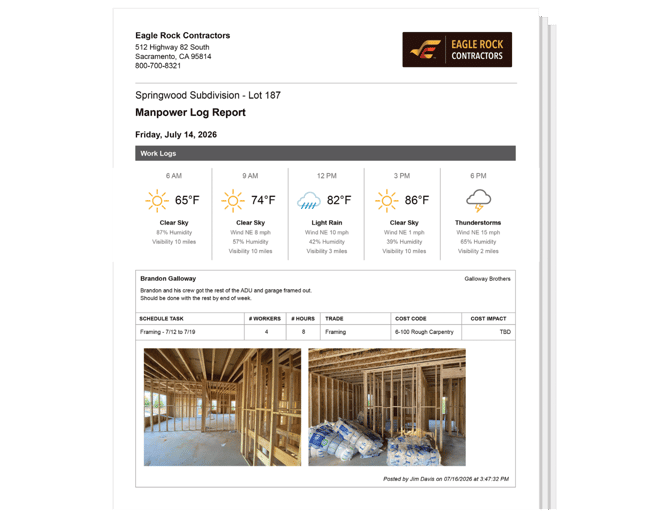
Filter Daily Log Reports by project, date range, log type, trade, and/or creator. Further customize Daily Log Reports with options for including automatically recorded weather data and/or thumbnails of attachments.
Suggested Next Steps
- Configure the log types that should be considered Required Logs for your team, and set up Reminders to support compliance.
- Create your first log from the Day View, attach a few photos, and mark the day Complete.
To learn more about Daily Logs in ConstructionOnline, refer to the Essential Guide to Construction Daily Logs which covers available log types, custom fields, automated weather tracking, permissions, and more.
HAVE MORE QUESTIONS?
- Frequently asked questions (FAQs) about Daily Logs can be found in the article FAQ: Daily Logs.
- If you need additional assistance, chat with a Specialist by clicking the orange Chat icon located in the bottom left corner or visit the UDA support page for additional options.