
BACKGROUND
Awarding a bid is a major milestone, but turning that decision into actionable work requires clear, accurate documentation. Purchase Orders formalize the scope, pricing, and expectations agreed upon during the bidding process, creating a clear commitment between your company and the selected subcontractor or vendor.
ConstructionOnline streamlines this transition by allowing teams to create Purchase Orders directly from awarded bids. By carrying key bid details forward, this workflow reduces duplicate data entry, minimizes errors, and ensures alignment between bidding, contracting, and cost tracking. The result is a faster, more reliable path from bid award to execution—while maintaining visibility, accountability, and control.
THINGS TO CONSIDER
- Within ConstructionOnline, any field that shows the gear icon
 is a Custom Value, allowing users to add, edit, or remove categories. These fields can be customized by clicking on the icon.
⚠️ Important: Purchase Orders cannot be created from awarded bids if the Bid Sheet was generated from an unapproved Change Order.
HOW TO CREATE A PURCHASE ORDER FROM AN AWARDED BID
A. During Awarding Process:
- A Purchase Order can be created during the bid awarding process.
- Once within the "Award Bid" window, select the option to "Award Bid and Create a Purchase Order."
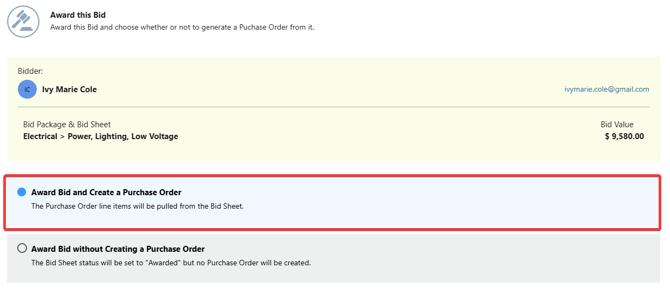
- Press the blue "Next Step" button.
- This will open the "Create Purchase Order" window, where you can enter details about the Purchase Order, including -

- Purchase Order Details
- Project: The associated Project/Opportunity. This field is automatically populated and cannot be modified.
- Title: Enter a clear, descriptive title to help identify the purpose of the Purchase Order.
- By default, ConstructionOnline populates the title as the name of the Bid Sheet. However, the title can be changed or deleted.
- PO Number: The unique identifier assigned to the Purchase Order for tracking and reference. This field is automatically populated and cannot be modified.
- Draft/Active: Select the status of the Purchase Order.
- Draft Purchase Orders cannot be released to the subcontractor/vendor.
- Scope of Work: Define the work, materials, or services covered by this Purchase Order.
- Subcontractor/Vendor: Select the Contact responsible for fulfilling the Purchase Order.
- ConstructionOnline automatically defaults this field with the Contact of the Bidder whose bid was awarded.
- Require acceptance by subcontractor/vendor: Select this option to require the subcontractor/vendor to formally accept the Purchase Order.
- Release to subcontractor/vendor: Select this option to send the Purchase Order to the subcontractor/vendor.
- You cannot release a Purchase Order in "Draft" status.
- Due Date: Specify the date by which the Purchase Order should be fulfilled.
- Scheduled Start: Enter the anticipated start date for the work associated with the Purchase Order.
- Scheduled Completion: Indicate the expected completion date for the work.
- Delivery Date: Specify when materials or deliverables are expected to be received, if applicable.
- PO Type: Select the appropriate Purchase Order type based on your company's workflow or accounting practices.
- Trade: Assign the relevant trade associated with the Purchase Order.
- Tags: Assign any predefined keywords or labels to the Purchase Order.
- By using Tags in ConstructionOnline, you can easily sort and track information within the system.
- Internal Notes: Add notes for internal reference only.
- Terms & Conditions: Define any contractual terms, payment conditions, or special requirements associated with the Purchase Order.
- If Default Text Blocks have been saved to your company's ConstructionOnline account, they will appear in the dropdown menu. If not, Terms & Conditions can be entered manually in the provided text box.
- Included Items: Select line items to include in the Purchase Order.
- ConstructionOnline, by default, includes all line items from the awarded bid with the associated values.
- Link to Estimate: Link Purchase Order line items to the linked estimate.
- By default, PO line items are automatically linked
 to the estimate when the Bid Sheet was created from that estimate. If the Bid Sheet was not created from the associated estimate, an unlinked icon
  will appear next to each line item. When an associated estimate is available, you can link/unlink items by clicking on the icon in the corresponding row.
🗒️ Note: Linked Purchase Order item totals will appear in the linked estimate's "Committed Costs" column.
- By default, PO line items are automatically linked
- Attachments: Upload any files and/or photos pertinent to the Purchase Order.
- Purchase Order Details
- Once all desired information is entered, click the blue "Create" button to finalize the details and create the Purchase Order.
B. From an Existing Awarded Bid:
- From your "Bid Packages" list, select the desired Bid Package containing the Bid Sheet with the desired awarded bid.
- Navigate to the package's "Bid Sheets" tab.

- Find the desired awarded bid and right-click on it.
- Select the "Create PO from Awarded Bid" option from the dropdown menu.
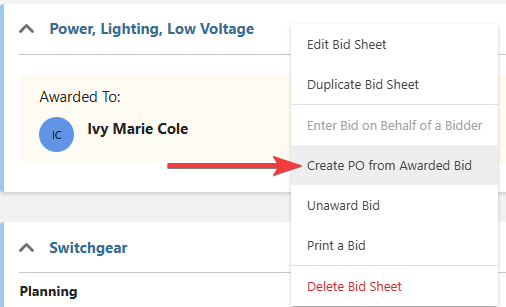
- Follow Steps 4 & 5 from the section above.
ADDITIONAL INFORMATION
- Subscription Level: Bid Tracking is available for ConstructionOnline accounts with active subscriptions at the Residential Business, Commercial Team and Business, Multi-Family Team and Business, and Enterprise levels.
- The Bid Tracking feature is also available as a Per-Company Add-On for all other plans.
- Permissions: Admin Users and Company Users with "Can Create, Edit, and Delete" permissions for Bid Tracking can create a Purchase Order for an awarded bid.
- CO™ Mobile App: The Bid Tracking feature is currently available exclusively via browser access to ConstructionOnline.
HAVE MORE QUESTIONS?
- Frequently asked questions (FAQ) about Bid Tracking can be found in the article FAQ: Bid Tracking.
- If you need additional assistance, chat with a ConstructionOnline Specialist by clicking the orange Chat icon in the bottom left corner or visit the UDA Support Page for more options.