
BACKGROUND
Awarding bids is a critical step to ensure the right subcontractors and vendors are selected to deliver quality work on time and within budget. Making these decisions efficiently and accurately helps maintain project momentum, supports fair and transparent processes, and reduces the risk of costly mistakes or delays.
ConstructionOnline's Bid Tracking feature streamlines this process, giving authorized users the tools to confidently award bids while maintaining a full audit trail. If adjustments are ever needed, bids can also be unawarded—but with well-organized Bid Packages and careful reviews, the need to reverse an award is rare. This flexibility provides peace of mind without compromising the integrity of the selection process.
HOW TO AWARD A BID
- From within your "Bid Packages" list, select the desired Bid Package containing the Bid Sheet with the bid you want to award.
- Navigate to the package's "Bidders" tab.

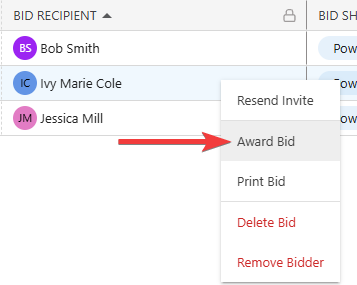
- Under "Bid Status," locate the submitted bid for the desired Bid Sheet and Bidder, then right-click and select "Award Bid" from the dropdown menu.
- If you attempt to award a bid before the Bid Package's Bid Submission Deadline with the "Don't allow bids to be awarded prior to the Bid Submission Deadline" option enabled, a message will flash in the bottom right corner of your screen.

- If you attempt to award a bid before the Bid Package's Bid Submission Deadline with the "Don't allow bids to be awarded prior to the Bid Submission Deadline" option enabled, a message will flash in the bottom right corner of your screen.
- The "Award Bid" window will open, where you can configure how the bid will be awarded, including -
- Purchase Order Creation: Decide whether to create a Purchase Order from the line items within the Bid Sheet.
- Email notification(s): Choose to notify the Bidder and add any additional recipients as needed.
- Convert Bidder to a TeamLink™ User: If the Bidder is not already listed as a Company Employee or ClientLink™ Contact, they can be converted into a TeamLink Contact and added to the Project.
- Press the blue "Save" (awarding without a Purchase Order) or "Next Step" (creating a Purchase Order) button to continue with awarding the bid.
- Awarding the bid with a Purchase Order will open the "Create Purchase Order" window. For more information, see "Create a Purchase Order from an Awarded Bid."
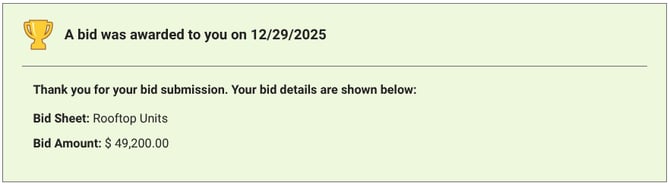
- As soon as the bid is awarded, the Bid Package will update to show the Bidder that their bid has been awarded, regardless of whether you've selected to send an email notification.
UNAWARD A BID
An awarded bid can be unawarded at any point by right-clicking on the bid again and selecting "Unaward Bid." 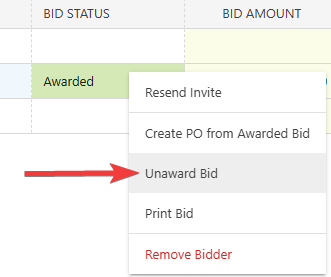
🗒️ Note: ConstructionOnline will require double-verification to complete unawarding. In the confirmation dialog, you may opt to send an email notification to the unawarded Bidder before clicking the blue "Confirm "button to finalize your decision. 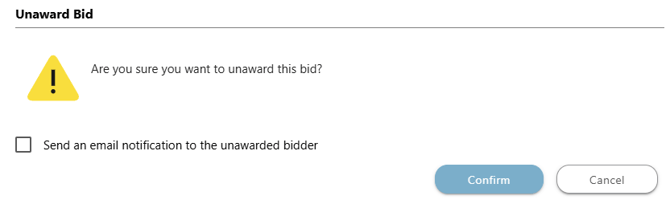
ADDITIONAL INFORMATION
- Subscription Level: Bid Tracking is available for ConstructionOnline accounts with active subscriptions at the Residential Business, Commercial Team and Business, Multi-Family Team and Business, and Enterprise levels.
- The Bid Tracking feature is also available as a Per-Company Add-On for all other plans.
- Permissions: Admin Users and Company Users with "Can Create, Edit, and Delete" permissions for Bid Tracking can award/unaward bids.
- CO™ Mobile App: The Bid Tracking feature is currently available exclusively via browser access to ConstructionOnline.
HAVE MORE QUESTIONS?
- Frequently asked questions (FAQ) about Bid Tracking can be found in the article FAQ: Bid Tracking.
- If you need additional assistance, chat with a ConstructionOnline Specialist by clicking the orange Chat icon in the bottom left corner or visit the UDA Support Page for more options.