
BACKGROUND
Payment Applications in ConstructionOnline are created through a guided three-step process that pulls directly from existing Project financial records—including the project Estimate, Invoices, and Change Orders. By building each application from live Project data, the platform reduces manual data entry and helps ensure billing reflects the most current Project financial information.
THINGS TO CONSIDER
- Payment Applications can be accessed at both the Company and Project levels:
- Company-Level: Displays all Payment Applications across all Projects.
- Project-Level: Displays only Payment Applications associated with the selected Project.
- A Project Estimate must exist before a Payment Application can be created. Estimate data is required to generate the Schedule of Values on the Continuation Sheet.
- At least one valid Invoice must exist on the Project before a Payment Application can be created.
- Only one Payment Application may be active on a Project at a time. If a Payment Application already exists on the Project and has not yet been set to Approved status, a new Payment Application cannot be created until the existing application is approved or deleted.
In any of these cases, ConstructionOnline will flash a message in the bottom-right corner of the screen indicating why a Payment Application cannot be created.
HOW TO CREATE A NEW PAYMENT APPLICATION
- Navigate to the Payment Applications feature from within the desired Project.
- Click the green (+) Add New Payment Application button.
- If this is the first Payment Application created for the Project, ConstructionOnline will display the Pay App Restrictions notice:
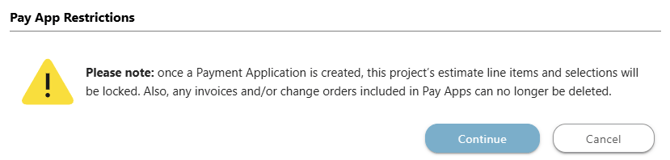
Click the blue "Continue" button to proceed or "Cancel" to return without creating a Payment Application.
- If you select to continue with the creation process, the "Payment Application Setup" window will open:
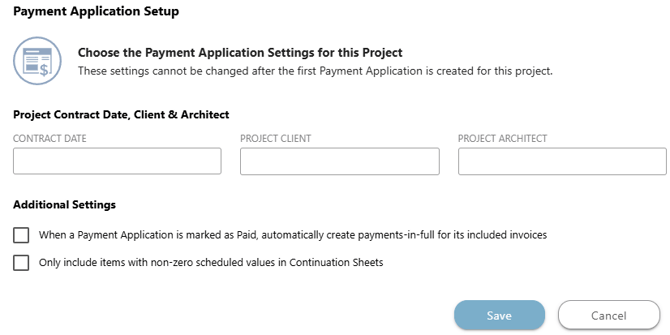
These Project-level settings apply to all Payment Applications on the Project and cannot be changed after the first Payment Application is created. Enter or configure the following:- Contract Date: The date of the original construction contract.
- Project Client: The name of the Project owner or client.
- Project Architect: The name of the architect of record.
- When a Payment Application is marked as Paid, automatically create payments-in-full for its included Invoices: When enabled, this automatic creation eliminates the need to record payments manually on individual Invoices.
- Only include items with non-zero scheduled values in Continuation Sheets: When enabled, this exclusion of line items from the Project Estimate with a Scheduled Value of $0.00 keeps the billing document focused on active, billable items.
- Click the blue "Save" button to confirm setup and proceed with creating the Payment Application.
- If you select to continue with the creation process, the "Payment Application Setup" window will open:
- If this is the first Payment Application created for the Project, ConstructionOnline will display the Pay App Restrictions notice:
- The "Create New Payment Application" window will open, where you can confirm/enter information about the Payment Application, including -

- Payment Application Details
- Project: The Project associated with the Payment Application.
- ConstructionOnline automatically populates the Project where the Pay App is being created. This field cannot be modified. When creating the application at the Company-level, you may select the Project from the dropdown menu.
- Original Contract Amount, Total Change Orders, and Contract Amount to Date: These values display automatically based on the Project Estimate and any previously included Change Orders. These fields are read-only and cannot be modified from this screen.
- Number: The number assigned to the Pay App for organizational purposes.
- ConstructionOnline auto-assigns this number based on the Project and application sequence. This field cannot be modified.
- Name: Provide a clear, descriptive title that reflects the billing documentation.
- By default, ConstructionOnline generates a Name based on the assigned Number. This field is required.
- Client: The client associated with the Project, entered during the Payment Application Setup.
- Architect: The architect associated with the Project, entered during the Payment Application Setup.
- Contract Date: The Contract Date associated with the Project, entered during the Payment Application Setup.
- Period To: Select the end date of the current billing period.
- ConstructionOnline, by default, sets this date one month after the Contract Date, since progress billing is typically completed on a monthly schedule.
- Tags: Assign any predefined keywords or labels to the Payment Application.
- By using Tags in ConstructionOnline, you can easily sort and track information within the system.
- Project: The Project associated with the Payment Application.
- Included Items: Select the Invoices and Change Orders to include in the Payment Application. You must include at least one Invoice.
- Only valid Invoices—non-draft Invoices whose line items are fully accounted for in the Project Estimate, and have not been included in a previous Payment Application—will appear for selection.
- Only valid Change Orders—approved Change Orders that have not been included in a previous Payment Application—will appear for selection.
- Attachments: Upload any files and/or photos pertinent to the Payment Application, such as supporting documentation, lien waivers, or other Project records.
- Payment Application Details
- Once you have added all of the information you wish to include, click the blue "Save" button to create the Payment Application.
- The Payment Application will be created with a status of In Progress and will appear within the Payment Applications List for the Project.
ADDITIONAL INFORMATION
- For a detailed explanation of how Payment Application data is structured and where values are calculated from, see Guide to Understanding Payment Applications in ConstructionOnline™.
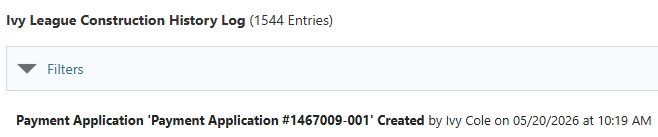
- You can see information regarding this activity logged in the Company History Log, where ConstructionOnline records that the Payment Application was created, the user who created the application, and the date and time of creation.
- Subscription Level: ConstructionOnline's Payment Applications are available for companies using ConstructionOnline Commercial, Specialty, or Multi-family subscriptions at the Business or Enterprise level.
- The Payment Applications feature is also available as a Per-Company Add-On for all other plans.
- Permissions: Admin Users and Company Users with "Can Create, Edit, & Delete" permissions can create Payment Applications.
-
CO™ Mobile App: Currently, the Payment Applications feature is exclusively available through browser access to ConstructionOnline.
HAVE MORE QUESTIONS?
- Frequently asked questions (FAQ) about Payment Applications can be found in the article FAQ: Payment Applications.
- If you need additional assistance, chat with a ConstructionOnline Specialist by clicking the orange Chat icon in the bottom left corner or visit the UDA Support Page for more options.