
BACKGROUND
The Bid Tracking feature in ConstructionOnline provides TeamLink Users with a centralized location to view, manage, and respond to Bid Packages for Projects they've been invited to bid on. This direct access allows subcontractors and vendors to review Bid Package details, set their bid intention, and enter bid values—all from within their existing TeamLink Portal workflow.
THINGS TO CONSIDER
- Access to Bid Tracking via the TeamLink Portal requires an existing TeamLink User account. If you do not currently have TeamLink access, contact the general contractor to be added as a TeamLink User.
- TeamLink Users still receive a bid invitation email. The email link and TeamLink Portal provide access to the same Bid Package information—updating one will update the other.
- Your bid intention can be changed at any time before the bid submission deadline by clicking the "Undo" button.
- In order to enter values on a Bid Sheet, you must set your bid intention as "Will Bid" or "Undecided."
- If you've been invited to bid on multiple Bid Sheets but do not plan to bid on all of them, contact the Bidding Contact about updating the Bid Package accordingly.
⚠️ Important:
Bids cannot be adjusted or withdrawn after the Bid Package submission deadline. Once the deadline passes, the Bid Package will display the following message:

HOW TO VIEW A BID PACKAGE AND SET BID INTENTION
Navigate to Bid Tracking:
- Navigate to the desired Project via the Left Sidebar.
- Click the "Show Project Menu" button in the top right of your screen to expand the Project and Feature Menu.
- Locate and select "Bid Tracking" under the "Financials" section.
🗒️ Note: Bid Tracking can also be accessed via the "Needs Attention" section of your My Agenda View—from the "All Projects" view, click the desired Bid Sheet within the Item column; from within a specific Project, click the "View Details" text within the Bid Sheets card.
Review Your Bid Tracking Summary:
- Review your Bid Sheet summary at the top of the screen. The summary cards display:

- Total Bid Sheets: Reflects all Bid Sheets you've been invited to bid on within the Project.
- Bids Submitted by You: Tracks how many of your invited Bid Sheets have been officially submitted.
- Bids Awarded to You: Indicates how many of your submitted bids have been awarded.
🗒️ Note: Bid Sheets for which you've set a "Will Not Bid" intention are not included in the Bid Sheet summary counts.
View a Bid Package and Set Bid Intention:
- Click on the desired Bid Package within your Bid Packages List to open the Bid Package.
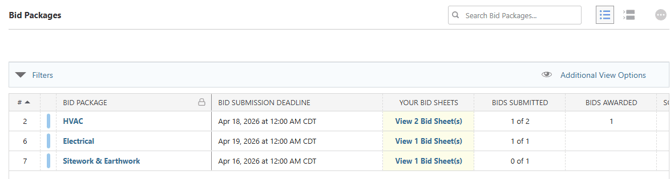
🗒️ Note: By default, Bid Packages with a passed submission deadline or a "Will Not Bid" intention response are hidden from your Bid Package List. To adjust this, select the "Additional View Options" in the upper right corner of the list. - Review the Bid Package details across the available tabs, including instructions, important dates, scope of work, attachments, and relevant Bid Sheet(s).
- Set your bid intention.
- Locate the "Choose your bid intention" dropdown at the top of the Bid Package to select and save your desired response (Will Bid, Will Not Bid, or Undecided).

- Press the blue "Save" button to record your response.
- Locate the "Choose your bid intention" dropdown at the top of the Bid Package to select and save your desired response (Will Bid, Will Not Bid, or Undecided).
Enter Bid Values and Submit Bid:
- Navigate to the "Bid Sheets" tab within the Bid Package.

- Select the blue "Enter Bid Values" button for the associated Bid Sheet to open the "Enter Bid" window.
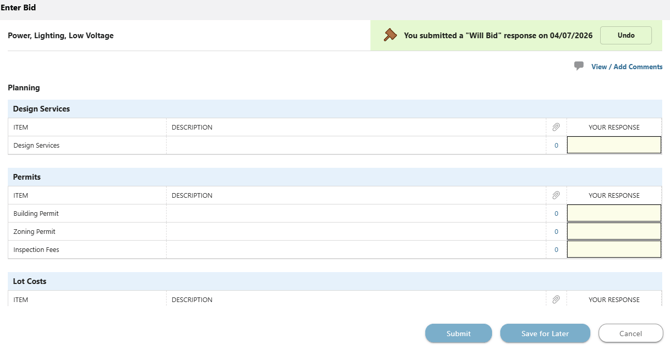
- You must have a bid intention of Will Bid or Undecided to enter bid values. If your current intention is set to Will Not Bid or has not yet been set, update your response before proceeding.
- If you would like to begin entering bid values but do not wish to officially submit your bid, use the blue "Save for Later" button to create a draft. You can return to your draft to update your values anytime before the deadline.
- Once your bid values, inclusions, and exclusions are finalized, click the blue "Submit" button.
⚠️ Important: Values must be entered for all line items in the Bid Sheet to submit your bid. - ConstructionOnline will require double-verification to submit the bid. Click the blue "Submit Bid" button to confirm your bid and notify the Bid Contact and company.
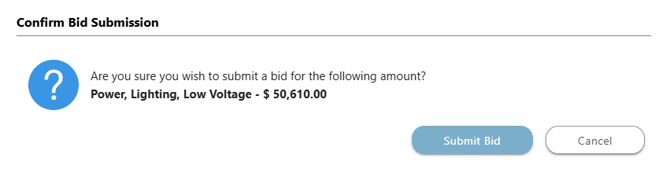
- The Bid Package will update the bid status. No further action is required.

- The Bid Package will update the bid status. No further action is required.
ADDITIONAL INFORMATION
- Permissions: TeamLink permissions are managed by ConstructionOnline Company Users. If you have questions about your level of access within the TeamLink Portal, contact the general contractor directly.
- CO™ Mobile App: The Bid Tracking feature is currently available exclusively via browser access to ConstructionOnline.
HAVE MORE QUESTIONS?
- Frequently asked questions (FAQ) for TeamLink Users can be found in the article FAQ: TeamLink.
- If you need additional assistance, chat with a ConstructionOnline Specialist by clicking the orange Chat icon in the bottom left corner or visit the UDA Support Page for more options.