
BACKGROUND
In construction scheduling, resource conflicts often occur when availability and workload are not tracked across projects in a single view. As schedules shift and teams update timelines independently, overlapping assignments can go unnoticed until they begin to affect progress.
ConstructionOnline's ResourceTrak provides visibility into resource workload, availability, and scheduling conflicts across all active projects. By aggregating OnPlan™ Scheduling data, ResourceTrak gives operation leaders and project managers a real-time view of resource utilization, helping identify capacity constraints and potential conflicts early.
NAVIGATING RESOURCETRAK
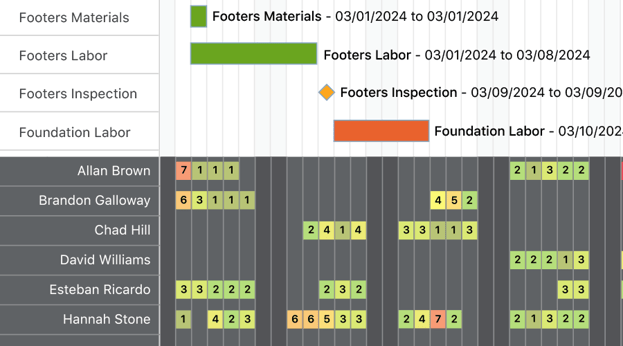
When you open ResourceTrak, you will see a split-panel view: a table on the left listing all resources by name along with contact details; and a color-coded grid on the right displaying each resource's status across a shared timeline. The header displays a live count of total Resources currently visible.
The following tools are available along the top of the view:
- Search Bar: Quickly locate a specific resource by name. Results filter in real time as you type.
- Zoom Slider: Adjusts the timeline scale of the resource grid. Use the + and - buttons for incremental adjustments, or drag the slider to zoom in (right) on a specific time window or out (left) to a broader view.
- Screen View Expander: Expands the ResourceTrak view to full screen by collapsing the left sidebar.
- Three-Dot Action Menu: Opens a dropdown with four options—Column Order, Set Thresholds, Manage Unassigned Schedule Tasks, and Row Density.
- Go to Today: Centers the timeline on the current date.
- Show Resource Dropdown: Switches the color-coded grid between four view modes—Workload, Task Conflicts, Task Completion, and Availability.
- Filters: Narrows the view to a specific subset of resources.
- Show Unassigned Resources checkbox: Changes the visibility of resources based on whether they have any current schedule task assignments or not.
FILTERS
The Filters panel narrows the ResourceTrak view to a specific subset of resources, making it easier to focus on a particular team, project, or role without scrolling through the full company-wide list. Filters update the grid in real time and can be applied individually or in combination.
Note: ConstructionOnline, by default, sets each Filter category to display "All."
By expanding the Filters feature in ResourceTrak, you can choose to filter by -

- Contact Group: Narrow results to resources belonging to a specific contact group.
- Trade: Filter resources by trade designation.
- Contact Category: Refine the list based on contact category.
- Office: View resources associated with a specific office location.
- Division: Isolate resources tied to a particular business unit.
- Region: Filter resources across different geographic regions.
- Quality: Narrow results based on a resource's quality rating.
- Schedule: Filter the view to resources assigned within a specific schedule.
To clear established Filters, you can -
- Select the white X next to the specific Filter category you want to revert back to "All."
- Use the blue "Clear Filters" text next to the ❌ to reset the table to the default filters of "All" for each category.
SET THRESHOLDS
Thresholds are what give ResourceTrak color grid its meaning. Without configured thresholds, the view cannot determine when a resource is overloaded, in conflict, or available. The color system depends entirely on the values defined here. ResourceTrak Settings contains two distinct threshold types, each configurable independently, and all configuration is managed from the gray three-dot Action Menu  in the top right view.
 -Jan-13-2026-05-48-08-8944-PM.webp?width=516&height=353&name=Adobe%20Express%20-%20file%20(1)-Jan-13-2026-05-48-08-8944-PM.webp)
⚠️ Important: Threshold settings are company-wide. Any changes made to Conflict or Availability Thresholds will update how ResourceTrak displays resource status for all Company Users.
CONFLICT THRESHOLDS
Conflict Thresholds define the maximum number of tasks and/or projects a resource can be assigned to per day before a conflict is flagged in the grid. Two values are configured independently:
- Schedule Tasks per Day: Assigning a resource to more than this number of schedule tasks on a single day will display a conflict.
- Projects per Day: Assigned a resource to more than this number of projects on a single day will display as a conflict.
For example, with the default setting of 1 for both values: a resource assigned to two tasks on the same day, even on different projects, will be flagged as a conflict. Raising the task threshold to 3 means the conflict won't trigger until a resource has more than three tasks in a single day.
AVAILABILITY THRESHOLDS
Availability Thresholds define the maximum number of tasks and/or projects a resource can be assigned to per day while still being considered available for additional work. Two values are configured independently:
-
Schedule Tasks per Day: A resource assigned to fewer than this number of schedule tasks on a given day will display as available.
-
Projects per Day: A resource assigned to fewer than this number of projects on a given day will display as available.
Calibrating both Availability and Conflict Thresholds to match your team's realistic capacity gives the most accurate and actionable view.
🗒️ Note: ResourceTrak Settings configured from the Set Thresholds option apply as company-wide defaults for all resources. Individual contacts can be given their own custom thresholds of their capacity differs from the company standard by right-clicking on their name within the left side table view.
VIEW MODES
The Show Resource dropdown switches the color-coded grid between four modes. Each mode answers a different question about resource status and is useful in different operational contexts. The mode you select determines what the grid's colors represent, which is why understanding View Modes before reading the grid is essential. 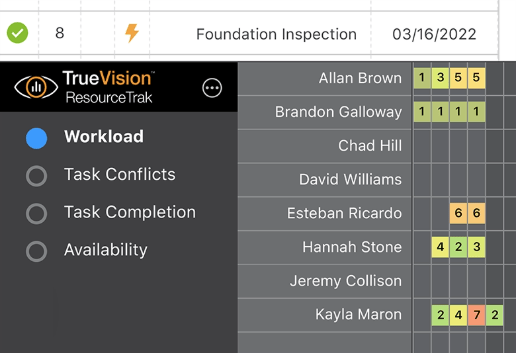
WORKLOAD
-
The number of tasks assigned to each resource per day, color-coded against configured workload thresholds
- Best for day-to-day operational reviews to identify who is carrying a heavy task load this week or next, and where bandwidth exists to assign additional work.
TASK CONFLICTS
- Days where a resource has been assigned to more tasks or projects than their configured conflict threshold allows, highlighted in red.
- Useful during pre-planning and schedule review to surface double-bookings and over-assignments before they affect project delivery.
TASK COMPLETION:
- Each resource's task completion rate over time, showing how consistently assigned tasks are being marked complete.
- Helps with performance and accountability reviews by allowing you to identify resources with low completion rates that may signal workload issues, unclear scope, or follow-through gaps.
AVAILABILITY:
- Days where a resource is under their availability threshold (i.e. has capacity for more assignments) are shown in green. Days where a resource exceeds their conflict threshold is shown in red.
- Useful for staffing and assignment planning to quickly find who has open capacity before assigning new tasks or scheduling new projects.
THE RESOURCE GRID
The color-coded grid is the core of ResourceTrak. Each resource occupies a single row, and each column represents a day on the shared timeline. Cell colors reflect that resource's status based on the selected view mode and configured thresholds:
- Green: The resource is within healthy thresholds for the selected view—available, on track, or conflict-free.
- Yellow / Orange: The resource is approaching a threshold limit.
- Red: The resource has exceeded a threshold—overloaded, in conflict, or unavailable.
Clicking on a resource in the table opens the Assigned Task & Availability detail view, showing assigned tasks and a color-coded Availability Calendar for the current and following months. Use Select Another Contact at the bottom to navigate between resources without closing the panel.
Clicking on any cell in the grid opens the Manage Workload detail view for that resource on that date. Select a task from the left panel to see Assigned Resources and Available Resources for that task, including each resource's Trade, Quality rating, and current Workload. Resources can be added or removed directly from this view and saved with the blue Save button.
Expanding an individual resource row within the Manage Workload view reveals two additional panels: an Upcoming Workload calendar showing that resource's color-coded availability across the current and following months, and an Availability Thresholds panel display the resource's current threshold values. Select Manage Thresholds to adjust that resource's settings without leaving the view.
EXAMPLE
A project manager is preparing to assign a framing crew to a new job starting in two weeks. Switching ResourceTrak to Availability mode, they can see at a glance that two of the three crew members have green cells throughout that window, meaning they are under their availability threshold and have capacity. The third shows yellow and red cells for several days in that period, indicating they are already near or at capacity on another project. The manager reassigns a different crew member for those days before the schedule conflict has a chance to form.
MANAGE UNASSIGNED SCHEDULE TASKS
The Manage Unassigned Schedule Tasks option in the Action Menu surfaces schedule tasks across all schedules that do not currently have a resource assigned. Tasks without assigned resources will not appear in the ResourceTrak grid, so workload and conflict analysis is only as accurate as the assignment data behind it. Selecting any task from the list opens its assignment panel, where one or more resources can be assigned directly before saving.
COMPANY-WIDE VS. SINGLE SCHEDULE VIEW
By default, ResourceTrak displays resource utilization across all schedules company-wide. To focus on a single schedule, navigate to that schedule and expand the ResourceTrak tab at the bottom—only the resources and tasks associated with that schedule will be reflected in the grid.
ADDITIONAL INFORMATION
- For a high-level overview of all TrueVision tools, see Overview: What is TrueVision™ Business Intelligence?
- Subscription Level: ConstructionOnline's TrueVision Business Intelligence is available for companies using ConstructionOnline subscriptions at the Business or Enterprise level.
- TrueVision's ResourceTrak is also available as a Per-Company Add-On for all other plans.
-
CO™ Mobile App: Currently, the TrueVision feature is exclusively available through browser access to ConstructionOnline.
HAVE MORE QUESTIONS?
- If you need additional assistance, chat with a ConstructionOnline Specialist by clicking the orange Chat icon in the bottom left corner or visit the UDA Support Page for more options.