
BACKGROUND
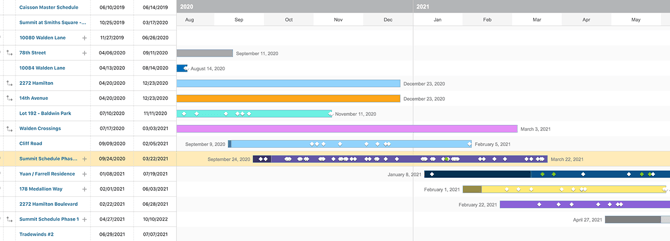
TrueVision Multi-Project Scheduling consolidates all of your schedules into one company-wide Gantt chart, making it possible to see how timelines relate to each other, where conflicts and delays are developing, and how the full portfolio is tracking against planned benchmarks.
THINGS TO CONSIDER
Schedules in Multi-Project Scheduling do not need to be linked to a project. While active project schedules appear here automatically, users can also create standalone schedules directly within Multi-Project Scheduling. Since only one schedule can be linked to a project at a time, standalone schedules are useful when you are working through a few schedule variations and haven't decided which one to use yet, or when you have a schedule that simply doesn't need a project connection—such as an internal company timeline.
NAVIGATING MULTI-PROJECT SCHEDULING
When you open Multi-Project Scheduling, you will see a split-panel view: a table on the left listing all schedules by Name, Start, and End date, and a Gantt chart on the right displaying each schedule as a horizontal bar plotted across a shared timeline. The header displays a live count of total Schedules, Milestones, and Resources across the portfolio.
The following tools are available along the top of the view, in order from left to right:
- Search Bar: Quickly locate a specific schedule. Results filter the Gantt view in real time as you type.
- Zoom Slider: Adjusts the timeline scale of the Gantt chart. Drag left to zoom out and see the full portfolio across a wider timespan, or drag right to zoom in and focus on near-term activity. The + and - buttons on either side of the slider offer incremental adjustments.
- Screen View Expander: Expands the Schedule view to full screen by collapsing the left sidebar. Useful when reviewing a large portfolio or presenting the view to stakeholders.
- Three-Dot Action Menu: Opens a dropdown menu with display and export options—Column Order, Row Density, Export to Excel, and Print.
- (+) New Schedule: Creates a new schedule directly from the Multi-Project Scheduling view.
- Go to Today: Snaps the Gantt chart to center on the current date, useful for reorienting after scrolling through past or future timelines.
- Expand / Collapse All Baselines: Toggles baseline bars on or off for all schedules simultaneously. When expanded, a secondary bar appears beneath each active schedule bar representing its saved baseline, making schedule drift immediately visible across the full portfolio.
- Show / Hide Milestones: Toggles milestone diamond markers on or off across all schedule bars. Hiding milestones can reduce visual clutter when reviewing a large portfolio and the focus is on schedule spans rather than specific checkpoints.
- Filters: Narrows the view to a specific subset of the portfolio by schedule attribute.
FILTERS
Note: ConstructionOnline, by default, sets each Filter category to display "All."
By expanding the Filters feature in Multi-Project Scheduling, you can choose to filter by -

- Date: Select the date range to focus on schedules within a specific timeframe.
- Project: Narrow result to a schedule associated with a specific project.
- Project Type: Filter based on project types.
- Project Group: Refine the list using company-defined groupings.
- Project Stage: Focus on schedules tied to a specific phase of the project lifecycle.
- Project Category: Filter based on project categories.
- Office: View schedules associated with a specific office location.
- Division: Isolate schedules tied to a particular business unit.
- Region: Compare schedules across different geographic regions.
- Key Role: Filter by a specific key role assigned.
- Resource: Narrow results to schedules where a specific resource has been assigned.
To clear established Filters, you can -
- Select the white X next to the specific Filter category you want to revert back to "All."
- Use the blue "Clear Filters" text next to the ❌ to reset the table to the default filters of "All" for each category.
BASELINE TRACKING
A baseline is a saved snapshot of a schedule at a specific point in time, typically at project kickoff or after a major scope change. Once saved, it serves as a fixed reference point against which current progress can be compared, making schedule slippage visible at both the individual and portfolio level.
When baselines are expanded, a secondary bar appears beneath each active schedule bar representing the saved baseline span. The visual gap between the active bar and the baseline bar immediately communicates how far the current schedule has drifted and in which direction. Multiple baselines can be saved per schedule, allowing teams to track schedule evolution across key project phases.
EXAMPLE
An operations manager runs a monthly portfolio review and selects "Expand All Baselines." Two schedules immediately stand out because their active bars extend noticeably beyond their baseline bars, indicating both are running behind their original plans. One has slipped three weeks, the other six. Rather than waiting for a project-level status meeting to surface the issue, the manager reaches out to both project managers the same day with specific timeline questions grounded in data visible directly in the Gantt.
THE GANTT VIEW
In the Gantt chart, each schedule occupies a single row, with a colored horizontal bar representing its span from start to end date. Milestone diamonds appear along each bar at the dates they are scheduled, providing a quick visual reference for key checkpoints without needing to open the individual schedule.
A vertical red line on the Gantt marks today's date, making it immediately visible which schedules are currently active, which are upcoming, and which have run past their projected end date.
SCHEDULE BARS
Each schedule bar is color-coded and matches the assigned project color when linked to a project. Bars can be dragged within the Gantt chart to adjust a schedule's start date, shifting the entire timeline forward or backward without needing to open the individual schedule. Once the change is confirmed, start and end dates update automatically in the table columns on the left.
MILESTONES
Milestones from each schedule appear as diamond markers along the schedule bar. Hovering over a milestone displays its name. Clicking on a milestone opens a detail window showing the milestone's name, date, project, and schedule—along with quick links to open the schedule or milestone timeline directly, and the names of the previous and next milestones in the sequence for immediate context without having to change views.
DISPLAY OPTIONS
Multi-Project Scheduling offers two display configuration options accessed from the gray three-dot Action Menu: Column Order and Row Density.
COLUMN ORDER
Column Order controls which columns appear in the table panel on the left side of the view and the order in which they are displayed.
- Show/Hide Columns: Mark the checkbox next to the columns you want to be visible. Unmark checkboxes next to the columns you want to remove from view.
- All columns are shown by default; however, if you've made changes to the visibility of your columns and would like to show all columns once again, mark the checkbox next to "Select All."
- Order Columns: The order in which columns appear can be customized by clicking and dragging column rows in the list to establish the way they appear.
ROW DENSITY
Row Density adjusts the vertical spacing between schedule rows in the Gantt view. A compact density allows more schedules to be visible on the screen at once which is useful for larger portfolios. The standard density improves readability when reviewing a smaller set of schedules or presenting the view to stakeholders.
⚠️ Important: Any changes made to the display or organization of Multi-Project Scheduling Views - including any changes made to Column Order & Visibility - are user-specific and do not affect other team members' views.
EXPORT & PRINT
Multi-Project Scheduling supports two output options from the gray three-dot Action Menu: Export to Excel and Print.
EXPORT TO EXCEL
Export to Excel generates a spreadsheet of the current Multi-Project Scheduling table data, making it easy to share schedule information in a format stakeholders can work with outside of ConstructionOnline.
The print option exports the Gantt view as a high-quality .PNG file, preserving the visual layout of the chart for printing, sharing in presentations, or attaching to client-facing documentation. The print function supports up to 150 schedules and timespans of up to 150 months, making it suitable for firms coordinating both short- and long-term project lifecycles across large portfolios.
➡️ Tip: Before printing, use the Zoom slider and Filters to frame exactly the view you want to capture. Adjusting the view this way gives you a cleaner, more focused print output—especially useful for client meetings or presentations where a specific time horizon is the focus.
ADDITIONAL INFORMATION
- For a high-level overview of all TrueVision tools, see Overview: What is TrueVision™ Business Intelligence?
- Subscription Level: ConstructionOnline's TrueVision Business Intelligence is available for companies using ConstructionOnline subscriptions at the Business or Enterprise level.
-
CO™ Mobile App: Currently, the TrueVision feature is exclusively available through browser access to ConstructionOnline.
HAVE MORE QUESTIONS?
- If you need additional assistance, chat with a ConstructionOnline Specialist by clicking the orange Chat icon in the bottom left corner or visit the UDA Support Page for more options.