
BACKGROUND
Construction companies often maintain a broad library of Cost Codes covering labor, materials, administration expenses, and other billable items or services. Because Time Tracking is specifically concerned with labor, many of these Cost Codes may not be relevant to employees who are clocking in log their work. Even among labor-related Cost Codes, certain options may only apply to specific trades, roles, or types of work.
ConstructionOnline™ allows companies to control Cost Code visibility on a per-employee basis. When the visibility is restricted, employees only see the Cost Codes made available to them when clocking in to a Time Shift. Because Pay Rates can be assigned at the Cost Code level, limiting access to relevant options helps simplify the clock-in process while supporting more accurate labor expense tracking, payroll calculations, and job costing.
THINGS TO CONSIDER
- Only Company Admin Users and/or Company Users authorized to "view/manage pay rates for other users" can restrict Cost Code visibility for other employees.
- Restricting Cost Code visibility is a two-part process—
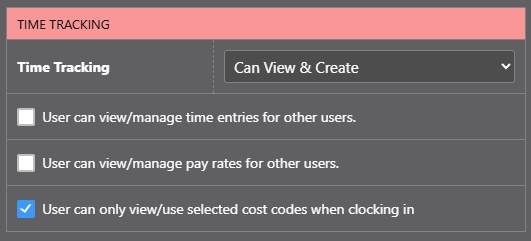
1) Permissions: Within Time Tracking permissions for the employee, enable the folllowing option — "User can only view/use selected cost codes when clocking in."
2) Pay Rate Configuration: Within Pay Rate Settings, choose which Cost Codes should remain visible for the employee. See Set Cost Code Pay Rates - By default, no Cost Codes will be visible to employees when the "User can only view/use selected cost codes when clocking in" is enabled, until an authorized user has configured the employee's Cost Code visibility within their Pay Rate Settings.
HOW TO RESTRICT COST CODE VISIBILITY
Permissions
- Navigate to the Account Settings Menu in the upper right corner of your screen.
- Select Manage Company Users under the Company Settings section.
- Confirm that the employee's Time Tracking Permissions are set to "Can View & Create" or "Can Create, Edit, & Delete" and that the checkbox has been checked for the option — "User can only view/use selected cost codes when clocking in."
- Click the blue "Save" button to confirm updates to employee's permissions.Choose to "Manage Permissions" for the desired employee.
- Confirm that the employee's Time Tracking Permissions are set to "Can View & Create" or "Can Create, Edit, & Delete" and that the checkbox has been checked for the option — "User can only view/use selected cost codes when clocking in."
Cost Code Pay Rate Configuration
-
Navigate to the Time Summary within Time Tracking.
- Click on the gray 3-dot Action Menu at the top of the Employees table and select the option for Time Tracking Settings from the dropdown menu to open the Time Tracking Settings window.
- Select the "Pay Rate Settings" tab.
- For the desired employee, hover their row within the table of employees to reveal the gray 3-dot Action Menu. Click there and select the option to "Manage Pay Rates."
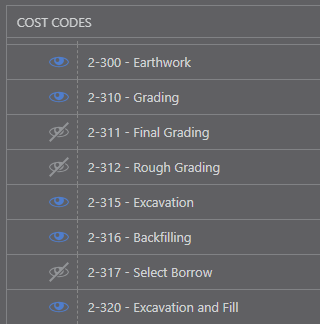
- Within the Set Pay Rates window, you will see a list of Company Cost Codes. Choose the desired Cost Code Set for which you wish to configure Pay Rates.
- Click the
 eye icon next to the desired Cost Code to make it visible to the employee when clocking in.
- Before allowing you to manage the visibility of individual Cost Codes:
- The system will verify that the employee has appropriate permissions enabled within the platform. You may be prompted to update the employee's permissions if this has not been previously completed.
- The system will require that a default Pay Rate has ben set for the employee. You may be prompted to set a default Pay Rate for the employee if this has not been previously completed.
- Before allowing you to manage the visibility of individual Cost Codes:
- Finalize the Cost Code visibility settings by clicking the blue "Save" button on the Set Pay Rates window for the selected employee.
ADDITIONAL INFORMATION
- Subscription Level: The Pay Rates feature is available for any active ConstructionOnline subscription with access to Time Tracking, whether included at the Business and Enterprise levels or as a Per-Company Add-On.
- Permissions: Select the option stating "User can view/manage pay rates for other users" to enable access for Company Users who should be able to set Pay Rates for Employees.
HAVE MORE QUESTIONS?
- If you need additional assistance, chat with a ConstructionOnline Specialist by clicking the orange Chat icon in the bottom left corner or visit the UDA Support Page for more options.