
BACKGROUND
Labor cost on a job site can vary by the type of work being done, not just by the employee. Tracking that variation by hand usually means updating a spreadsheet every time a crew shifts from framing to cleanup, or cross-checking timesheets against a rate table that's rarely up to date.
Pay Rates in ConstructionOnline™ solves that by giving each employee a default rate, plus—where needed—rates specific to individual Cost Codes. This structure means that pay rates applied can adjust based on the type of work actually being logged, not just who's logging it. With both rates configured, ConstructionOnline automatically applies the correct rate the moment a shift is logged, with no extra step for the field or the office. That gives construction professionals real-time visibility into labor cost as it's incurred, so budgets and profitability can be tracked without waiting on payroll to catch up.
➡️ Tip: Pair Pay Rates with OnCost™ Purchasing to populate Labor Expenses from Time Tracking Shifts, turning logged hours directly into billable labor costs.
THINGS TO CONSIDER
- Pay Rates are set at the employee level. An employee's default Pay Rate applies to their shifts unless a Cost Code Pay Rate has been assigned for the Cost Code selected on that shift. When a Cost Code Pay Rate has been set, it's applied automatically in place of the default.
- A default Pay Rate is required before Cost Code Pay Rates can be set.
- Pay Rate, OT Multiplier, and OT Rate are linked (Pay Rate × OT Multiplier = OT Rate). Editing any one of the three automatically updates one of the other two to keep the equation true.
- Both the Pay Rate Settings and individual employee Pay Rate windows include the option to apply updated rates retroactively to shifts already logged. See Apply Pay Rates to Past Shifts for more information.
This article covers:
HOW TO SET A DEFAULT PAY RATE
- Navigate to the Time Summary within the Time Tracking feature.
- Click the gray 3-dot Action Menu at the top of the Employees table and select Time Tracking Settings from the dropdown menu.
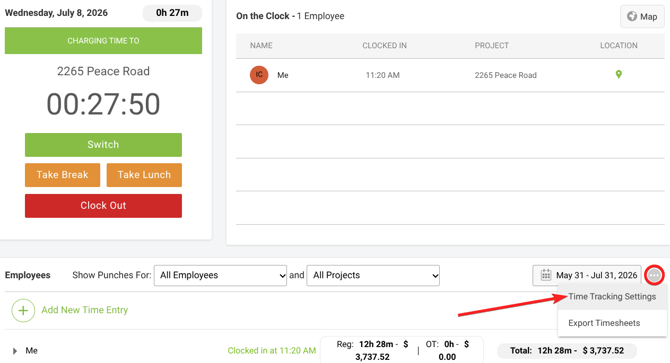
- This will open the Time Tracking Settings window.
-
Select the Pay Rate Settings tab.

-
This tab lists all Company Users and their current Pay Rate information: Default Pay Rate, OT Multiplier, OT Rate, and the number of configured Cost Code Pay Rates.
-
- For the desired employee, click into their row under the "Pay Rate" column and enter a default Pay Rate.
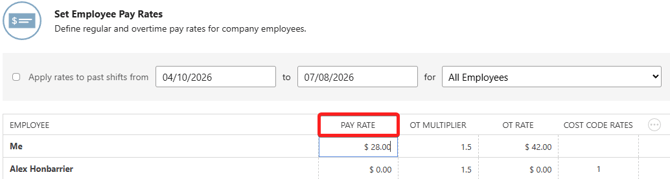
- This rate will automatically apply to any future shift that doesn't have a matching Cost Code Pay Rate, including shifts with no Cost Code selected.
- Press the blue "Save" button to set the employee's default Pay Rate.
🗒️ Note: A default Pay Rate can also be set from the green "Defaults" section at the top of an individual employee's Set Pay Rates window, covered in the next section.
HOW TO SET COST CODE-SPECIFIC PAY RATES
- Navigate to the Time Summary within the Time Tracking feature.
- Click the gray 3-dot Action Menu at the top of the Employees table and select Time Tracking Settings from the dropdown menu.
- This will open the Time Tracking Settings window.
- Select the "Pay Rate Settings" tab.
- For the desired employee, hover over the 3-dot Action Menu column in their row to reveal the gray 3-dot Action Menu, then click and select Manage Pay Rates from the dropdown menu.
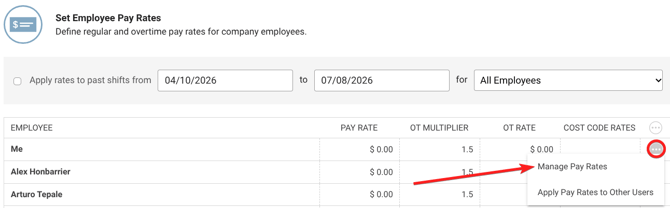
- This will open the employee's "Set Pay Rates" window.
- Choose the desired Cost Code Set from the list on the left.
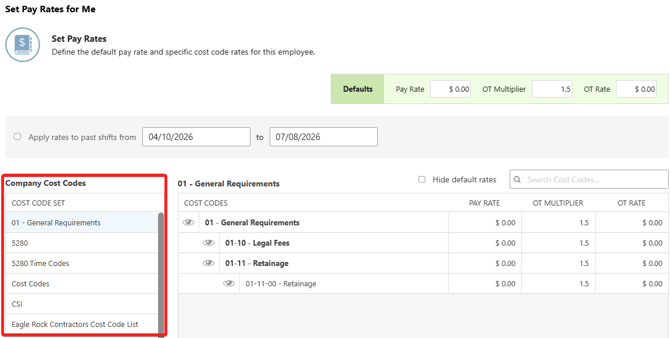
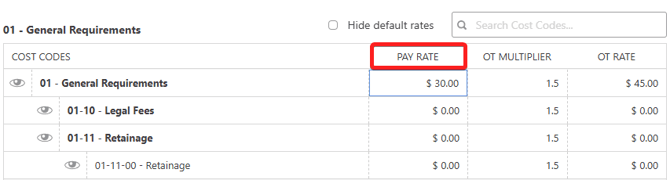
- Click into the Pay Rate column within the desired Cost Code's row and enter the Pay Rate.
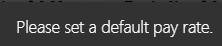
- If a default Pay Rate has not been entered yet, ConstructionOnline will flash a message in the bottom right corner of your screen prompting you to do so before Cost Code Pay Rates can be set.
- Cost Codes without a set Pay Rate will use the employee's default Pay Rate.
- If a default Pay Rate has not been entered yet, ConstructionOnline will flash a message in the bottom right corner of your screen prompting you to do so before Cost Code Pay Rates can be set.
- Press the blue "Save" button to save the employee's Pay Rate settings.
ADDITIONAL INFORMATION
- Alternative Access Point: You can also set an employee's Pay Rates within the Pay Rate Settings tab of their Contact Details window.
- Subscription Level: The Pay Rates feature is available for any active ConstructionOnline subscription with access to Time Tracking, whether included at the Business and Enterprise levels or as a Per-Company Add-On.
- Permissions: Select the option stating "User can view/manage pay rates for other users" to enable access for Company Users who should be able to set Pay Rates for Employees.
HAVE MORE QUESTIONS?
- If you need additional assistance, chat with a ConstructionOnline Specialist by clicking the orange Chat icon in the bottom left corner or visit the UDA Support Page for more options.