
BACKGROUND
Removing Bidders from a Bid Sheet helps keep your Bid Packages accurate and up to date. It is particularly useful when a subcontractor or vendor was added by mistake or when scope changes affect their involvement. This process ensures that your Bid Sheets and invitations accurately reflect the current team of Bidders and prevents confusion during the bidding process.
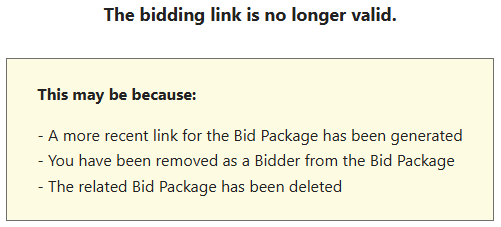
⚠️ Important: Removing a Bidder will delete them from the selected Bid Sheet. If this was the only Bid Sheet they were added to, any sent bid invitation emails will automatically update to display the following message when they attempt to view the associated Bid Package:
HOW TO REMOVE BIDDER(S) FROM A BID SHEET
A. When Editing an Existing Bid Package
- Bidders can be removed by editing an existing Bid Package.
- Once within the Bid Package's extension blade that opens on the right side of your screen, navigate to the "Bidders" tab.

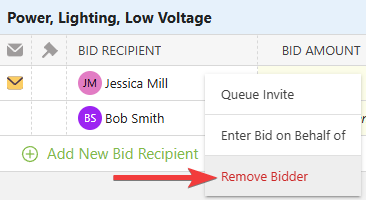
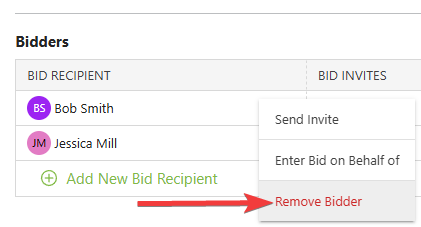
- Right-click on the desired Bidder that you wish to remove from within the desired Bid Sheet and select the red "Remove Bidder" option from the dropdown menu
B. From within the "Bidders" Tab
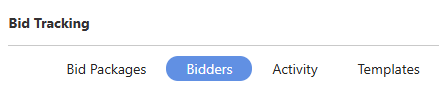
- From within Bid Tracking, navigate to the "Bidders" tab.
- Locate the Bidder you wish to remove, verify that they belong to the correct Bid Package and Bid Sheet that you no longer wish to include them in, then right-click on their name.
- Select the red "Remove Bidder" option from the dropdown menu to delete the Bidder from the Bid Sheet.
C. From within the "Bid Sheets" Tab
- From within your "Bid Packages" list, select the desired Bid Package from which you want to remove Bidders.
- Navigate to the "Bid Sheets" tab.

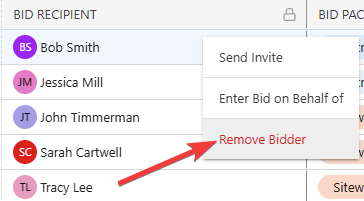
- Scroll to the desired Bid Sheet and right-click on the Bidder you wish to remove.
- Choose the red "Remove Bidder" option from the dropdown menu to delete the Bidder from the Bid Sheet.
ADDITIONAL INFORMATION
- Subscription Level: Bid Tracking is available for ConstructionOnline accounts with active subscriptions at the Residential Business, Commercial Team and Business, Multi-Family Team and Business, and Enterprise levels.
- The Bid Tracking feature is also available as a Per-Company Add-On for all other plans.
- Permissions: Admin Users and Company Users with "Can Create, Edit, and Delete" permissions for Bid Tracking can remove Bidders from Bid Sheets.
- CO™ Mobile App: The Bid Tracking feature is currently available exclusively via browser access to ConstructionOnline.
HAVE MORE QUESTIONS?
- Frequently asked questions (FAQ) about Bid Tracking can be found in the article FAQ: Bid Tracking.
- If you need additional assistance, chat with a ConstructionOnline Specialist by clicking the orange Chat icon in the bottom left corner or visit the UDA Support Page for more options.