
BACKGROUND
During the bidding process, details often change—deadlines shift, new documents are shared, scopes are clarified, and additional bidders may be invited. ConstructionOnline allows teams to edit existing Bid Packages to keep information accurate and aligned as bidding progresses.
Most Bid Package details can be updated at any time. However, some elements become restricted once bids are submitted to preserve bid integrity and ensure fair comparisons. Understanding what can be edited—and when—helps teams make necessary adjustments without disrupting active bids or evaluation workflows.
THINGS TO CONSIDER
- Bid Packages can be accessed at both the Company and Project/Opportunity levels:
- Company-Level: Displays all Bid Packages across all projects.
- Project/Opportunity-Level: Displays only Bid Packages associated with the selected Project or Opportunity.
HOW TO EDIT A BID PACKAGE
- From within your "Bid Packages" list, locate the desired Bid Package you wish to edit.
- Hover over the package and either press the blue "Details>" button or right-click and select "Edit Bid Package."
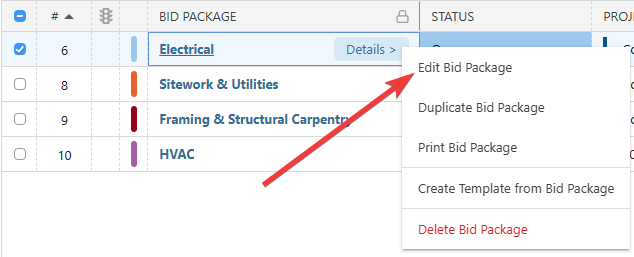
- The Bid Package's extension blade will open on the right side of your screen, where you can make changes as needed within any tab -

- Details: General Bid Package information such as dates, scope of work, instructions, and company contact details.
🗒️ Note: The Related Project/Opportunity field cannot be modified once a Bid Package is created. If you need to assign it to a different Project or Opportunity, you can duplicate the Bid Package and update the field in the new copy. - Files: Documents associated with the package including specifications, images, and other supporting materials.
- Planroom: Plan sheets from the related Project/Opportunity's current plan set.
- Bid Sheets: Line items that define how bidders will submit pricing for the scope of work.
⚠️ Important: Once a Bid Sheet has received one or more bid submissions or saved bid drafts, the sheet is locked to preserve bid integrity. To unlock the sheet and make changes to line items, any submitted bids or drafts must first be deleted.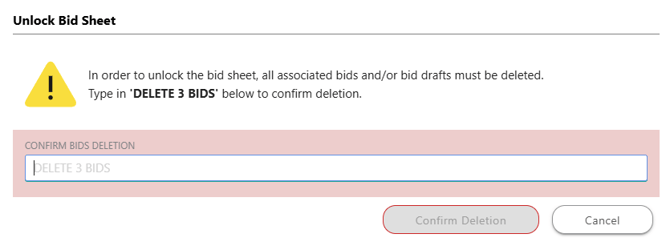
- Bidders: Contacts added to specific Bid Sheets.
- Details: General Bid Package information such as dates, scope of work, instructions, and company contact details.
- Click the blue "Save" button to finalize the changes made to the Bid Package.
ADDITIONAL INFORMATION
- Alternative Access Point: You can also edit Bid Packages by clicking on the desired package and selecting "Edit Bid Package" from the blue "Actions" dropdown menu.
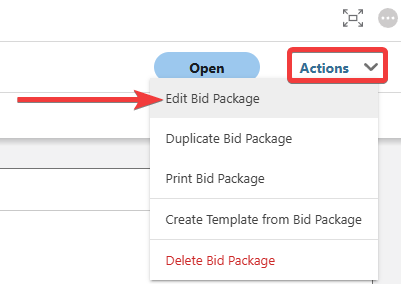
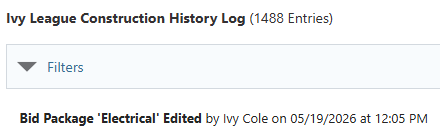
- You can see information regarding this activity logged in the Company History Log, where ConstructionOnline records the Bid Package that was edited, the user who edited the package, and the date and time of the edits.
- Subscription Level: Bid Tracking is available for ConstructionOnline accounts with active subscriptions at the Residential Business, Commercial Team and Business, Multi-Family Team and Business, and Enterprise levels.
- The Bid Tracking feature is also available as a Per-Company Add-On for all other plans.
- Permissions: Admin Users and Company Users with "Can Create, Edit, and Delete" permissions for Bid Tracking can edit Bid Packages.
- CO™ Mobile App: The Bid Tracking feature is currently available exclusively via browser access to ConstructionOnline.
HAVE MORE QUESTIONS?
- Frequently asked questions (FAQ) about Bid Tracking can be found in the article FAQ: Bid Tracking.
- If you need additional assistance, chat with a ConstructionOnline Specialist by clicking the orange Chat icon in the bottom left corner or visit the UDA Support Page for more options.