
BACKGROUND
The Portal gives subcontractors direct access to project files shared by the general contractor—along with a dedicated space for uploading and managing their own files. With built-in sorting, commenting, and uploading tools, TeamLink Users can stay connected to the latest project documents.
THINGS TO CONSIDER
-
Access to Project Files in the Portal requires an existing TeamLink User account. If you do not currently have access, contact the general contractor to be added as the appropriate Portal user.
- Project Files in the Portal are organized into two sections:
- Project Files — Files shared by the builder that are visible to the entire Project Team.
- Your Files — Files uploaded by you that are only visible to you and the Project Creator.
- Files displayed in the Portal reflect only those the general contractor has chosen to share or copy; not all project files may be visible.
From the Portal Files section, you can:
- View and sort project files
- View file details, notes, QR Code, and Comments
- Download files
- Share files via email
- Upload New files, folders, and albums to Your Files
HOW TO USE FILES IN THE PORTAL
Access Project Files:
- Navigate to the desired project's Files from within the Portal.
- This will open the Files feature, displaying Projects Files and Your Files.
Sort Files:
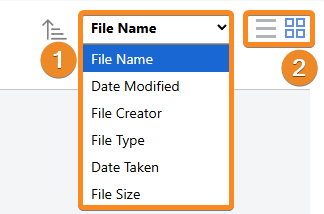
- Use the Sort dropdown in the upper right corner of either section to sort files by -
- File Name
- Date Modified
- File Creator
- File Type
- Date Taken
- File Size
- Use the List or Grid view buttons to switch between display options.
View File Details:
- Right-click on the desired file and select "View Details" from the dropdown menu.
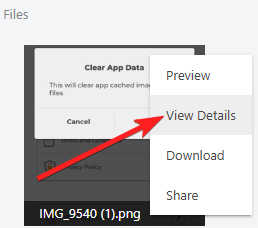
- Use the tabs at the top of the file panel to access additional information -

- File Details — View the file name, type, size, upload date, last edited date, and creator.
- Notes — Add or review notes associated with the file by entering text in the note field and clicking green (+) button.
- QR Code — View or auto-generate the QR Code for the file, along with details including scan history and creator information.
- Comments — View and post Comments relevant to the file.
Download a File:
- Right-click on the desired file and select "Download" from the dropdown menu.
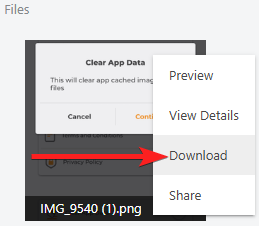
- ConstructionOnline will automatically download the file to your device using the same file name assigned in the platform.
Share a File:
- Right-click on the desired file and select "Share" from the dropdown menu.
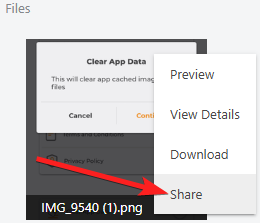
- Enter one or more recipient email addresses into the "Email" field and an optional message in the "Message" field.
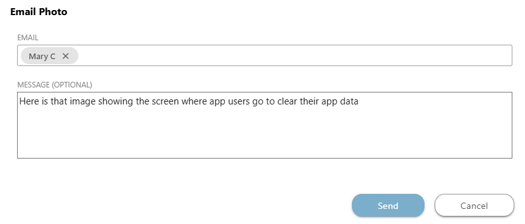
- Press the blue "Send" button to share the file via email.
Upload Files:
- Navigate to the "Your Files" section of the Portal Files feature.
- Click the green (+) Add New... button and select the type of item to add:
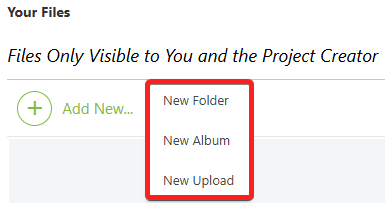
- New Folder — Create a new folder to organize your uploaded files.
- New Album —Create a new album to group photos and images.
- New Upload — Upload files to "Your Files" from Your Computer, ConstructionOnline, or Your Cloud File Storage (Google Drive, Box, Dropbox, or OneDrive), or click and drag files directly into the upload area.
- Click "Close" once the upload is complete, or check "Close when upload is complete" to close the window automatically.
ADDITIONAL INFORMATION
- Permissions: TeamLink Portal permissions are managed by ConstructionOnline Company Users. If you have questions about your level of access within the Portal, contact the general contractor directly.
- CO™ Mobile App: Project Files in the TeamLink Portal are accessible via the ConstructionOnline Mobile App.
HAVE MORE QUESTIONS?
- Frequently asked questions (FAQ) for TeamLink Users can be found in the article FAQ: TeamLink.
- If you need additional assistance, chat with a ConstructionOnline Specialist by clicking the orange Chat icon in the bottom left corner or visit the UDA Support Page for more options.