
BACKGROUND
ConstructionOnline's Dynamic Tables power the data management experience across the platform's most essential features—from Change Orders to Bid Tracking to Contacts, Meeting Minutes, Warranty Tracking, and more. These powerful, spreadsheet-style tables give construction professionals exceptional flexibility to arrange, filter, sort, and group project and company data in ways that suit their specific roles and workflows.
Saved Views takes that flexibility further by allowing ConstructionOnline™ Company Users to save any table configuration as a named view that can be applied instantly, at any time. Instead of reconfiguring a table every time a User needs to focus on a specific subset of data, Saved Views makes it possible to capture that configuration once and return to it in a single click.
THINGS TO CONSIDER
-
Saved Views are available across all of ConstructionOnline's Dynamic Tables.
- Saved Views are shared across all Company Users within a Company Account. Views created by any Company User are visible and available to all other Company Users, enabling teams to build and benefit from a shared library of table configurations.
-
While views are shared for visibility and use, each Company User retains individual control over the following:
- Which View is Currently Active — switching to a view for one User does not affect any other User's active view
- Favorites — pinning a view as a favorite is per-User and does not affect others' favorites
- Edit and Delete Permissions — Users can only edit or delete views they created; views created by others are available to switch to and favorite, but cannot be modified
This article covers the following:
- Default View vs. Saved Views
- Features with Saved Views
- Table Settings Captured by Saved Views
- The View Selector
- How to Use Saved Views
- Managing Saved Views
DEFAULT VIEW VS. SAVED VIEW
Every Dynamic Table in ConstructionOnline includes a Default View—this is the baseline table configuration that automatically retains any changes made by the current User. Adjustments to filters, column order, layout, and other table settings made while on Default View are preserved without any additional save action required.
Saved Views are additional, custom-named configurations created by Users. These views sit alongside the Default View and can be selected at any time from the view selector. Unlike Default View, named Saved Views track unsaved changes: if a User modifies a table while a Saved View is active, an asterisk (*) appears next to the view name to indicate there are unsaved changes. Those changes can either be saved to the active view using the "Save Changes" option from the 3-dot Action Menu or discarded by switching away without saving.
FEATURES WITH SAVED VIEWS
The Saved Views selector appears in the header of every Dynamic Table—visible as a dropdown menu showing the name of the currently active view, paired with a 3-dot Action Menu button. Saved Views are available for the following ConstructionOnline features and their associated tables:
- To Dos
- Change Orders
- Opportunities
- Leads
- Contacts
- Project Team
- Company Projects
- Insurance & Certificates
- Warranty Tracking
- Meeting Minutes
- Bid Tracking
- Purchase Orders
- Payment Applications
🗒️ Note: For features with multiple tabs (such as Insurance & Certificates and Purchase Orders), each tab maintains its own independent set of Saved Views. A view saved on the Insurance tab, for example, is only available on the Insurance tab and does not appear when the Licenses tab is active.
TABLE SETTINGS CAPTURED BY SAVED VIEWS
When a view is saved, ConstructionOnline captures the full state of the table at that moment, including:
- Visible Columns — which columns are shown or hidden
- Column Order — the arrangement of columns left to right
- Column Width — the width of each column as resized
- Column Color — any column color coding that has been applied
- Sort Settings —the active sort column and sort direction
- Group-by Field — the field by which the table is grouped (in Group-by View)
- Filters — all active filter selections across the filter bar
- Layout Type — whether the table is in List View, Group-by View, Board View, or Card View
- Board Settings — grouping field, density, and Hide Empty Columns Settings (in Board View)
- Card Settings — which fields appear on cards and their arrangement (in Card View)
- Total Rows — any active aggregate/total rows (where supported)
All of these settings are restored exactly as they were saved when a User switches to that view.
THE VIEW SELECTOR
The view selector in the feature header shows the name of the currently active view. When a named Saved View is active, the selector displays that view's assigned color as a tint. When the Default View is active, the selector has no color tint.
Clicking the view selector dropdown opens a quick list of available views, with any favorited (pinned) views listed first, followed by all other Company Account views in alphabetical order. Selecting any view from this list immediately applies it to the table.
Clicking the 3-dot Action Menu button opens the available view actions: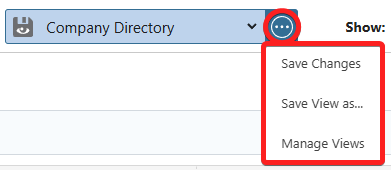
- Save Changes — updates the active view to reflect the current configuration
- Save View as... — creates a new Saved View from the current table configuration
- Manage Views — opens the full Saved Views management extension blade
HOW TO USE SAVED VIEWS
Create a Saved View:
- Configure the Dynamic Table to the desired state—apply filters, arrange columns, set grouping, etc.
- Click the view selector's 3-dot Action Menu and select "Save View as..."
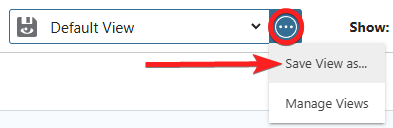
- The "Save View" extension blade will open on the right side of your screen, where you can enter information about the Saved View, including -
- View Name: Enter a custom name for the view; this field is required and will be pre-filled with a suggested name based on the currently active view (e.g., "Default View (1)")
- Color: Select a color to visually identify the view in the selector; this field is required and defaults to blue if no selection is made
- Filters Applied: Displays a summary of any filters currently active on the table
- Source: Reflects the current layout type
- Tags: Optionally add Tags to organize and filter views in the "Saved Views" extension blade
- Press the blue "Save" button to create the new view
- The new Saved View will appear immediately in the view selector and will be visible to all other Company Users.
Switch Between Saved Views:
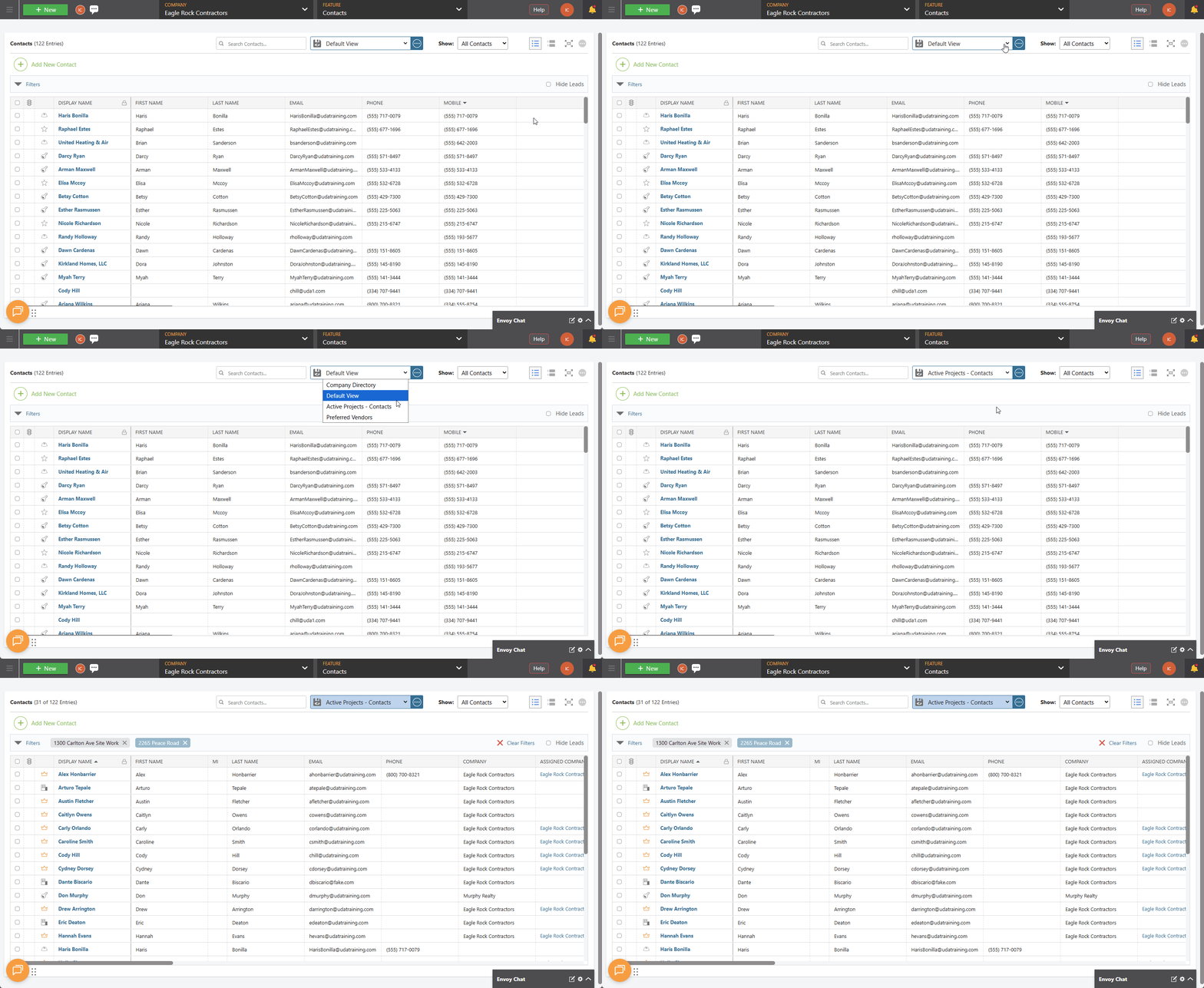
A. From the View Selector:
- Click the dropdown arrow on the view selector
- Select the desired view from the list of available Saved Views
- The table will immediately update to reflect the selected view's saved configuration
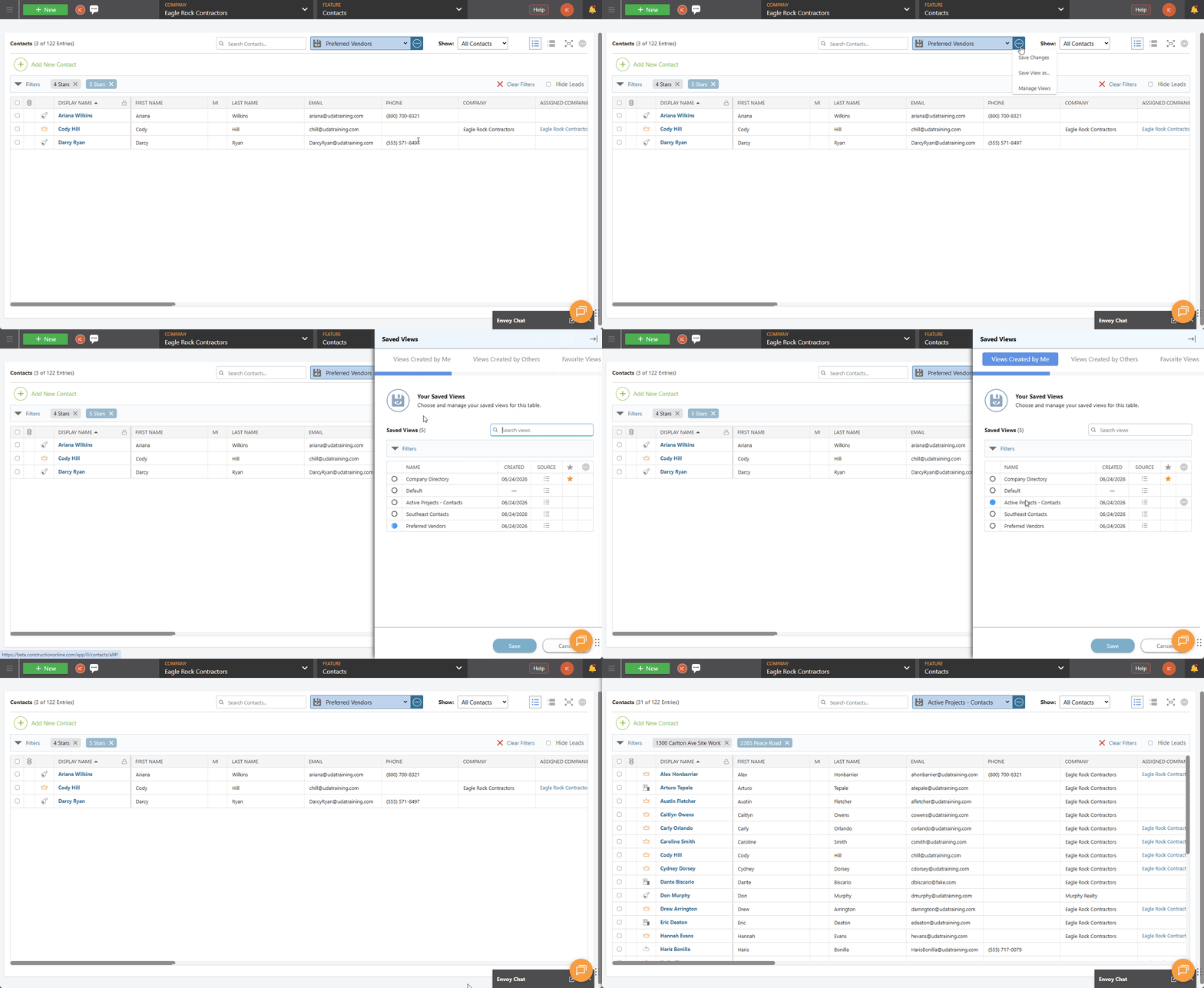
B. From the "Saved Views" Extension Blade:
- Click the view selector's 3-dot Action Menu and select "Manage Views"
- Within the desired tab, locate and select the desired view
- Press the blue "Save" button to apply the view
Save Changes to an Active View:
- While a Saved View is active, modify the table configuration as needed
- An asterisk (*) will appear next to the view name in the view selector to indicate there are unsaved changes

- An asterisk (*) will appear next to the view name in the view selector to indicate there are unsaved changes
- Click the view selector's 3-dot Action Menu and select "Save Changes"
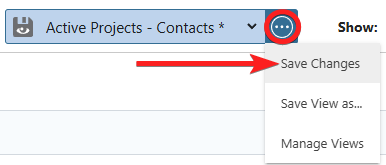
- The active view will be updated to reflect the current table configuration
MANAGING SAVED VIEWS
The "Saved Views" extension blade is the central hub for viewing, selecting, organizing, and managing all Saved Views for a given table. Accessible by clicking the view selector's 3-dot Action Menu and selecting "Manage Views," the extension blade contains three tabs: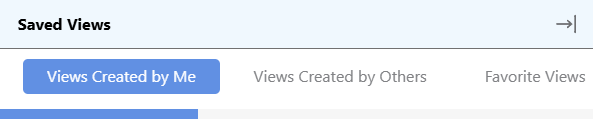
- Views Created by Me — lists all views created by the current User, including Default View. Shows each view's name, creation date, layout type (Source), and favorite status
- Views Created by Others — lists views created by other Company Users in the Company Account. Shows each view's name, creator, creation date, and layout type. Views here can be selected and favorited, but not edited or deleted
- Favorite Views — lists all views the current User has pinned as favorites, regardless of who created them
All three tabs support search (by view name or creator name) and filtering (by creator, source/layout, or tags). Column headers can be clicked to sort the list by name, creator, or creation date.
Favorite a Saved View:
- Click the view selector's 3-dot Action Menu and select "Manage Views"
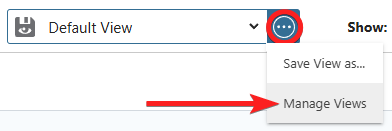
- This will open the "Saved Views" extension blade on the right side of your screen
- Locate the desired view and click the star icon in the view's row to mark it as a favorite
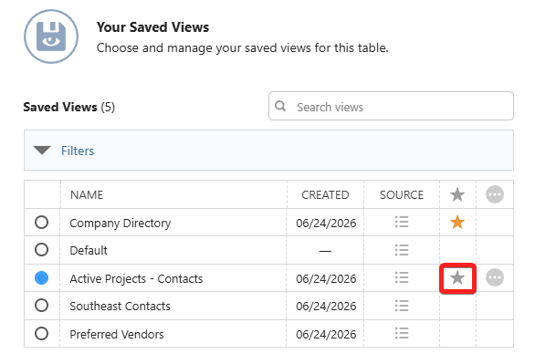
- Press the blue "Save" button
➡️ Tip: Favoriting a view pins it to the top of the view selector dropdown for quick access. Favorites are per-User and do not affect other Company Users' view selector order.
Edit a Saved View:
Users can edit the Name, Color, and Tags of any Saved View they created. The table configuration saved within a view can be updated using "Save Changes" (see above).
- Click the 3-dot Action Menu and select "Manage Views"
- This will open the "Saved Views" extension blade
- From within the "Views Created by Me" tab, locate the desired view you wish to edit
- Right-click on the desired view and select "Edit" from the dropdown menu
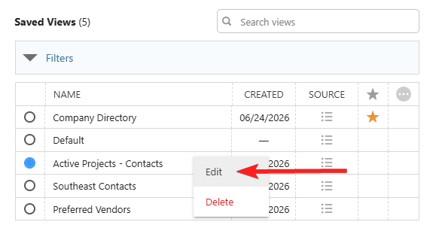
- Update the View Name, Color, and Tags as needed
- Press the blue "Save" button to apply changes
Delete a Saved View:
- Click the view selector's 3-dot Action Menu and select "Manage Views"
- This will open the "Saved Views" extension blade
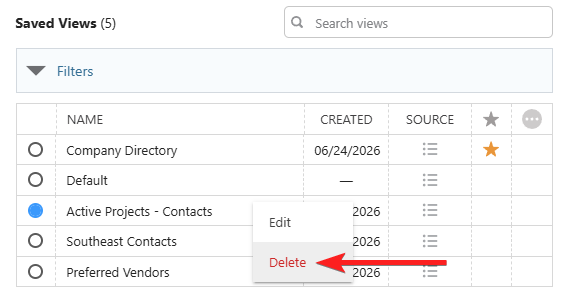
- From within the "Views Created by Me" tab, locate the desired view you wish to delete
- Right-click on the desired view and select "Delete" from the dropdown menu
- A confirmation message will appear in the bottom-right corner of your screen confirming deletion. The blue "Undo" text is the only opportunity to revert the action.
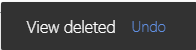
- A confirmation message will appear in the bottom-right corner of your screen confirming deletion. The blue "Undo" text is the only opportunity to revert the action.
ADDITIONAL INFORMATION
- Subscription Level: The Saved Views feature is available for ConstructionOnline accounts with active subscriptions at the Pro, Team, Business, and Enterprise levels.
- Permissions: ConstructionOnline Company Users with access to a given feature can access and use Saved Views for that feature's Dynamic Table(s). Users can only edit or delete views they created; views created by other Company Users can be selected and favorited but not modified.
- CO™ Mobile App: Saved views are currently available exclusively via browser access to ConstructionOnline.
HAVE MORE QUESTIONS?
-
If you need additional assistance, chat with a ConstructionOnline Specialist by clicking the orange Chat icon in the bottom left corner or visit the UDA Support Page for more options.