
BACKGROUND
Bid Package Templates in ConstructionOnline™ help teams standardize and speed up the creation of new Bid Packages. Templates store frequently used details—such as scope or work, bidding instructions, and company information—so you can reduce repetitive data entry, maintain consistency across Projects and Opportunities, and get invitations to bid out faster.
⚠️ Important: To create a Bid Package from a template, your Company Account must first have at least one Bid Package Template saved.
To learn how to build a Bid Package Template, view "Create a Bid Package Template from Scratch."
HOW TO CREATE A BID PACKAGE FROM A TEMPLATE
- From within your "Bid Packages" list, click the green (+) Add New Bid Package button and choose the "from Template" option from the dropdown menu.
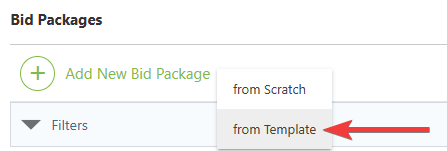
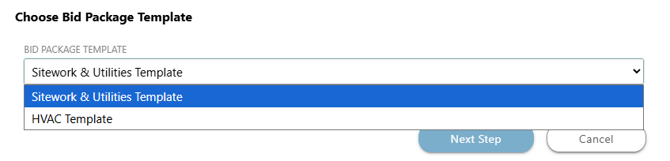
- This will open the "Choose Bid Package Template" window.
- From the list of saved Bid Package Templates, choose which one you would like to use to create the new package.
- If a Bid Package Template has not yet been created and saved to your company's ConstructionOnline account, a message will flash in the bottom right corner of your screen.

- If a Bid Package Template has not yet been created and saved to your company's ConstructionOnline account, a message will flash in the bottom right corner of your screen.
- Hit the blue "Next Step" button to open the "New Bid Package from [Template Name]" extension blade on the right side of your screen.
- Review the details, which are automatically populated from the selected Bid Package Template, and update or add any information for the new package.
- Some fields cannot be saved to a Bid Package Template and must be configured manually for each new Bid Package. These include the Bid Submission Deadline, as well as any Files or Plans when the new package is associated with a different Project or Opportunity.
🗒️ Note: If the Related Project/Opportunity is changed, Bid Sheets created from scratch will be retained, while Bid Sheets created from the linked Estimate or Change Orders will still be created but will be unlinked from their related Estimates and/or Change Orders. If this occurs, a message will flash in the bottom right corner of your screen.
- Some fields cannot be saved to a Bid Package Template and must be configured manually for each new Bid Package. These include the Bid Submission Deadline, as well as any Files or Plans when the new package is associated with a different Project or Opportunity.
- After finalizing all of the Bid Package details, select the blue "Save" button to create the new Bid Package.
ALTERNATIVE ACCESS POINT
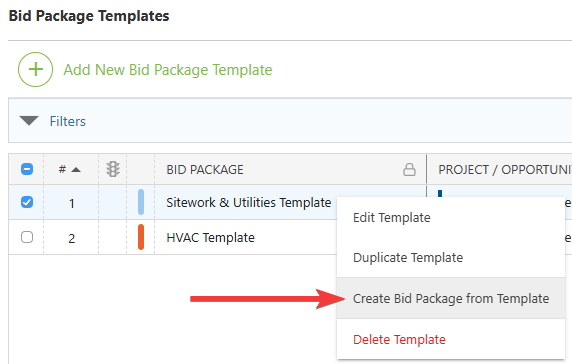
- From within the Bid Tracking feature, navigate to the "Templates" tab.

- Right-click on the desired template in your "Bid Package Templates" list and select the "Create Bid Package from Template" option from the dropdown menu.
- Follow Steps 6 & 7 from the section above.
ADDITIONAL INFORMATION
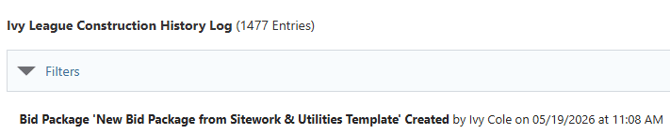
- You can see information regarding this activity logged in the Company History Log, where ConstructionOnline records that the Bid Package was created, the user who created the package, and the date and time of creation.
- Subscription Level: Bid Tracking is available for ConstructionOnline accounts with active subscriptions at the Residential Business, Commercial Team and Business, Multi-Family Team and Business, and Enterprise levels.
- The Bid Tracking feature is also available as a Per-Company Add-On for all other plans.
- Permissions: Admin Users and Company Users with "Can Create, Edit, and Delete" permissions for Bid Tracking can create new Bid Packages from Bid Package Templates.
- CO™ Mobile App: The Bid Tracking feature is currently available exclusively via browser access to ConstructionOnline.
HAVE MORE QUESTIONS?
- Frequently asked questions (FAQ) about Bid Tracking can be found in the article FAQ: Bid Tracking.
- If you need additional assistance, chat with a ConstructionOnline Specialist by clicking the orange Chat icon in the bottom left corner or visit the UDA Support Page for more options.