
BACKGROUND
In construction, turning plans into progress depends on timely follow-through. Meetings are where responsibilities are assigned—but the true value is realized only when those assignments are completed. That’s where Action Items come in.
ConstructionOnline™ makes it easy to track and manage actionable tasks using Meeting Minutes. With built-in tools to mark items as complete, the platform provides visual confirmation, reinforces accountability, and ensures everyone stays informed—so no task falls through the cracks.
HOW TO COMPLETE AN ACTION ITEM
- Navigate to the "Meeting Actions Items" tab within the Meeting Minutes feature, where you will see -
- Action Item Completion Breakdown (dashboard)
- Action Items List (dynamic table)
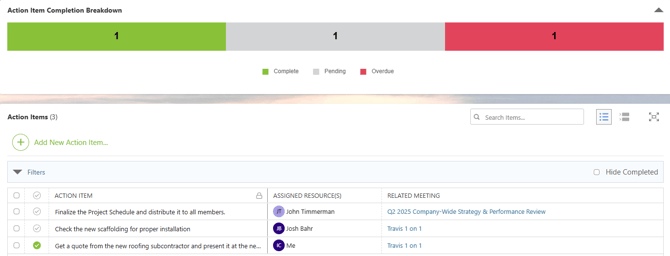
- In the Action Items List, locate the task you wish to mark as complete.
- There are 2 methods of marking an Action Item as "Complete" -
- Click the grey checkmark next to the Action Item

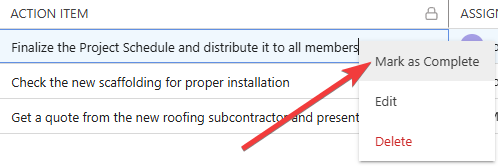
- Or, right-click and select "Mark as Complete" from the dropdown menu
- Click the grey checkmark next to the Action Item
- Once completed, the checkmark will turn green, and the "Action Item Completion Breakdown" dashboard will update to provide immediate visual feedback, ensuring everyone is aware of the task's resolution.
ADDITIONAL INFORMATION
- Alternative Access Point: Users with the appropriate permissions can also complete Action Items by editing the related meeting in either Agenda Mode or Minutes Mode.
- Subscription Level: Meeting Minutes is available for companies with current ConstructionOnline Commercial or Multi-Family subscriptions at Team, Business, and Enterprise levels.
- Meeting Minutes is also available as a Per-Company Add-On for all other plans.
- Permissions: Admin Users and Company Users with "Can Create, Edit, and Delete" for Meeting Minutes can complete action items for meetings that are visible to them.
- For Company Users, this includes meetings they've created, are invited to, or those set as Public.
- CO™ Mobile App: Users with the appropriate permissions can mark Action Items as complete via the ConstructionOnline Mobile App.
HAVE MORE QUESTIONS?
- Frequently asked questions (FAQ) about Meeting Minutes can be found in the article FAQ: Meeting Minutes.
- If you need additional assistance, chat with a ConstructionOnline Specialist by clicking the orange Chat icon in the bottom left corner or visit the UDA Support Page for more options.