
BACKGROUND
As the industry’s leading construction management software, ConstructionOnline enables construction companies to efficiently manage and track warranties with detailed, documented information. ConstructionOnline’s powerful warranty management tools offer intuitive features to record, monitor, and report on all project warranties. To enhance the overall visibility of Warranty data, the system provides users with a comprehensive Warranty Dashboard and Warranty Details dynamic table for a quick, at-a-glance view.
⚠️ Important: Any changes made to the display or organization of the Warranty Dashboard and Warranty Details table - including any changes made to Column Order & Visibility - are user-specific and do not affect other team members' views.
HOW TO NAVIGATE TO THE WARRANTY DASHBOARD AND WARRANTY DETAILS TABLE
- Navigate to the desired Project.
- Use the Feature Selector to locate the "Warranty Tracking" section.
- If you have chosen to have the Warranty Tracking appear as a Project Quick Link, you may also access the Warranty Tracking feature from the Project’s “Overview” tab.
- The Warranty Dashboard and Warranty Details table are automatically available within the Warranties and Warranty Issues features.
WARRANTY DASHBOARD
The Warranty Dashboard section of the page displays key Warranty information in a convenient, visual format. The dashboard offers real-time insights to active Warranties, coverage dates, upcoming expirations, and other critical Warranty details, all in one centralized location.
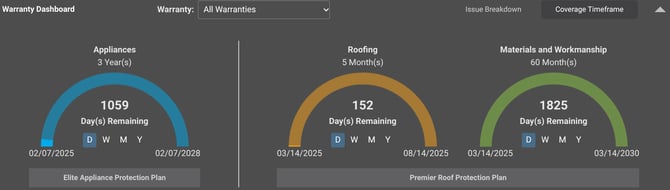
You can click the gray arrow  in the top-right corner to minimize and expand the Warranty Dashboard.
🗒️ Note: If the Project doesn't have active Warranties, a message stating "There are no active Warranties" will appear instead.
Warranty:
Using the “Warranty” dropdown menu, you can display all Warranties associated with the Project or an individual Warranty.
- The dashboard defaults to the “All Warranties" option.
- A Warranty's status must be toggled to “Active” for it to appear in the Warranty Dashboard under “All Warranties."
Issue Breakdown:
By selecting “Issue Breakdown” in the top right corner, you can view the number of Warranty Issues that have statuses associated with a Warranty.
- If there are no issues, the dashboard will show a message for that specific Warranty.

- Using the checkbox(es), you can modify which issues display based on their status.
- By default, ConstructionOnline populates Warranty Issue Statuses of “None,” “Requested,” “Under Review,” “Scheduled,” “In Progress,” and “Completed.”
Coverage Timeframe:
The “Coverage Timeframe," which is the default tab of ConstructionOnline's Warranty Dashboard, will display Warranty information including -
- Coverage Type: The coverage type(s) assigned to the Warranty.
- Coverage Duration: The Warranty's coverage period(s).
- This also includes the start and end dates.
- This also includes the start and end dates.
-
Remaining Time: The amount of time left on the Warranty's coverage.
- ConstructionOnline defaults the remaining time to show in Day(s). You can change this by choosing from the alternative options of Week(s), Month(s), or Year(s).
- The timeframe bar will fill with color as the coverage approaches the end date.
- Once the Warranty's coverage duration has passed, it will show a "Coverage Expired" message.
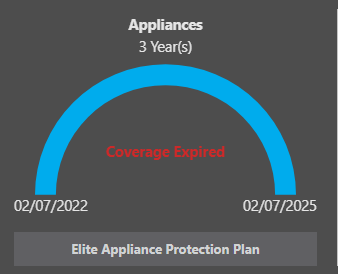
- Warranty Name: The title given to the Warranty.
WARRANTY DETAILS
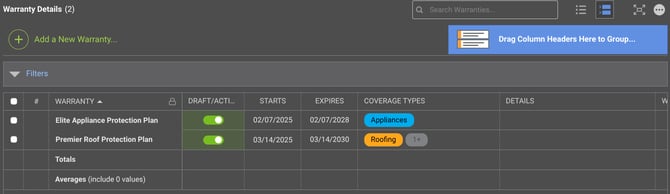
ConstructionOnline’s Dynamic Tables transform how users work with data. The Warranty Details table provides a clear, user-friendly view of all Warranty information. Powerful grouping, filtering, and sorting tools enable users to quickly find what they need, making it easier than ever before to segment and identify Warranty details.
Filters:
🗒️ Note: ConstructionOnline, by default, sets each Filter category to display "All."
By expanding the Filters feature in the Warranty Details dynamic table, you can choose to filter by -

- Date: Choose the "Date Type," "Date Range," "Start Date," and "End Date" used to filter the Warranties in the table.
- Draft: Sort by "Draft" and/or "Active" Warranty status.
- Expired: View "Expired" and/or "Not expired" Warranties.
- Agency Contact: Refine the Warranties shown in the table by all or a specific agency contact.
- Warranty Type: View Internal and/or External WWarranties.
- Coverage Types: Determine which coverage type(s) will appear in the table.
To clear established Filters, you can -
- Select the white X next to the specific Filter category you want to revert back to "All."
- Use the blue "Clear Filters" text next to the ❌ to reset the table to the default filters of "All" for each category.
🗒️ Note: When using the filter function on the Warranty Details dynamic table from the Company Overview, you may also sort by Project.
List View / Group By View:
Right-click on any column header in the dynamic table and select the "Show / Hide Columns" option to choose which columns will show in the table and in what order with the following actions -
- Show/Hide Columns: Mark the checkbox next to the columns you want to be visible. Unmark checkboxes next to the columns you want to remove from view.
- All columns are shown by default; however, if you've made changes to the visibility of your columns and would like to show all columns once again, mark the checkbox next to "Select All."
- Order Columns: The order in which columns appear can be customized by clicking and dragging column rows in the list to establish the way they appear on dynamic tables in List and Group By Views.
- Lock Columns: To keep important columns visible while scrolling horizontally, columns can be locked by hovering over the desired column name and clicking the blue "Lock Column" text or the lock icon.
- Upon locking a column, the column will move above the dotted line at the top of the "Column Order & Visibility" window. This differentiates columns that have been locked and signifies that they will appear at the beginning of the table.
- Columns can be unlocked at any time by hovering over the locked column name and hitting the blue "Unlock Column" text or the lock icon.
- Restore Defaults: The default settings for Column Order & Visibility can be restored at any time by clicking the blue "Restore Defaults" text at the bottom of the "Column Order & Visibility" window. This will make all columns visible and restore the order of the columns to their original arrangement.
🗒️ Note: Any changes made to the order or visibility of columns will be reflected on the dynamic table in both List and Group By Views.
Click the blue "Save" button to apply the changes made to your Warranty Details table Column Order & Visibility.
ADDITIONAL INFORMATION
- Check out "Create a New Warranty from Scratch" to learn more about the details that can be added to a Warranty and can be shown within the table.
- Alternative Access Point: The Warranty Dashboard can also be accessed from within the Warranty Tracking feature from the Company Overview.
- Subscription Level: ConstructionOnline's Warranty Tracking feature is available for companies with current ConstructionOnline subscriptions at Team, Business, and Enterprise levels.
- Warranty Tracking is also available as a Per-Company Add-On for all other plans.
- Permissions: Admin Users and Company Users with "Can View," "Can Create & Edit," or “Can Create, Edit, & Delete” permissions for Warranty Tracking can see the Warranty Dashboard and Warranty Details table.
- Company Users with these permissions can only see the Warranties and Warranty Issues of Projects that they are a team member on within the Warranty Dashboard.
- CO™ Mobile App: The Warranty Tracking feature is available via the mobile app. However, the Warranty Dashboard and Warranty Details table views are exclusively available through browser access to ConstructionOnline.
HAVE MORE QUESTIONS?
- Frequently asked questions (FAQ) about Warranty Tracking can be found in the article FAQ: Warranty Tracking.
-
If you need additional assistance, chat with a ConstructionOnline Specialist by clicking the orange Chat icon located in the bottom left corner or visit the UDA Support Page for more options.