
BACKGROUND
On busy jobsites, delays caused by inaccessible or outdated files are a common and costly problem. Teams need a fast, reliable way to get the right documents into the right hands, wherever the work is happening.
ConstructionOnline's custom QR Codes allow users to instantly generate scannable codes for any Folder, Album, or File. When scanned, QR Codes open a File Portal with no login required, and because linked items update automatically, teams can trust they're always accessing the latest version.
THINGS TO CONSIDER
-
QR Codes are available from Company Files, My Files, and Project Files.
HOW TO GENERATE AND SHARE CUSTOM QR CODES
-
Access the "Files and Photos" tab through the Left Sidebar or the Company Selector in the Top Navigation Bar.
- Select Company Files or My Files to access the file, photo, album, or folder you would like to generate a QR Code for.
- If you're working within a Project, use the Feature Selector in the Top Navigation Bar to select the desired location under the "Files" section.
- Right-click on the desired item and choose the "Generate QR Code" option from the dropdown menu.
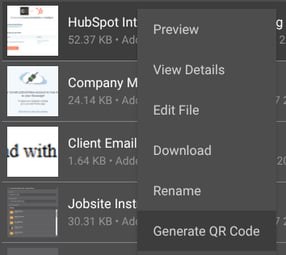
- This will automatically open the File Details window to the QR Code tab.
- Press the blue "Click here" text to generate the custom QR Code.
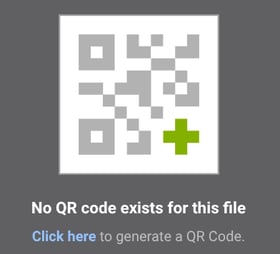
- If a code has already been created for the item, it will populate automatically.
- Once the code has been generated, the following options will be available:
🗒️ Note: By default, the QR Code will be generated using the item's name. The QR Code Name field displayed below the code can be edited at any time within this tab.
- Share
 : Click to open the "Share QR Code" window, where you can—
- Choose Recipients: Enter a ConstructionOnline contact's name or any email address to share the QR Code directly.
- Get Sharable Link: Copy the provided link to send to anyone—recipients can click the link to download the QR Code.
- Message (Optional): Include a personalized message with your share. Click the blue "Send" button when ready.
- Download
 : Download the QR Code image. The code can also be downloaded by hovering directly over it and selecting the download icon that appears.
 - Preview Shared View: Preview what recipients will see when they scan the code.
- Print: Print the QR Code.
- Share
ADDITIONAL INFORMATION
- Subscription Level: The Files & Photos feature is available for all companies with active ConstructionOnline subscriptions.
- Permissions: Admin Users and Company Users with "Can View" permissions or higher can generate custom QR Codes.
- CO™ Mobile App: QR Code generation is currently available exclusively via browser access to ConstructionOnline.
HAVE MORE QUESTIONS?
-
Frequently asked questions (FAQ) about Files & Photos can be found in the article FAQ: Files & Photos.
- If you need additional assistance, chat with a ConstructionOnline Specialist by clicking the orange Chat icon in the bottom left corner or visit the UDA Support Page for more options.