
BACKGROUND
In the fast-paced environment of construction, clear and direct communication is paramount. When working with numerous companies—from subcontractors and suppliers to architects and owners—having a designated "Primary Contact" for each can significantly streamline your interactions. Identifying this contact eliminates confusion about whom to discuss critical information, approvals, or urgent matters, ensuring communication flows efficiently and effectively. ConstructionOnline's option to set a Primary Contact within a company provides this essential clarity, allowing your team to quickly identify and connect with the key individual, fostering stronger relationships and smoother project execution.
HOW TO SET A PRIMARY CONTACT FOR A COMPANY
A. During Company Creation:
- A Primary Contact can be set during the Company creation process.
- Once within the "Create a New Company" extension blade that opens on the right side of your screen, navigate to the "Contacts" tab.

- Click the green (+) Add Contacts to Company button.
- Select the "Add Details Manually" option to open the "Add Contact to [Company Name]" window.
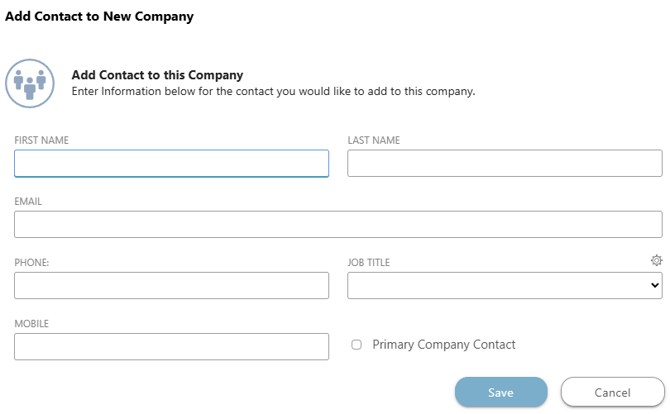
- Enter the Contact's Details and check the box next to "Primary Company Contact."
- If you're adding the Contact from your Company Contacts List, add the Contact to the Company and then follow Steps 5 & 6 in the section below.
- Press the blue "Save" button to create the Company and add the Contact as the Primary Contact.
B. From Within an Existing Company with Contacts:
- From the "Companies" portion of your Company Directory, hover over the desired Company and press the blue "Details>" button.
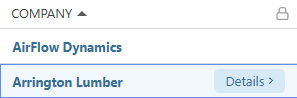
- This will open the Company's extension blade on the right side of your screen.
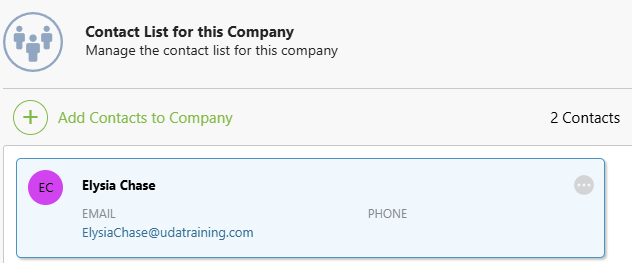
- Navigate to the "Contacts" tab.
- Hover over the desired Contact and click the grey 3-dot Action Menu
 .
. 
- Choose the "Set as Primary Contact" option from the dropdown menu.
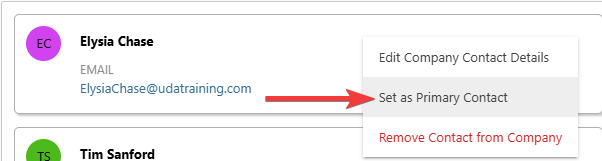
- A green "Primary Contact" badge will appear on the Contact to indicate this designation.

- A green "Primary Contact" badge will appear on the Contact to indicate this designation.
🗒️ Note: To switch the "Primary Contact," repeat these steps with the desired Contact.
REMOVE A "PRIMARY CONTACT" FROM A COMPANY
To completely remove the "Primary Contact" designation from a Company, edit the Contact's Company Contact Details, uncheck the "Primary Company Contact" box, and press the blue "Save" button twice (once within the Company Contact Details window and again in the main extension blade).
ADDITIONAL INFORMATION
- Subscription Level: The Company Directory is available for all ConstructionOnline subscriptions.
- Permissions: Admin Users and Company Users can set a primary contact for a Company.
- CO™ Mobile App: Company Users can set the Primary Contact for a Company via the ConstructionOnline Mobile App.
HAVE MORE QUESTIONS?
- Frequently asked questions (FAQ) about Companies can be found in the article FAQ: Companies.
- If you need additional assistance, chat with a ConstructionOnline Specialist by clicking the orange Chat icon in the bottom left corner or visit the UDA Support Page for more options.