
BACKGROUND
Clear, professional documentation is essential in construction for communication, record-keeping, and review. Print-ready Bid Packages provide a convenient way to share bid details with internal teams, subcontractors, or stakeholders who prefer or require a physical copy.
ConstructionOnline allows users to quickly generate fully formatted, print-ready Bid Packages. All relevant information—including scope or work, instructions, and Bid Sheets—is accurately presented, helping teams maintain professionalism, clarity, and consistency when distributing bid materials.
HOW TO PRINT A BID PACKAGE
- From within your "Bid Packages" list, locate the desired Bid Package you wish to print.
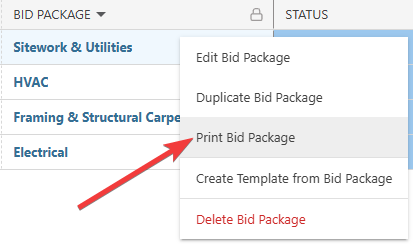
- Right-click on the package and select the "Print Bid Package" option from the dropdown menu.
- A new browser tab will open with the formatted Bid Package document.
- After reviewing the document for accuracy and completeness, click the "Print" button in the upper right corner to configure your printing settings and print your Bid Package report.

ADDITIONAL INFORMATION
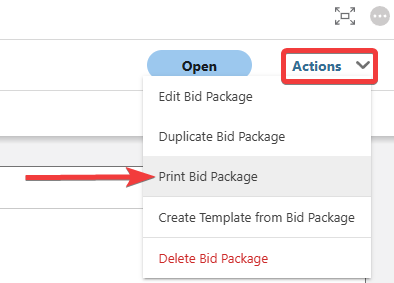
- Alternative Access Point: You can also print Bid Packages by clicking on the desired package and selecting "Print Bid Package" from the blue "Actions" dropdown menu.
- Subscription Level: Bid Tracking is available for ConstructionOnline accounts with active subscriptions at the Residential Business, Commercial Team and Business, Multi-Family Team and Business, and Enterprise levels.
- The Bid Tracking feature is also available as a Per-Company Add-On for all other plans.
- Permissions: Admin Users and Company Users with "Can View" or "Can Create, Edit, and Delete" permissions for Bid Tracking can print Bid Packages.
- CO™ Mobile App: The Bid Tracking feature is currently available exclusively via browser access to ConstructionOnline.
HAVE MORE QUESTIONS?
- Frequently asked questions (FAQ) about Bid Tracking can be found in the article FAQ: Bid Tracking.
- If you need additional assistance, chat with a ConstructionOnline Specialist by clicking the orange Chat icon in the bottom left corner or visit the UDA Support Page for more options.