
BACKGROUND
Managing numerous construction permits, each with distinct data and deadlines, presents a significant challenge for construction teams.
ConstructionOnline offers granular control over column order and visibility within the "Project Permits" List to help users avoid being overwhelmed by the sheer volume of permit data. This customization empowers users to tailor their view, focusing on the most essential permit details for their projects and workflows. Personalizing the interface can minimize information overload, accelerate data retrieval, and enhance overall project visibility.
Whether you need to prioritize expiration dates, track specific permit types, or ensure critical columns remain visible during horizontal scrolling, ConstructionOnline's customizable column settings provide the flexibility to optimize your permit management experience.
⚠️ Important: Any changes made to Column Order & Visibility are user-specific and do not affect other team members' views.
HOW TO MANAGE COLUMN ORDER & VISIBILITY OF PERMITS
- Navigate to the Permit Tracking feature.
- Rearrange the table by right-clicking on any column header in the dynamic table and selecting the "Show / Hide Columns" option.
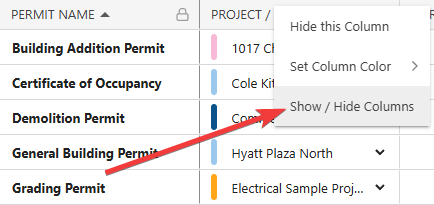
- Choose which columns will show in the table and in what order with the following actions -
- Show/Hide Columns: Mark the checkbox next to the columns you want to be visible. Unmark checkboxes next to the columns you want to remove from view.
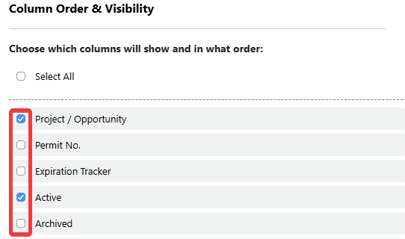
- All columns are shown by default. However, if you've made changes to the column visibility and would like to show all columns again, click the "Select All" checkbox.
- Order Columns: Customize the order in which columns appear by clicking and dragging column rows in the list to establish the way they appear on dynamic tables in List and Group By Views.
- Lock Columns: To keep important columns visible while scrolling horizontally, lock columns by hovering over the desired column name and clicking the blue "Lock Column" text or the lock icon.
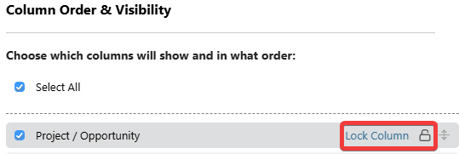
- Upon locking a column, the column will move above the dotted line at the top of the "Column Order & Visibility" window. This differentiates columns that have been locked and signifies that they will appear at the beginning of the table.
- Unlock columns by hovering over the locked column name and hitting the blue "Unlock Column" text or the lock icon.
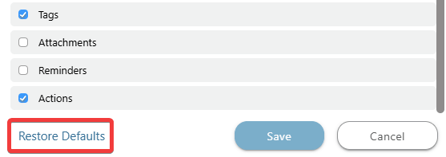
- Restore Defaults: Restore default settings for Column Order & Visibility by clicking the blue "Restore Defaults" text at the bottom of the "Column Order & Visibility" window. This will make all columns visible and return column order to the original arrangement.
- Show/Hide Columns: Mark the checkbox next to the columns you want to be visible. Unmark checkboxes next to the columns you want to remove from view.
- Click the blue "Save" button to apply the changes to the Column Order & Visibility of your "Project Permits" List.
🗒️ Note: Changes to Column Order & Visibility apply consistently across the List and Group By views for the "Project Permits" List.
PERMIT GLOSSARY
Definitions for potentially less familiar permit fields are provided below to assist with your "Project Permits" List column selection.
- Issuing Agency: The specific governmental body, at the local, regional, state, or federal level, that reviewed and issued the permit.
- Requested: The date that the permit was requested from the appropriate issuing agency.
- Issued: The date the permit was issued.
- Agency Contact: Your point of contact at the issuing agency for inquiries related to the permit.
- Responsible Contact: The assigned person responsible for managing the permit.
ADDITIONAL INFORMATION
- Subscription Level: ConstructionOnline's OnGuard Permit Tracking feature is available for companies with current ConstructionOnline subscriptions at Team, Business, and Enterprise levels.
- Permit Tracking is also available as a Per-Company Add-On for all other plans.
- Permissions: Admin Users and Company Users with "Can View" and "Can Create, Edit, & Delete" permissions for Permits are able to manage the view of their "Project Permits" table.
- CO™ Mobile App: The Permit Tracking feature is available via the mobile app, which allows users with the appropriate permissions to sort and filter permits. However, the "Project Permits" List's dynamic table view is exclusively available through browser access to ConstructionOnline.
HAVE MORE QUESTIONS?
- Frequently asked questions (FAQ) about Permit Tracking can be found in the article FAQ: Permit Tracking.
- If you need additional assistance, chat with a ConstructionOnline Specialist by clicking the orange Chat icon in the bottom left corner or visit the UDA Support Page for more options.