
BACKGROUND
Managing a vast network of company contacts is crucial for construction businesses, yet it often presents a significant organizational challenge. ConstructionOnline addresses this challenge by offering granular control over column order & visibility within the company directory. Managing the view of your "Companies" List ensures that the most vital company details - such as contact information, project associations, and more - are readily accessible and prioritized according to your specific workflow.
Whether you need to prioritize primary contacts, track specific company types, or want to ensure other critical columns remain visible while scrolling horizontally, ConstructionOnline's customizable column settings provide the flexibility to optimize your company management experience, streamlining operations and improving efficiency.
⚠️ Important: Any changes made to Column Order & Visibility are user-specific and do not affect other team members' views.
HOW TO MANAGE COLUMN ORDER & VISIBILITY OF COMPANIES
- Access the "Team Management" tab through the Left Sidebar or the Company Selector in the Top Navigation Bar.
- Under the "Contacts & Companies" section, select "Companies."
- This will open your "Companies" List, one of ConstructionOnline's Dynamic Tables.
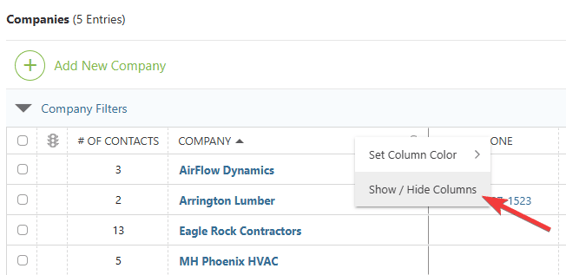
- Rearrange the table by right-clicking on any column header in the dynamic table and selecting the "Show / Hide Columns" option.
- Choose which columns will show in the table and in what order with the following actions -
- Show/Hide Columns: Mark the checkbox next to the columns you want to be visible. Unmark checkboxes next to the columns you want to remove from view.
- All columns are shown by default. However, if you've made changes to the column visibility and would like to show all columns again, click the "Select All" checkbox.
- Order Columns: Customize the order in which columns appear by clicking and dragging column rows in the list to establish the way they appear on dynamic tables in List and Group By Views.
- Lock Columns: To keep important columns visible while scrolling horizontally, lock columns by hovering over the desired column name and clicking the blue "Lock Column" text or the lock icon.
- Upon locking a column, the column will move above the dotted line at the top of the "Column Order & Visibility" window. This differentiates columns that have been locked and signifies that they will appear at the beginning of the table.
- Unlock columns by hovering over the locked column name and hitting the blue "Unlock Column" text or the lock icon.
- Restore Defaults: Restore default settings for Column Order & Visibility by clicking the blue "Restore Defaults" text at the bottom of the "Column Order & Visibility" window. This will make all columns visible and return column order to the original arrangement.
- Show/Hide Columns: Mark the checkbox next to the columns you want to be visible. Unmark checkboxes next to the columns you want to remove from view.
- Click the blue "Save" button to apply the changes to the Column Order & Visibility of your "Companies" List.
🗒️ Note: Changes to Column Order & Visibility apply consistently across the List and Group By views for the "Companies" list.
COMPANY GLOSSARY
Definitions for potentially less familiar Company fields are provided below to assist with your "Companies" List column selection.
- License #: The primary identification number issued by a governing body (federal, state, or local) that permits the Company to operate legally within a specific industry or for a particular type of business activity, ensuring compliance with regulations and signifying the Company's legitimacy and adherence to professional standards.
- Employer Identification No.: The nine-digit number assigned to the Company by the Internal Revenue Service (IRS) to identify it as a business entity for tax purposes. Also known as a Federal Tax Identification Number.
ADDITIONAL INFORMATION
- Subscription Level: The Company Directory is available for all ConstructionOnline subscriptions.
- Permissions: Admin Users and Company Users are able to manage the view of their "Companies" table.
- CO™ Mobile App: The Companies feature is available via the mobile app. However, your "Companies List" and the dynamic table view are exclusively available via browser access to ConstructionOnline.
HAVE MORE QUESTIONS?
- Frequently asked questions (FAQ) about Companies can be found in the article FAQ: Companies.
- If you need additional assistance, chat with a ConstructionOnline Specialist by clicking the orange Chat icon in the bottom left corner or visit the UDA Support Page for more options.