
BACKGROUND
Bid packages, with their competitive deadlines and multi-party coordination requirements, can present significant challenges to keeping the bidding process on track. ConstructionOnline's Bid Tracking addresses this by centralizing bid package management and offering automated email reminders. Automating reminders helps companies proactively engage bidders, reduce the risk of missed deadlines, and streamline the administrative effort involved in managing the bidding process.
Customizing email templates and scheduling automated reminders within the system ensures that both internal team members and external contacts receive timely and relevant information, reducing the potential for bidding delays and fostering a more competitive, efficient procurement process.
⚠️ Important: Bid Package Reminder Settings are global - any changes made to Bid Package reminders within your Bid Package Reminder Settings apply to all users and affect all Projects within your Company Account.
HOW TO MANAGE BID PACKAGE REMINDERS
- From within your "Bid Packages" List, click on the gray 3-dot Action Menu
 and select the "Bid Package Reminder Settings" option from the dropdown menu.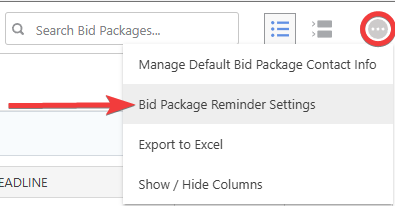
- The "Bid Package Reminders Settings" window will open on your screen, where you can configure your permit reminders' Email Templates and Automated Reminders -

- Email Templates: Customize the message that will appear in the email body when reminders are sent.
- ConstructionOnline provides three default email templates, preloaded into all accounts with access to Bid Tracking. These email templates are configured and auto-populate with key details from the related Bid Package.
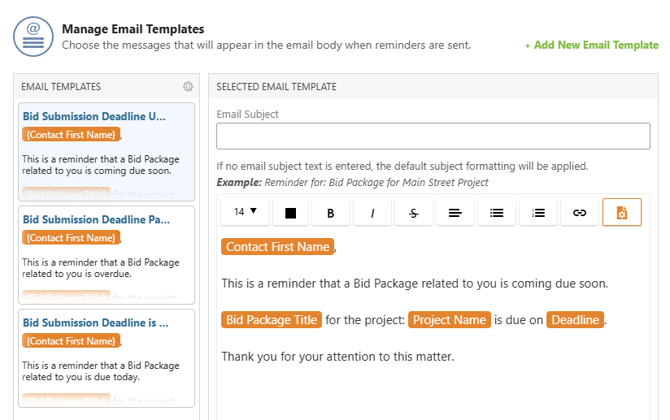
- Modify existing email templates directly within their associated text box or by hovering over them, clicking on their gray three-dot Action Menu, and choosing from the options: "Edit," "Rename," "Duplicate," or "Delete."
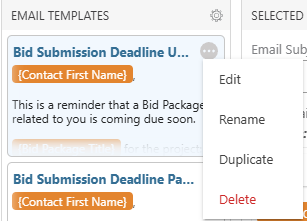
- Beyond the three default templates provided, new custom email templates can be created by clicking the green (+) Add New Email Template button.

🗒️ Note: The default templates can be restored at any time by clicking the gear icon at the top of your "Email Templates" List and selecting "Restore Default Templates."
- Modify existing email templates directly within their associated text box or by hovering over them, clicking on their gray three-dot Action Menu, and choosing from the options: "Edit," "Rename," "Duplicate," or "Delete."
- ConstructionOnline provides three default email templates, preloaded into all accounts with access to Bid Tracking. These email templates are configured and auto-populate with key details from the related Bid Package.
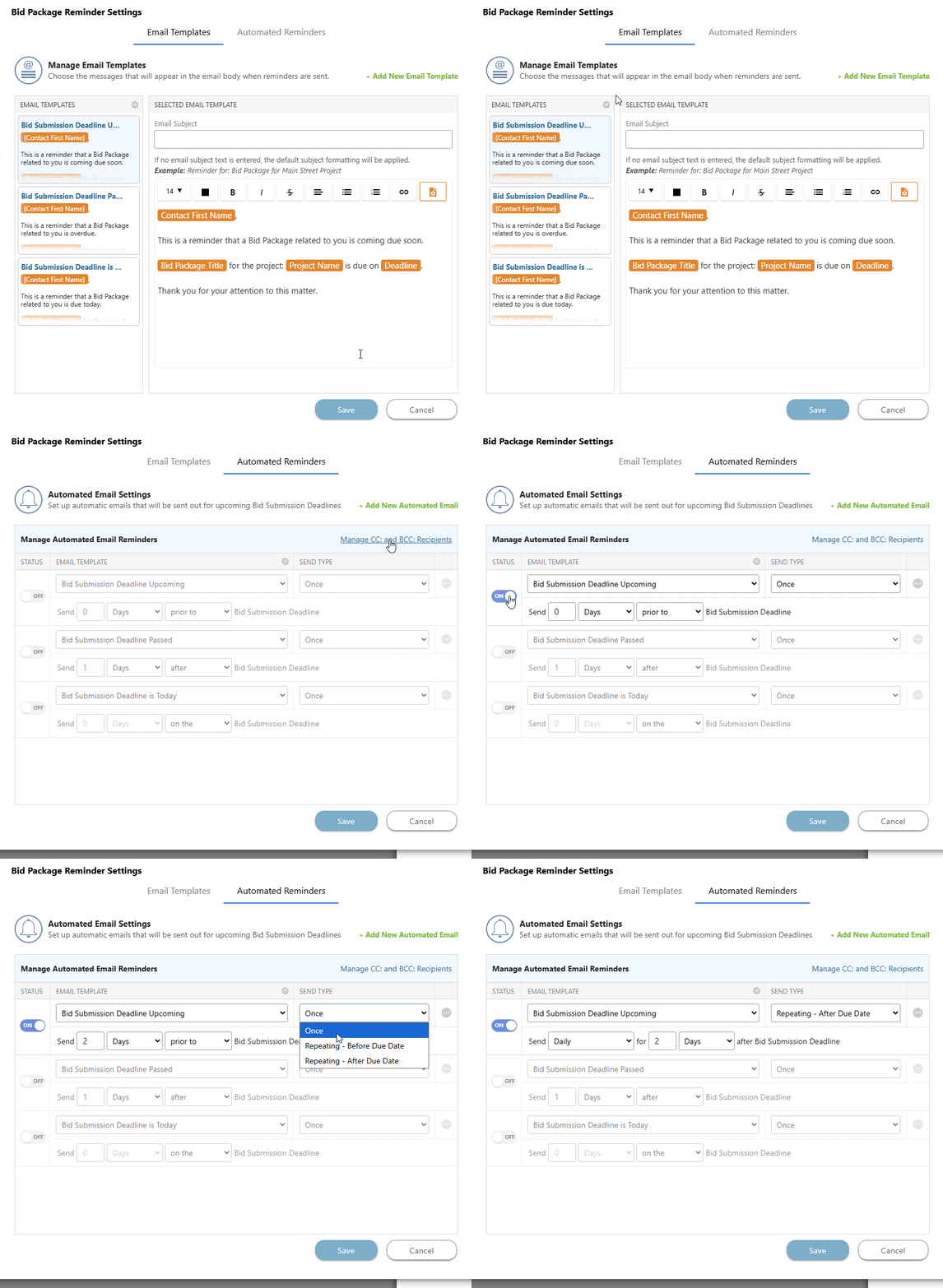
- Automated Reminders: Manage the content and timing of automatic emails sent to chosen recipients for current and passed bid submission deadlines.
- Choose the "Status," "Email Template," "Send Type," and "Timing" for reminders being sent.
- A reminder's status must be toggled On to be activated and can be toggled Off at any time.
- When managing your automated email reminders, select the green (+) Add New Automated Email to add another reminder to your list. A single Bid Package can trigger multiple of these scheduled reminders if it meets each of their defined criteria. You can also click on the gray three-dot Action Menu of the desired reminder to push through an email at that time or delete it.
- Choose the "Status," "Email Template," "Send Type," and "Timing" for reminders being sent.
- Email Templates: Customize the message that will appear in the email body when reminders are sent.
- Click the blue "Save" button to save all changes made to your Company Account's Bid Tracking Reminder Settings and apply the reminder configuration.
ADDITIONAL INFORMATION
- Subscription Level: Bid Tracking is available for ConstructionOnline accounts with active subscriptions at the Residential Business, Commercial Team and Business, Multi-Family Team and Business, and Enterprise levels.
- The Bid Tracking feature is also available as a Per-Company Add-On for all other plans.
- Permissions: Admin Users and Company Users with "Can Create, Edit, & Delete" for Bid Tracking can manage Bid Package Reminder Settings
- CO™ Mobile App: The Bid Tracking feature is currently available exclusively via browser access to ConstructionOnline.
HAVE MORE QUESTIONS?
- Frequently asked questions (FAQ) about Bid Tracking can be found in the article FAQ: Bid Tracking.
- If you need additional assistance, chat with a ConstructionOnline Specialist by clicking the orange Chat icon in the bottom left corner or visit the UDA Support Page for more options.