
BACKGROUND
Reduce risk and improve project workflows by leveraging ConstructionOnline's powerful permit management tools. With OnGuard™ Permit Tracking for ConstructionOnline, users can quickly record, monitor, and report on all construction project permits. Dynamic filtering and search capabilities allow users to easily locate specific permits, while customizable views provide a personalized experience. The "Project Permits" List in ConstructionOnline is the central repository for all permits, empowering users to track progress and proactively address potential issues.
⚠️ Important: Any changes made to the display or organization of the "Project Permits" List - including any changes made to Column Order & Visibility - are user-specific and do not affect other team members' views.
THE "PROJECT PERMITS" LIST
The "Project Permits" List is the central repository for all permits associated with your ConstructionOnline Company Account. With the "Project Permits" List being one of ConstructionOnline's Dynamic Tables, users have full control over how permits are displayed within their account and can customize this view to suit their needs by using the following methods -
Permit Filters:
🗒️ Note: ConstructionOnline, by default, sets each Filter category to display "All."
By expanding the Permit Filters feature in the "Project Permits" List, you can choose to filter by - 
- Date: Choose the "Date Type," "Date Range," "Start Date," and "End Date" used to filter the permits.
- Projects: Show permits associated with certain Project(s).
- Archived: View "Archived" and/or "Not Archived" permits.
- Active: View "Active" and/or "Inactive" permits.
- You can also easily filter the table to only show Active permits by clicking the "Hide Inactive Permits" checkbox on the right side of the Permit Filters section.
- Type: Filter by specific type(s) of permit.
- Status: Show permits of a certain status.
- Tags: Display permits with selected Tags.
- Agency Contact: Refine the permits shown by all or a specific agency contact.
- Responsible Contact: Filter permits based on assigned responsible contact(s).
To clear established Permit Filters, you can -
- Select the X next to the specific Filter category you want to revert back to "All."
- Use the blue "Clear Filters" text next to the ❌ to reset the "Project Permits" List to the default filters of "All" for each category.
Customizing the Table:
Right-click on any column header in the dynamic table and select the "Show / Hide Columns" option to choose which columns will show in the table and in what order with the following actions -
- Show/Hide Columns: Mark the checkbox next to the columns you want to be visible. Unmark checkboxes next to the columns you want to remove from view.
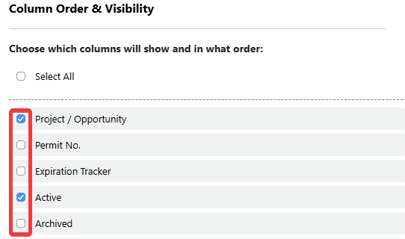
- All columns are shown by default; however, if you've made changes to the visibility of your columns and would like to show all columns once again, mark the checkbox next to "Select All."
- Order Columns: The order in which columns appear can be customized by clicking and dragging column rows in the list to establish the way they appear on dynamic tables in List and Group By Views.
- Lock Columns: To keep important columns visible while scrolling horizontally, columns can be locked by hovering over the desired column name and clicking the blue "Lock Column" text or the lock icon.
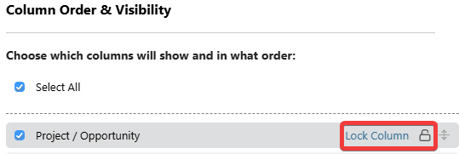
- Upon locking a column, the column will move above the dotted line at the top of the "Column Order & Visibility" window. This differentiates columns that have been locked and signifies that they will appear at the beginning of the dynamic table.
- Columns can be unlocked at any time by hovering over the locked column name and hitting the blue "Unlock Column" text or the lock icon.
- Restore Defaults: The default settings for Column Order & Visibility can be restored at any time by clicking the blue "Restore Defaults" text at the bottom of the "Column Order & Visibility" window. This will make all columns visible and restore the order of the columns to their original arrangement.
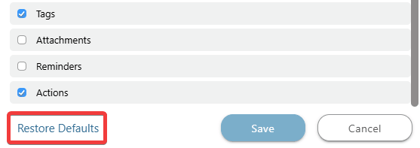
Click the blue "Save" button to apply the changes made to the Column Order & Visibility of your "Project Permits" List.
🗒️ Note: Any changes made to the order or visibility of columns will be reflected on the dynamic table in both List and Group By Views.
Search:
Use the search bar to type in the specific permit that you are looking for within the "Project Permits" List.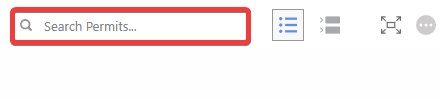
- Search by: Permit Name, Project / Opportunity, Permit Number, Issuing Agency, Associated Contact(s), Notes, or Tags.
Permit Board Views:
.png?width=57&height=51&name=ChatGPT%20Image%20May%2012%2c%202026%2c%2011_50_10%20AM%20(1).png) List View
List View
-
List View is the default interface for managing the "Project Permits" List in ConstructionOnline. It offers a spreadsheet-style format for easy viewing, organizing, and updating of your company permits. With features like inline editing, sortable columns and rows, interactive cell elements, and endless table styling options, List View provides the most comprehensive view of your data with unparalleled flexibility and control.
%20(1).png?width=54&height=43&name=ChatGPT%20Image%20May%2013%2c%202026%2c%2010_50_26%20AM%20(1)%20(1).png) Group By View
Group By View
-
The Group By View amplifies the capabilities of the List View by allowing you to group construction permits into tables by column header. Group By offers the same dynamic table and functions available in List View but with the added ability to visualize the status of your permits using features such as drag-and-drop, compound columns, sortable groups, and compressible tables.
ADDITIONAL INFORMATION
- Subscription Level: ConstructionOnline's OnGuard Permit Tracking feature is available for companies with current ConstructionOnline subscriptions at Team, Business, and Enterprise levels.
- Permit Tracking is also available as a Per-Company Add-On for all other plans.
- Permissions: Admin Users and Company Users with "Can View" and "Can Create, Edit, & Delete" permissions for Permits are able to manage the view of their "Project Permits" List.
- CO™ Mobile App: The Permit Tracking feature is available via the mobile app, which allows users with the appropriate permissions to sort and filter permits. However, the "Project Permits" List's Dynamic Table view is exclusively available through browser access to ConstructionOnline.
HAVE MORE QUESTIONS?
- Frequently asked questions (FAQ) about Permit Tracking can be found in the article FAQ: Permit Tracking.
- If you need additional assistance, chat with a ConstructionOnline Specialist by clicking the orange Chat icon in the bottom left corner or visit the UDA Support Page for more options.