
ConstructionOnline Drive (CO™ Drive) is a desktop application for Windows that integrates directly with ConstructionOnline, combining the power of the desktop with the flexibility of the cloud. With CO Drive, you can upload large batches of files and import construction project schedules, emails, and attachments from the desktop to projects in ConstructionOnline—and edit online documents directly in their native desktop apps, ensuring version control and data continuity.
This guide to Getting Started with CO Drive walks through what ConstructionOnline Drive does and the four tabs you'll work in: Files, Photos, Schedules, and Emails.

CO Drive is a separate desktop application for Windows. You'll download and install it on your computer, then sign in with your ConstructionOnline account to access your projects.

The Files Tab
The Files Tab is where you can easily upload and manage your project documents and images—and it's built specifically to handle a large volume of files.
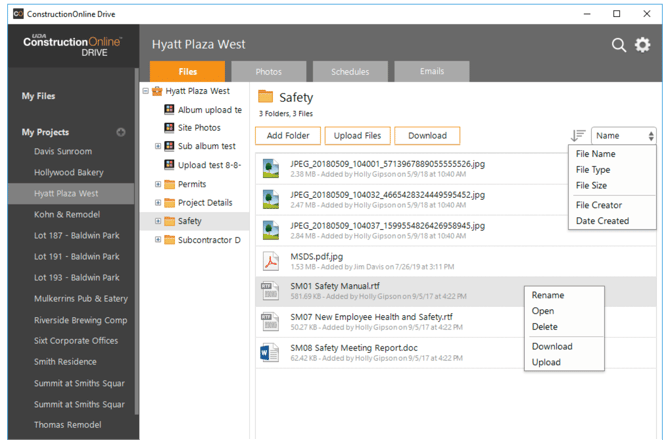
- Navigate Your Projects: Your ConstructionOnline Projects are listed here on the left. Select any project to see its folder and albums, and the items saved within the selected folder or album.
- Upload Large Batches: Send up to 500 files at a time from your computer's file browser straight to ConstructionOnline. Faster and better than attempting an action of that volume through a web browser alone.
- Organize & Manage Files: Add folders, upload or download files, sort by File Name, Type, Size, Creator, or Date Created, and right-click any item to Rename, Open, Delete, or Download.
 Editing and Versioning
CO Drive also gives you full editing power over online files:
1. Open the File. Double-click on the file you want to edit, o or right-click and choose Open from the action menu. The file will open in the default application for its file type.
(For example, a spreadsheet saved in .xlxs format will open in Microsoft Excel.)
2. Edit the File. Make the desired changes to the file and save to finalize.
3. Choose How to Version the File. CO Drive will ask you how to handle the edited file.
You can choose to:
a. Overwrite Original: Replaces the original file with the revised version in
the ConstructionOnline Project
b. Upload as a Copy: Preserves the original and uploads the revised
version as an additional file
c. Discard Changes: Preserves the original file in ConstructionOnline and
cancels any upload of the revised version
The Photos Tab
The Photos Tab give you an easy way to see and manages any images or albums in your ConstructionOnline projects.
- View Albums & Images: Access project albums to view saved photos. Sort photos within the selected album by File Name, File Type, File Size, Date Created, or Creator.
- Organize & Upload Images: Create new albums and move photos accordingly. Upload large batches of photos directly from your computer.
The Schedules Tab
The Schedules Tab turns an existing, compatible schedule file into a ConstructionOnline schedule automatically.
- Drag & Drop Uploads: Create schedules in ConstructionOnline from Microsoft Project, Primavera P6, or SureTrak files. Simply drag and drop an existing schedule file into CO Drive, and ConstructionOnline will automatically create an identical schedule for the project—no double entry required.
- If a schedule already exists for the project in ConstructionOnline,
uploading a new file will replace the current schedule.
- If a schedule already exists for the project in ConstructionOnline,
- View Schedule Details: When the project has an existing schedule, the Schedule Details will be conveniently displayed on the Schedules Tab.
The Emails Tab
The Emails Tab lets you store project correspondence alongside other project communication.
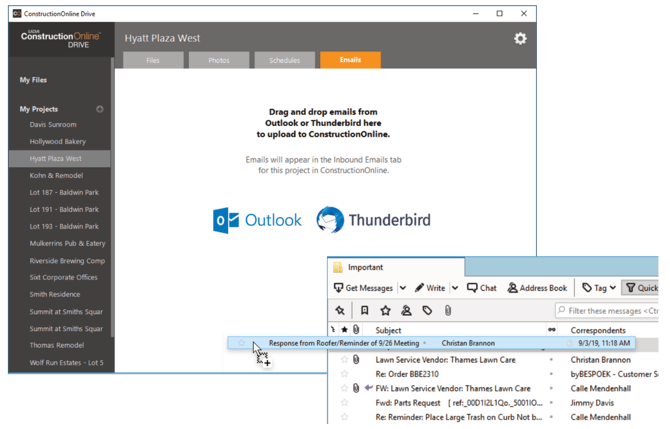
- Import Emails: Drag & Drop emails directly from Outlook or Thunderbird onto the Emails Tab to upload them to ConstructionOnline.
- Access & Share Project Emails: Imported emails appear in the project's Communication tab in ConstructionOnline, under the Inbound Emails tools—attachments & all. Company Users with appropriate permissions can access correspondence here, and all emails are stored securely as part of the project record for easy reference and a clear audit trail.
Suggested Next Steps
-
Follow the installer's prompts to download and install, then sign in using your ConstructionOnline credentials.
HAVE MORE QUESTIONS?
- Learn more about CO™ Drive in the ConstructionOnline Knowledge Base here.
- If you need additional assistance, chat with a ConstructionOnline Specialist by clicking the orange Chat icon in the bottom left corner or visit the UDA Support Page for more options.