
BACKGROUND
Clear, timely communication is essential to keeping construction projects on track. As project details evolve, the ability to manage and update communication is key to avoiding confusion, preventing disputes, and maintaining accurate project records.
ConstructionOnline's Comments make it easy for teams, clients, and partners to collaborate in context, directly within project records like Daily Logs, Client Selections, and Change Orders. And when a Comment is no longer relevant, was added in error, or needs to be removed for clarity, ConstructionOnline allows authorized users to delete Comments, helping ensure that project communication stays clean, current, and professional.
THINGS TO CONSIDER
- Comments are available across multiple ConstructionOnline features. For a complete list of supported features, see FAQ: Comments in ConstructionOnline.
- Access to Comments depends on your current ConstructionOnline subscription and the inclusion of each specific feature.
- Users can only access or interact with Comments if they have the appropriate feature-level permissions and visibility to the specific Comment Thread.
- Removing a user's permissions to a feature does not delete their existing Comments—it only removes their access to the thread.
- Admin and Company Users can delete any Comment, regardless of who posted it.
- ClientLink and TeamLink Contacts can only delete Comments they themselves have posted.
⚠️ Important: Deleted Comments are permanently removed from the Comment Thread and cannot be recovered!
HOW TO DELETE A COMMENT
- Navigate to the relevant feature within your ConstructionOnline account (e.g., Daily Logging, Client Selections, or Change Orders).
- Hover over the record containing the desired Comment Thread (such as a log entry or selection choice).
- Locate and click the Comment icon to open the "Comments Thread" window.

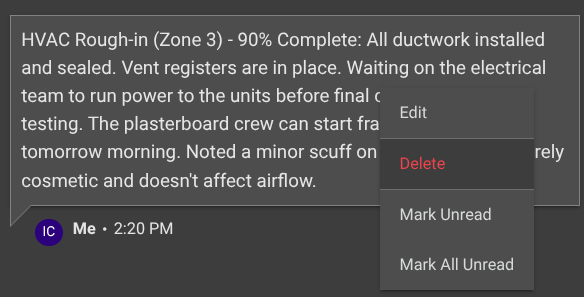
- Right-click on the Comment you would like to delete and select the red "Delete" option from the dropdown menu.
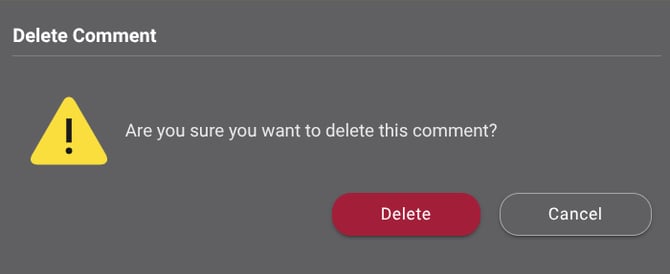
- ConstructionOnline will require double-verification to complete the Comment deletion. Confirm your decision to delete the Comment by clicking the red "Delete" button.
- Once confirmed, the Comment will be permanently removed from the thread.
ADDITIONAL INFORMATION
- Subscription Level: ConstructionOnline's Comments are available to ConstructionOnline Company Accounts with an active subscription that includes access to supported features.
- Permissions:
- Admin Users and Company Users with "Can Create, Edit, and Delete" permissions for the associated feature can delete any Comment.
- ClientLink Contacts and TeamLink Contacts can only delete their own Comments.
- CO™ Mobile App: Comments are available within all mobile app features that support Comments.
HAVE MORE QUESTIONS?
- Frequently asked questions (FAQ) about Comments can be found in the article FAQ: Comments.
- If you need additional assistance, chat with a ConstructionOnline Specialist by clicking the orange Chat icon in the bottom left corner or visit the UDA Support Page for more options.