
BACKGROUND
During the bidding process, there may be times when a Bid Sheet needs to be deleted from a Bid Package—such as duplicate sheets or entries that were created for testing. Removing unnecessary Bid Sheets helps keep your Bid Package organized, reduces confusion for your team and subcontractors, and ensures your bidding records remain accurate and up to date.
⚠️ Important: Deleting a Bid Sheet is a permanent action. Once deleted, Bid Sheets are permanently removed from the Bid Package and cannot be recovered.
HOW TO DELETE A BID SHEET
- From within your "Bid Packages" list, locate the desired Bid Package with the Bid Sheet you wish to delete.
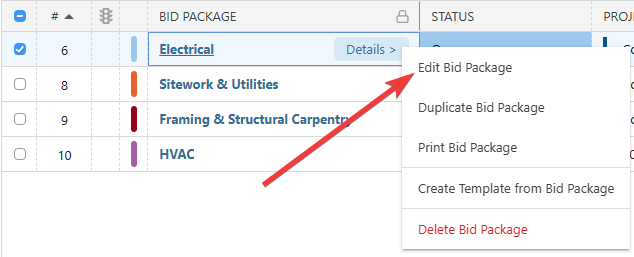
- Right-click on the package and select the "Edit Bid Package" option from the dropdown menu.
- Navigate to the "Bid Sheets" tab.

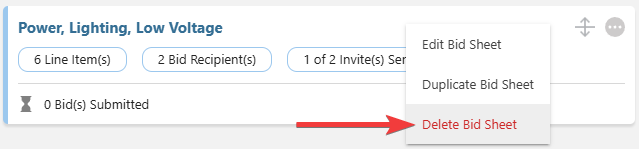
- Right-click on the desired Bid Sheet or press the gray 3-dot Action Menu and select the red "Delete Bid Sheet" option from the dropdown.
- A confirmation message will appear in the bottom-right corner of your screen confirming deletion. The blue "Undo" text is the only opportunity to revert the action.

⚠️ Important: If any Bidders were only added to this specific Bid Sheet within the Bid Package, any bid invitation emails they received will automatically update to display the following message when they attempt to view the Bid Package: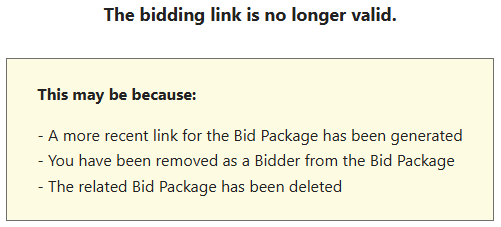
- A confirmation message will appear in the bottom-right corner of your screen confirming deletion. The blue "Undo" text is the only opportunity to revert the action.
ADDITIONAL INFORMATION
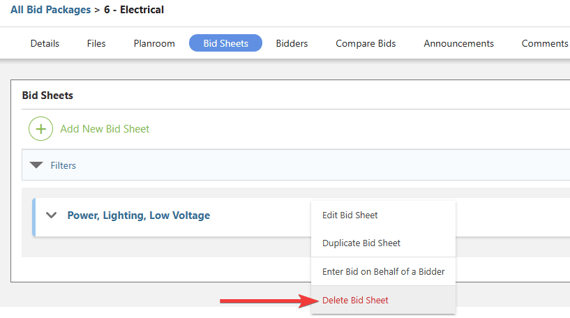
- Alternative Access Point: You can also delete Bid Sheets by clicking on the desired package and right-clicking on the desired Bid Sheet within the "Bid Sheets" tab.
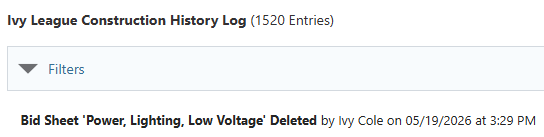
- You can see information regarding this activity logged in the Company History Log, where ConstructionOnline records the Bid Sheet that was deleted, the user who deleted the sheet, and the date and time of deletion.
- Subscription Level: Bid Tracking is available for ConstructionOnline accounts with active subscriptions at the Residential Business, Commercial Team and Business, Multi-Family Team and Business, and Enterprise levels.
- The Bid Tracking feature is also available as a Per-Company Add-On for all other plans.
- Permissions: Admin Users and Company Users with "Can Create, Edit, and Delete" permissions for Bid Tracking can delete Bid Sheets.
- CO™ Mobile App: The Bid Tracking feature is currently available exclusively via browser access to ConstructionOnline.
HAVE MORE QUESTIONS?
- Frequently asked questions (FAQ) about Bid Tracking can be found in the article FAQ: Bid Tracking.
- If you need additional assistance, chat with a ConstructionOnline Specialist by clicking the orange Chat icon in the bottom left corner or visit the UDA Support Page for more options.